
|
Available from EHR 2026 |
Flexible working arrangements allow employees to request changes to their work hours, start and finish times, or work from home days through EmpowerHR Self Service.
Employees submit a request using a single form. The form adapts based on the employee's role configuration – some employees see all three options, others may only see the option to change their work hours. This is controlled through installation settings in Desktop.
What employees can request
| Request Type |
Description |
|---|---|
| Change work hours | Adjust contracted hours per week |
| Change start and finish times | Set personalised daily work times |
| Work from home | Nominate specific WFH days |
Employees can combine multiple types in a single request.
Requests follow a configurable approval workflow
A typical workflow could be: Employee submits → Manager reviews → HR reviews (optional) → Payroll reviews and processes in Desktop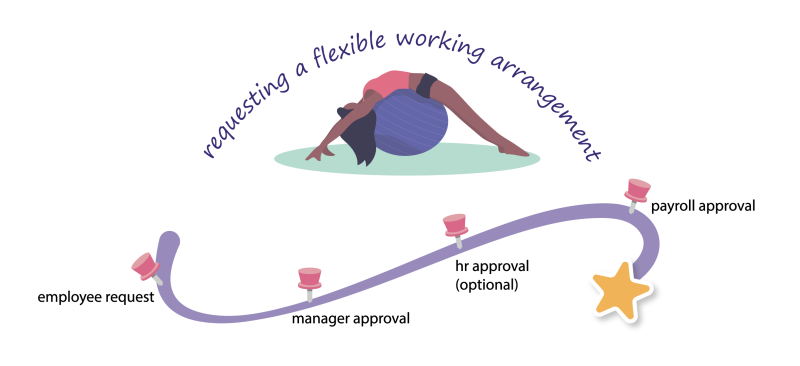
At each stage, the approver can approve, redirect, return to the employee, or reject the request. Automatic notifications are sent at every step.
The HR approval step is optional and depends on your workflow configuration. When included, the HR approver checks the request against Fair Work requirements and organisational policies.
The request is only finalised when payroll staff complete processing in Desktop, which triggers the position movement and sends a confirmation notification to the employee.
Track requests through the Self Service dashboard
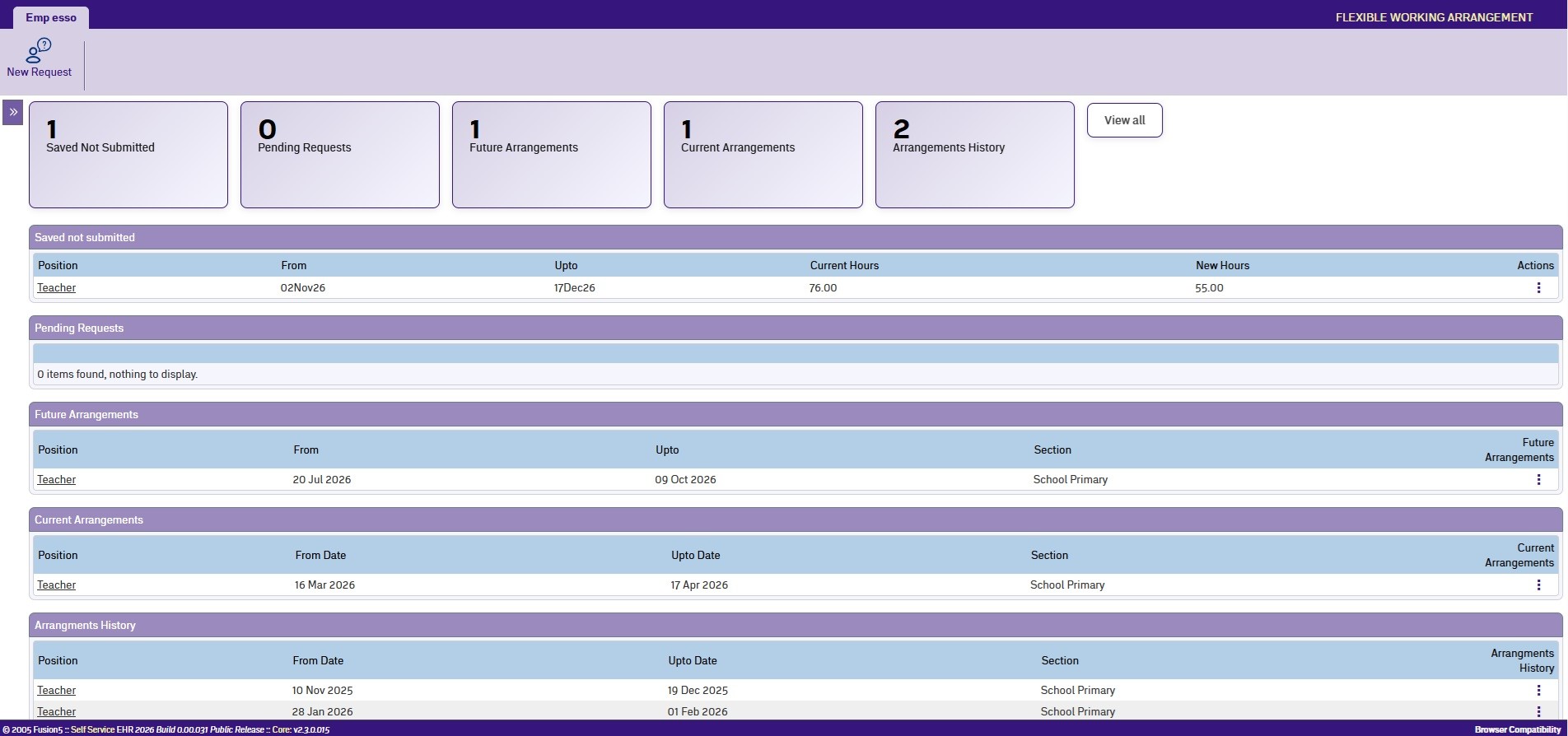
Employees and managers can view the status of flexible working arrangement requests from the Self Service dashboard. The dashboard shows saved, pending, future, current, and historical arrangements so you can track progress without searching through notifications.
Next topic |
|---|
© 2023 Fusion5. All rights reserved.