You can control whether EmpowerHR issues error or warning messages when users enter values that do not pass validation rules. For example, when someone makes an entry in a field on their flexi timesheet.
You can set the severity level to:
- Warning
- Error
- Ignore
The following shows how to set the severity level for a flexi timesheet field.
To set the field error validation severity: 
- Go to Administration > Screen Management > Field Error Validation.
- At Field Error Validation, expand the Self Service list.
- Expand the Requests list.
- Expand the Flexi Timesheet list.
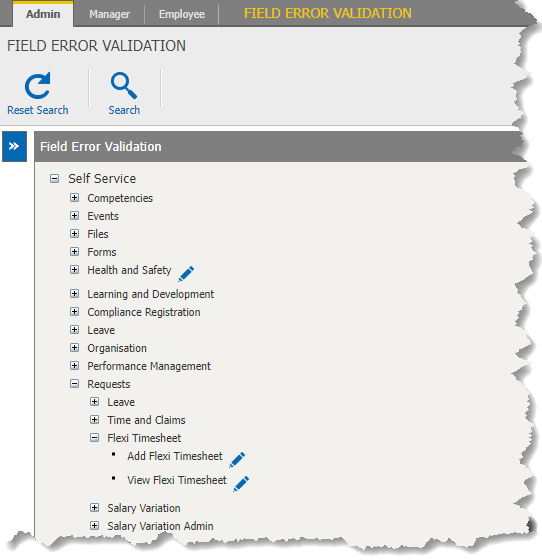
- At Add Flexi Timesheet, click Change. The Add Flexi Timesheet screen displays.
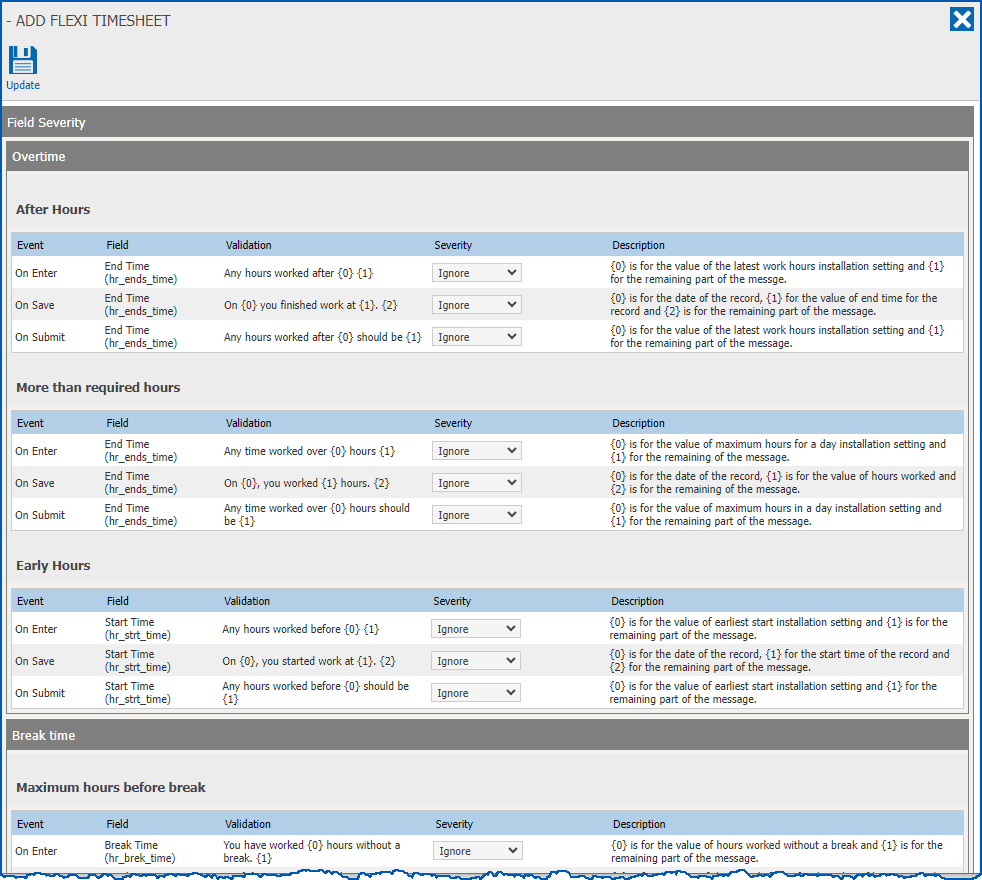
- Find the field you want to set the validation severity for.
- Select an option from the Severity dropdown list.

|
See the following case studies, which demonstrate how to use error validation to prevent employees adding work time in certain scenarios. |
- Click Update.
|
|
In each of the following four case studies, we show how to set the field error severity level to Error, preventing employees from adding work time. However, if your organisation prefers, you can select Warning from the Severity dropdown list. Then EmpowerHR displays a warning message, allowing an employee to add work time (with a comment). |
| Case study 1: working on a full day of booked leave |
Prevent employees from adding work time to a leave day When an employee creates a leave request, it automatically appears in their flexi timesheet. If you want to prevent them from adding work time to the leave day (and then accruing flexi time), you can set the severity to Error, which results in EmpowerHR disabling the timesheet’s Add Line button for that day. How? In step 6 of the procedure, locate the list of Full Day Leave fields, and at the On Enter event, select Error from the Severity dropdown list.
|
| Case study 2: working on a day off |
Prevent part-time employees from adding hours to a day they’re not scheduled to work By default, part-time employee can enter hours on a day they’re not scheduled to work. If you want to prevent them from adding work time to the non-work day, you can set the severity to Error, which results in EmpowerHR disabling the timesheet’s Add Line button for that day. How? In step 6 of the procedure, locate the list of Non work day fields, and at the On Enter event, select Error from the Severity dropdown list.
|


| Case study 3: working on a public holiday |
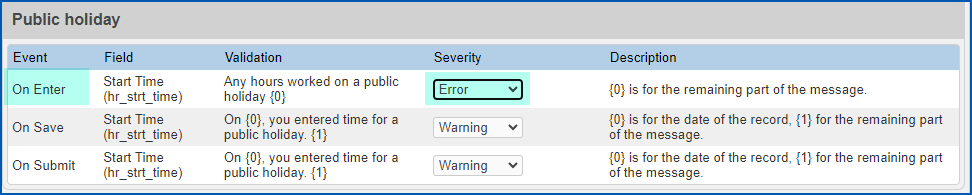
Prevent employees adding work time to a public holiday If you want to prevent employees from adding work time to a public holiday, you can set the severity to Error, which results in EmpowerHR disabling the timesheet’s Add Line button for that day. How? In step 6 of the procedure, locate the list of Public holiday fields, and at the On Enter event, select Error from the Severity dropdown list.
|
| Case study 4: working on a weekend |
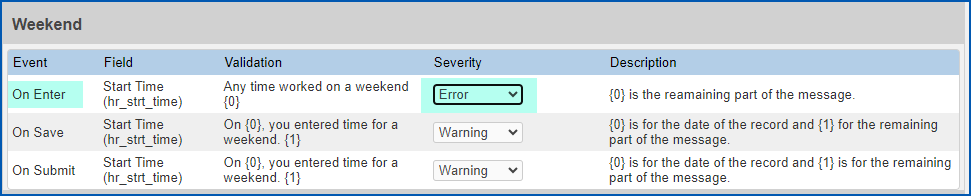
Prevent employees adding work time to weekends If you want to prevent employees from adding work time to weekends, you can set the severity to Error, which results in EmpowerHR disabling the timesheet’s Add Line button for those days. How? In step 6 of the procedure, locate the list of Weekend fields, and at the On Enter event, select Error from the Severity dropdown list.
|
© 2023 Fusion5. All rights reserved.