To check and fix and any errors once the onboarding/bulk take-on job is finished: 
- Go to Background Jobs > Bulk Data Take-On > Position/Employee Data > Bulk Take-On Error Enquiry.
- EmpowerHR displays a summary of errors and warnings for you to review.
- To fix an error, go to Background Jobs > Bulk Data Take-On > Position/Employee Data > Bulk Take-On/Onboard Error Fix.
- EmpowerHR lists the employees with errors in the data upload.
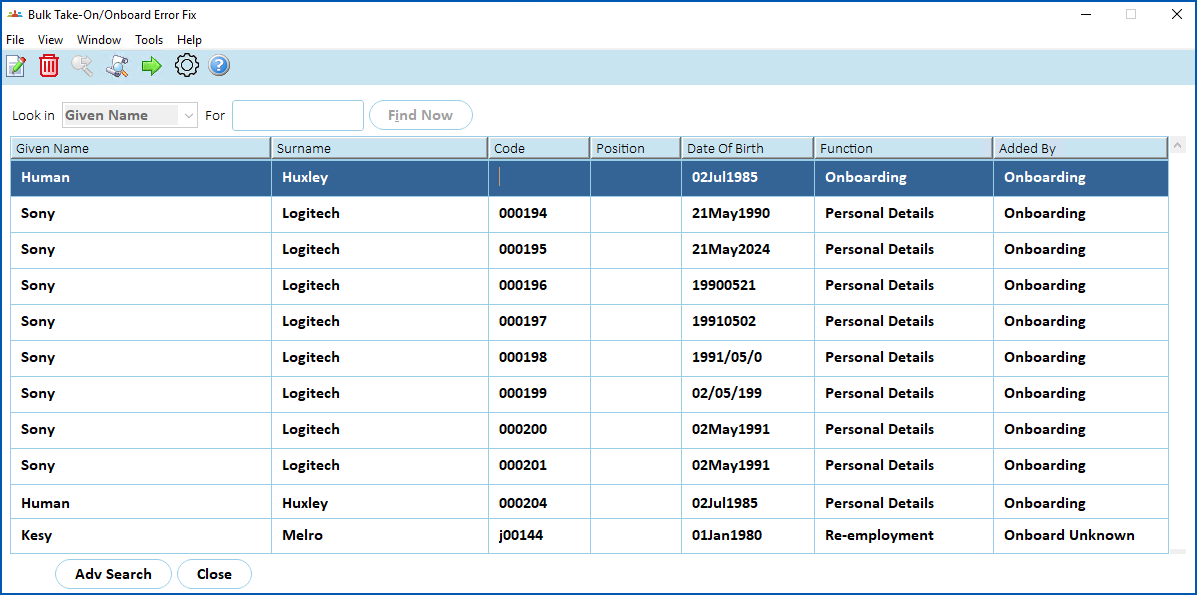
- Select a row, and then click Open.
- The Personal Details Error Correction screen displays details of the error. In the following example, on the Demographics tab, the error message shows the Date Implemented field value is invalid.
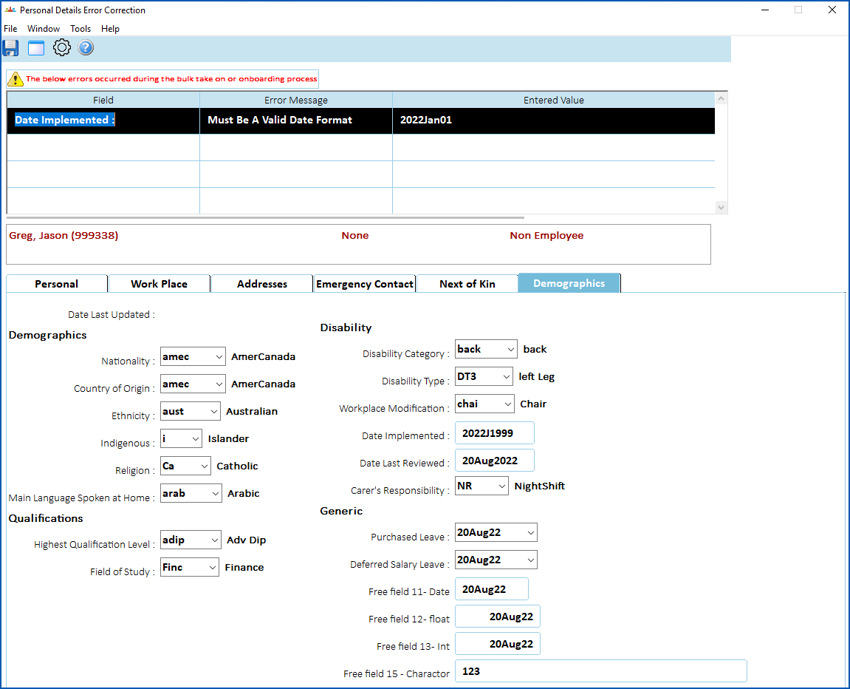
- Fix the error by entering the correct data. In this example, you would enter a valid date in the Date Implemented field.
- Click Save. EmpowerHR loads the data for the employee.
Re-employment errors
When a re-employment record can't be fully matched to a terminated employee, it appears on the Bulk Take-On/Onboard Error Fix screen. You may see messages like "Surname not the same", "DOB is different", or "The Employee could not be found using the supplied details".
If the employee code is blank, use the lookup to find the right person. If the record shouldn't be a re-employment, enter a new employee code to onboard as a new starter.
© 2023 Fusion5. All rights reserved.