To create or update/delete a self service user profile in MSS:
- Go to Administration > Security > User Profiles.
- The User Profiles catalogue displays.
- At Search Filter, complete the fields according to the type of search criteria you want to apply, and then click Search to see the results.
- To:
- create a new user profile, click Add. Go to step 5.
- update an existing user profile's details, at the row containing the profile, click Actions and then select Edit from the menu. Go to step 5.
- update an existing user profile's organisation access, at the row containing the profile, click Actions and then select Org Access from the menu. EmpowerHR displays the Organisation Access catalogue. See change organisation access for what to do next.
- delete an existing user profile, at the row containing the profile, click
 Actions and then select Delete from the menu. At the User Profile details screen, click Delete to confirm and EmpowerHR deletes the profile. No further action is required.
- At the User Profile details screen, complete or update the user profile fields.
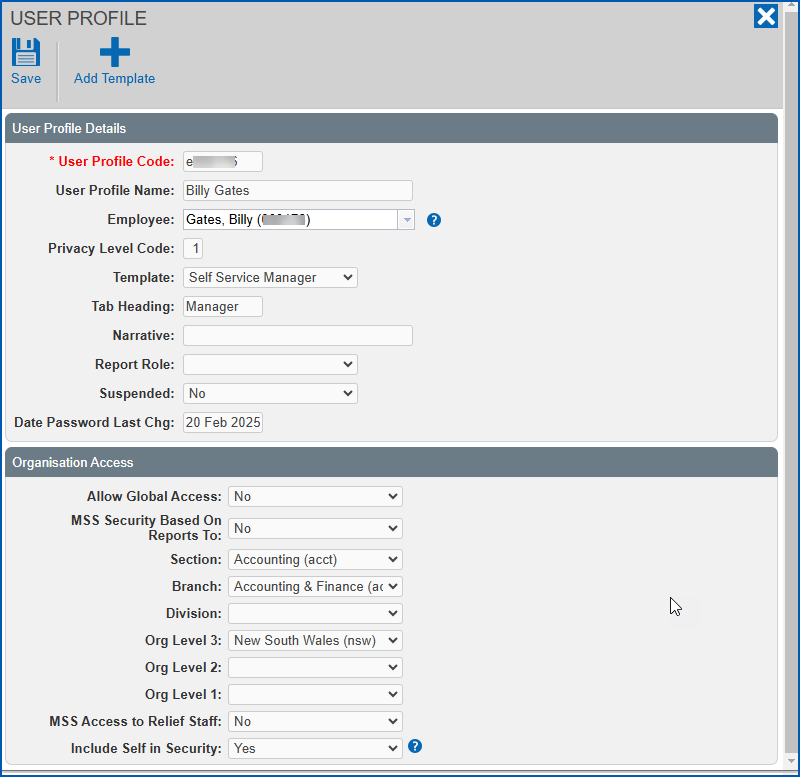
- Click Save. EmpowerHR displays the new/updated profile in the User Profiles catalogue.
© 2023 Fusion5. All rights reserved.