Timesheet / payment catalogue
Whether you are an employee using ESS  , or a manager working in MSS , a Timesheet / Payment catalogue is available where you create and view requests and their status.
ESS = Employee Self Service
MSS = Manager Self Service
Timesheet / payment catalogue in ESS
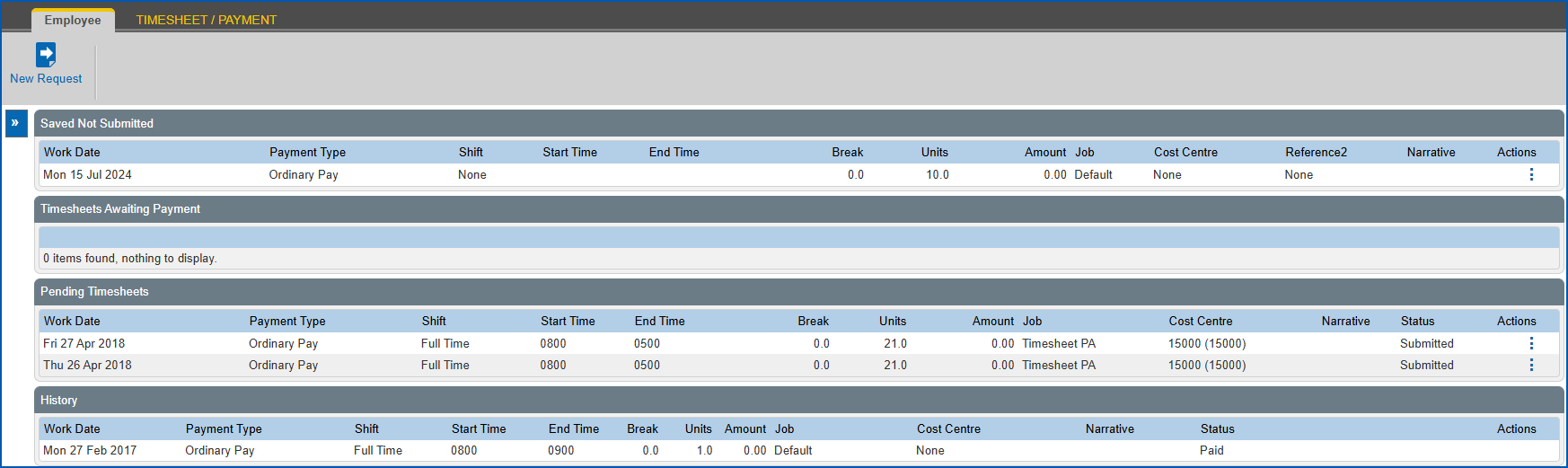
Here's an example of the Timesheet / Payment catalogue in ESS, located at Requests > Timesheet / Payment.
Timesheet / payment catalogue in MSS
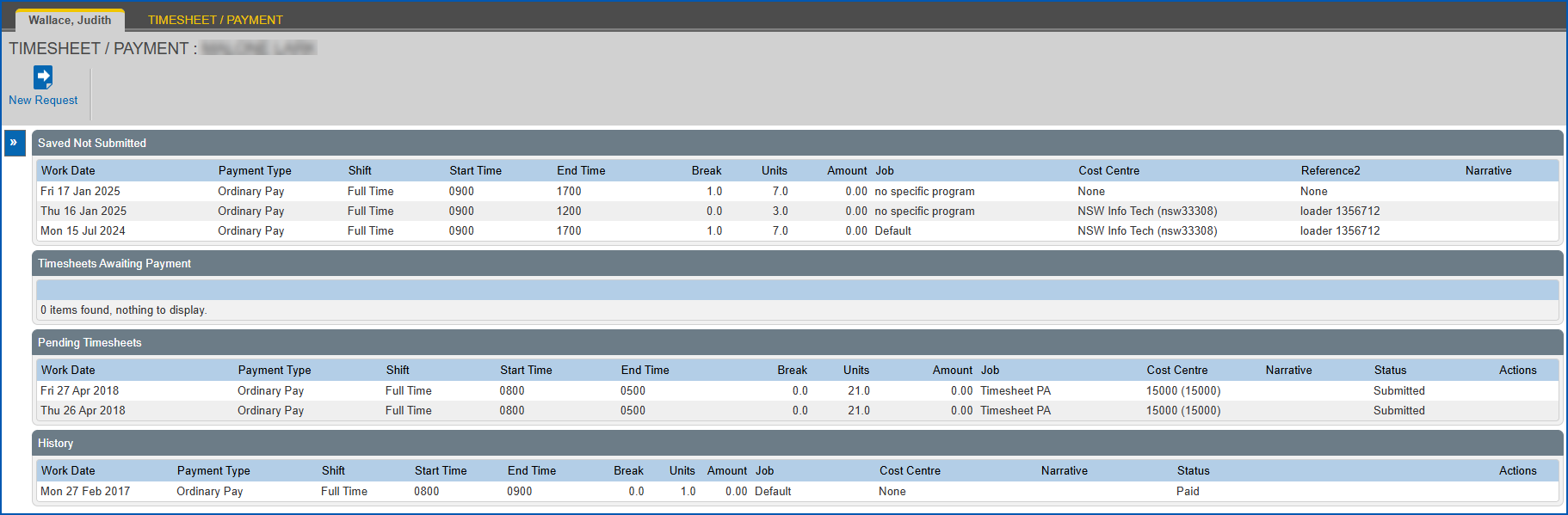
Here's an example of the Timesheet / Payment catalogue in MSS. You access this catalogue by first selecting an employee from Staff Management and then clicking Requests > Timesheet / Payment.
Can I create a timesheet / payment request?
- As an employee, you can create your own timesheet / payment requests in ESS.
- As a manager, you can create a timesheet / payment request (on your employee's behalf) in MSS.
Create a timesheet / payment request 
 | If you are a manager creating a request on behalf of an employee, you must first go to Staff Management, search for and select the employee. |
To create a timesheet payment request:
- Go to Requests > Timesheet / Payment.
- At the Timesheet / Payment catalogue, click New Request.
- At the Enter Timesheet Information screen, complete the fields (using the following table as a guide) and enter a new row for each work date in the timesheet.
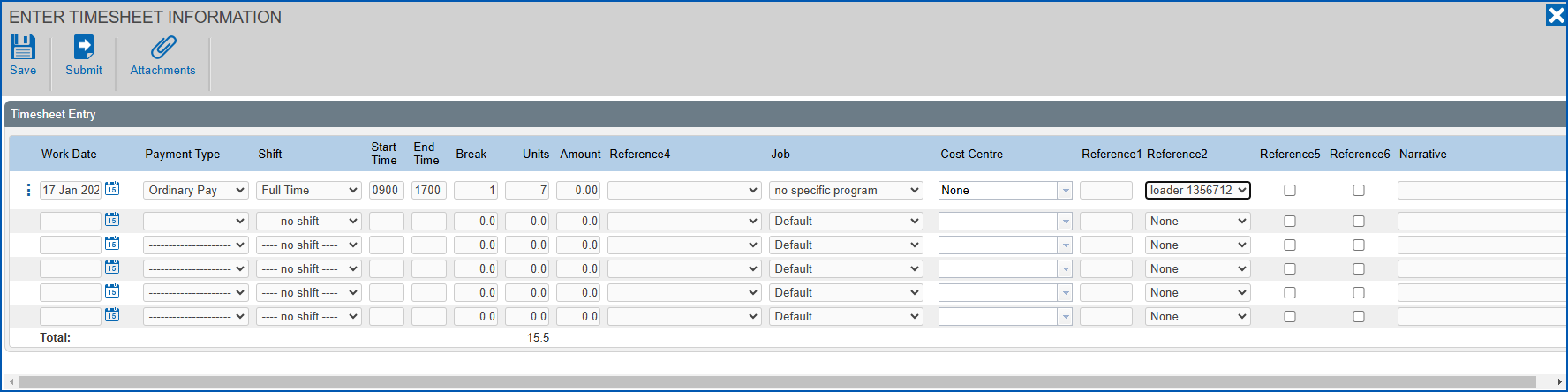
| The following table provides general guidance. You'll find the purpose and names of some fields, and how they behave, depends on how they've been set up to suit your organisation. |
| At this field... | Do this... |
|---|---|
Work Date | Click Date Lookup and select the date you worked. It must be a date that falls within an open pay period. |
Payment Type | Select the payment type from the dropdown list. |
Shift | Select a shift from the dropdown list. |
Reference7 | Select this checkbox, where required. |
Start Time | Enter the time you started work. |
End Time | Enter the time you finished work. |
Break | Enter the amount of time you had for a break. |
Units | Nothing. EmpowerHR calculates and displays the units based on your entries. |
Amount | Nothing. EmpowerHR calculates the amount. |
Reference3 | Select an option from the dropdown list. |
Reference4 | Select an option from the dropdown list. |
Job | Select a job from the dropdown list. |
Cost Centre | Select a cost centre from the dropdown list. |
Reference1 | Enter a reference, if needed. This is a free text field. Whatever you enter here appears on the pay data entry record. |
Reference2 | Select a pay data entry ref2 code from the dropdown list. |
Reference5 | Select this checkbox, where required. |
Reference6 | Select this checkbox, where required. |
Narrative | Enter comments, if you want. |
|
|
To delete an entry (row) from a timesheet, click   (ellipsis) and, at the Actions menu, click Delete. |
- If you:
- want to attach documents to the request, click Attachments, attach the files and click Confirm. Go to step 5.
- don't want to attach documents to the request, then go to step 5.
- Click Save.
- Close the Enter Timesheet Information screen.
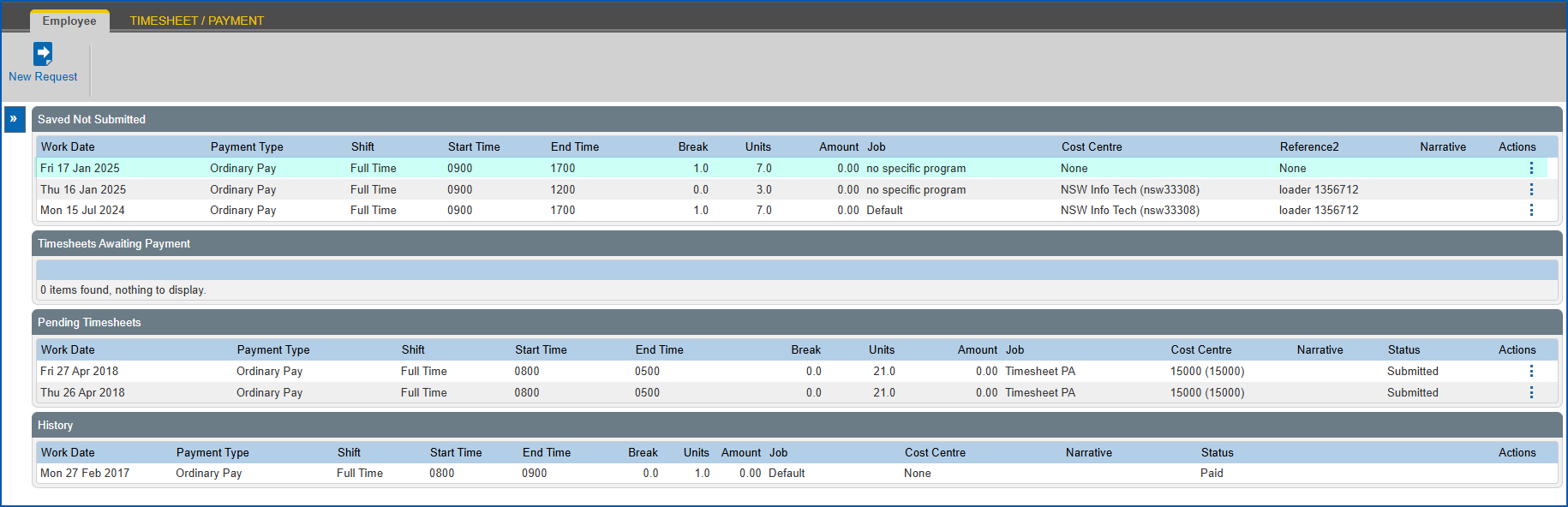
- At the Timesheet / Payment catalogue, your saved request appears in the Saved - Not Submitted list.
Submit a timesheet / payment request for approval
|
|
If you are a manager who created a request on behalf of an employee, you cannot submit the request. The employee must submit the request. |
When you are ready to submit a request for approval:
- Go to Requests > Timesheet / Payment.
- EmpowerHR displays the Timesheet / Payment catalogue.
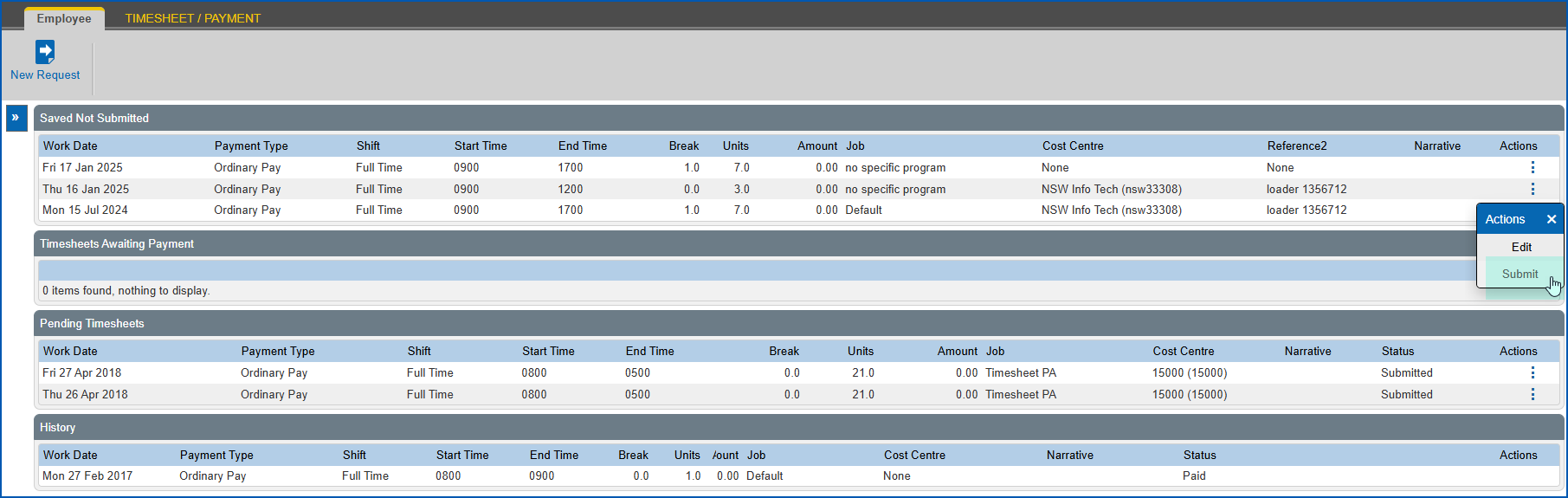
- In the Saved - Not Submitted list, at any request row, click Actions and then select Submit from the menu.
| It doesn't matter which request row you choose to submit as EmpowerHR submits the whole timesheet. In the following example, we select Submit on the third timesheet item and all three items are then submitted. |
- At the Workflow :: Addressee dialog box, in:
- Send To, select an approver from the dropdown list
- Comments, add a message if you want
- Click Send To to submit your request for approval.
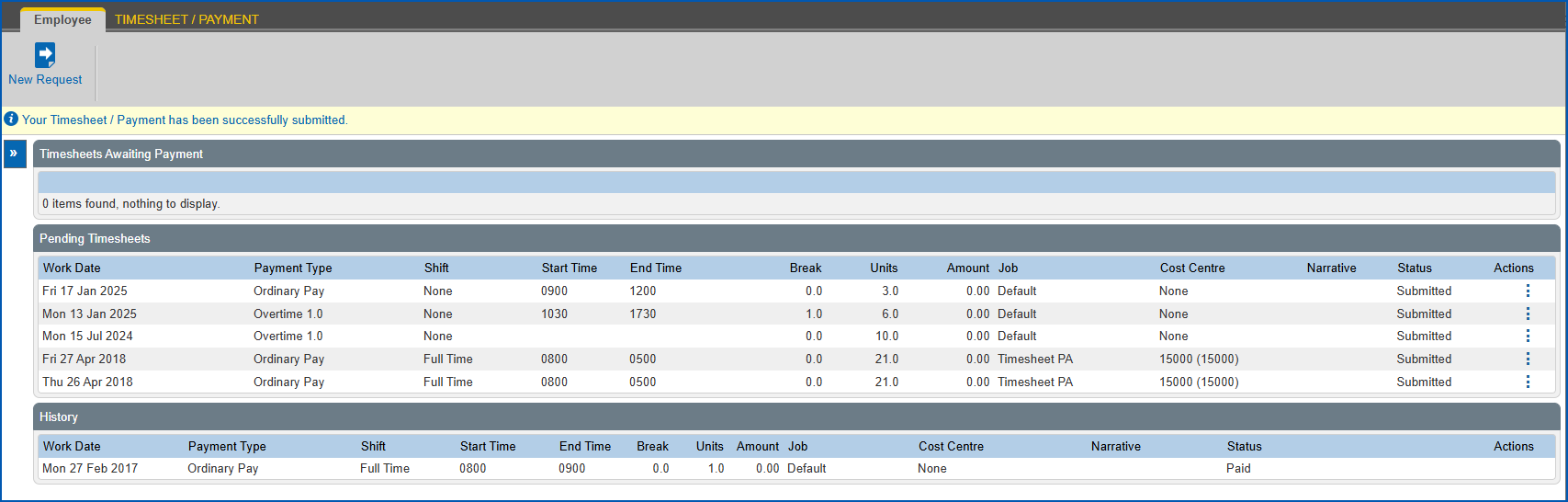
- Your request appears in the Pending Timesheets list on the Timesheet / Payment catalogue ready to be actioned by an approver.
© 2023 Fusion5. All rights reserved.