To create a registration request:
- Click Compliance Registration.
- At the Compliance Registration summary screen, click Add New Registration.
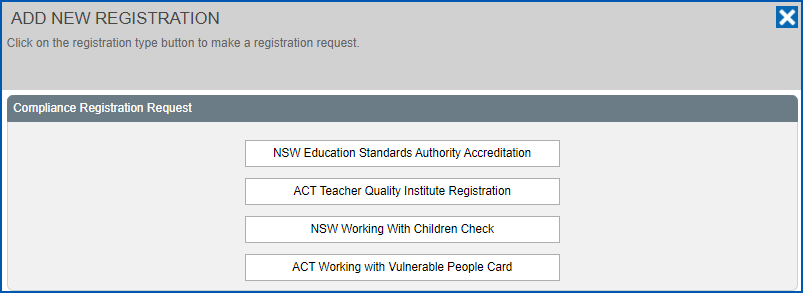
- At the Add New Registration (registration type) dialogue box, click the registration type.
- The Add New Registration detail screen for the selected registration type displays. The following example shows the detail screen for TQI registration type.
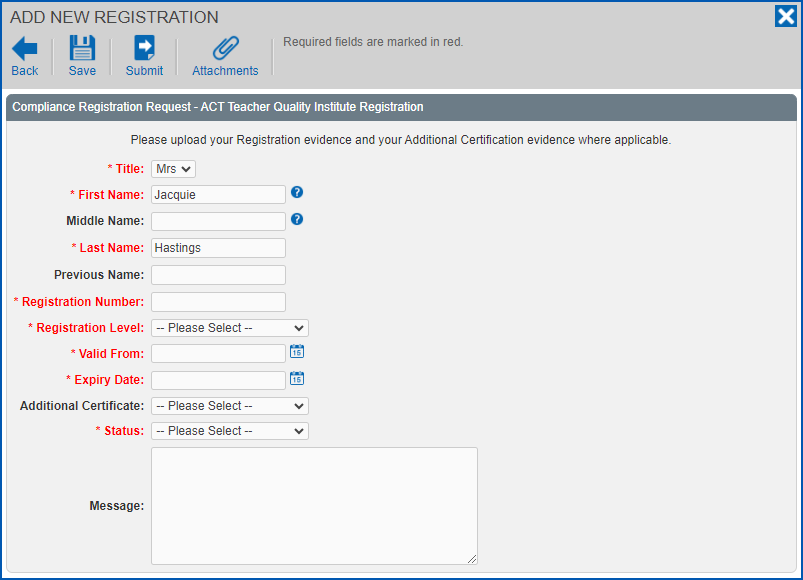
- Complete the request fields (according to the registration type):
- Attach supporting documents to your request, for example, accreditation evidence, payment receipts, etc:
- click Attachments
- drag and drop the files from your file directory to the attachments dialogue box
- click Confirm. The attachments are added and the Add New Registration detail screen displays.
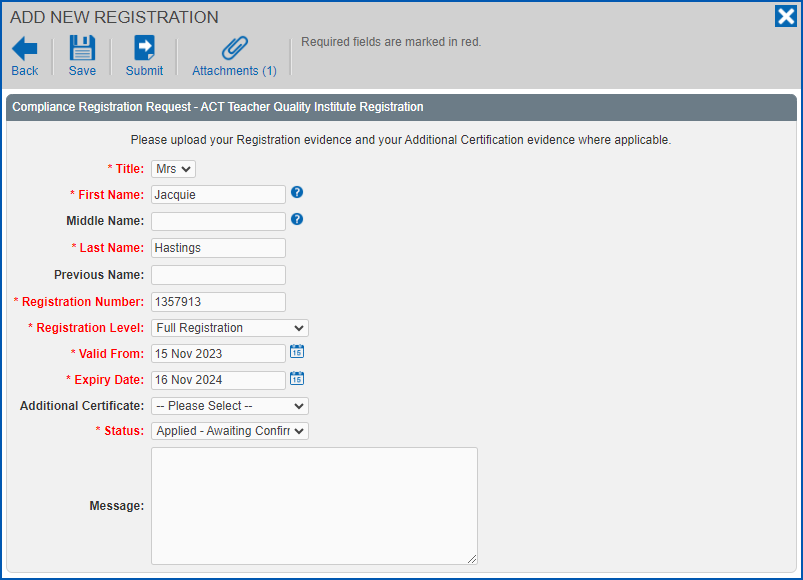
- Click Save.
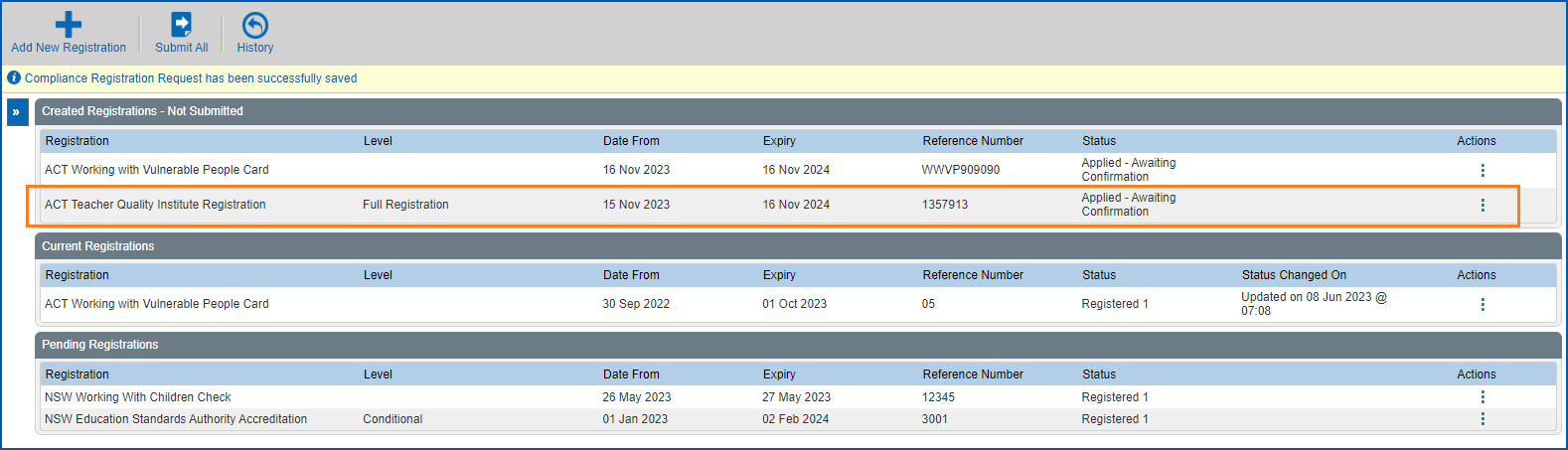
- At the Compliance Registration summary screen, your saved request appears in the Created Registrations - Not Submitted list.


|
Once you save a request, you can view and edit the request as many times as you like before submitting it for processing. |
© 2023 Fusion5. All rights reserved.