Configure the installation option for position-based forms
By default, EmpowerHR allows a manager to create position-based form types on behalf of all positions they have hierarchical access to, including vacant, abolished, and redundant positions. This is controlled by the installation option called (smpf) allow creation and access of position type forms from staff management. If you prefer to switch off this feature, use the following procedure.
To disallow the (smpf) allow creation and access of position type forms from staff management installation option:
- Go to Administration > Configuration > All Configuration.
- At Configuration Items, expand Self Service, and then expand Forms.
- Click (smpf) allow creation and access of 'position' type forms from staff management.
- At Choice, click n (no).
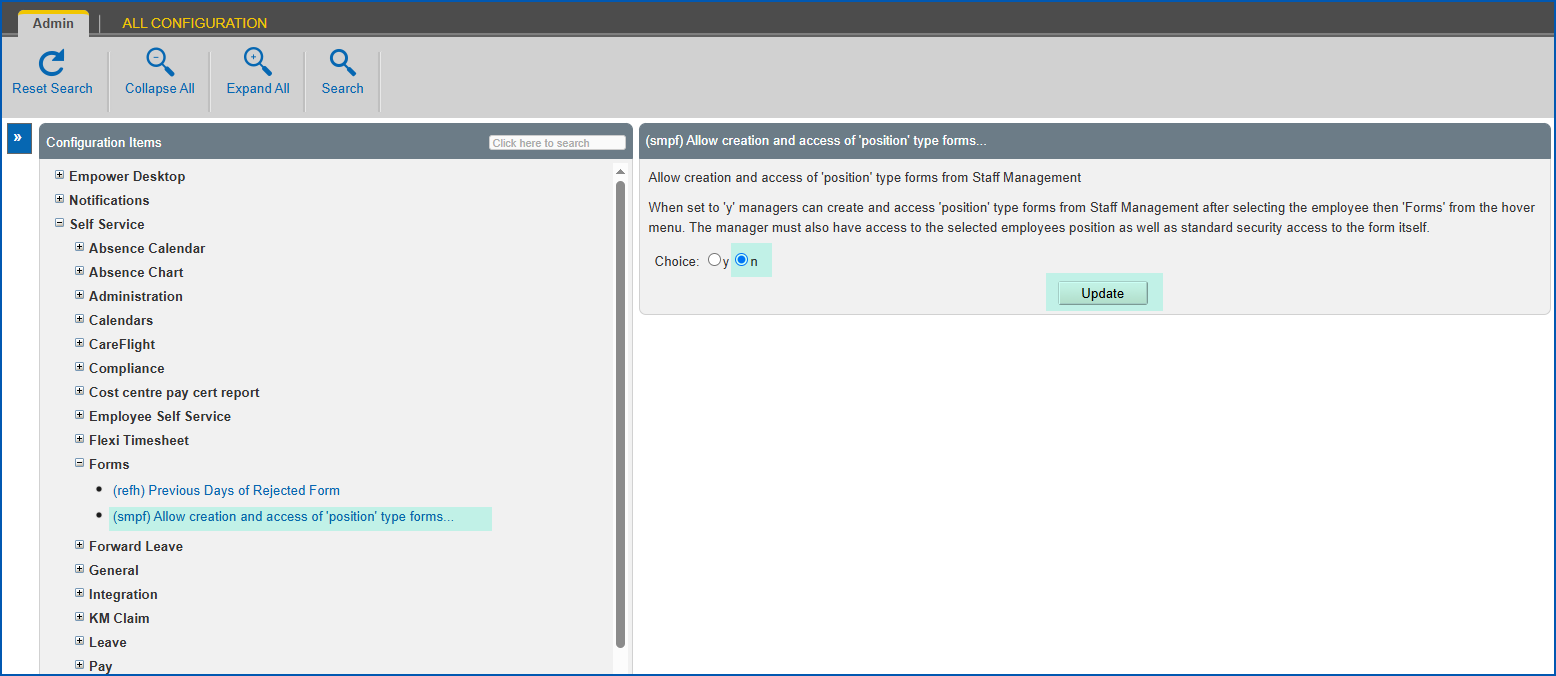
- Click Update.
Create a manager-initiated position form
As a manager, you can create a manager-initiated position type form from the Position Management screen.
To create a position-based form for your employees:
- Go to Organisation > Position Management.
- EmpowerHR displays the Position Management screen.
- At Search Filter, complete the fields according to the type of search criteria you want to apply, and click the Include Redundant or Abolished if you want to include these positions in the search.
- Click Search to see the results.
- On the row containing the position you want to create the form for, click Actions and then select Forms from the menu.
- EmpowerHR displays the Forms for Position... screen.
- Click Create New Form.
- At the Create New Form for Position... screen, select the Form Type from the dropdown list.
 | The dropdown list shows only the position-based form templates relating to the selected position. |
- Click Continue. EmpowerHR displays the form details screen.
- At the form details screen, complete the fields.
- If you:
- want to attach documents to the form, click Attachments, attach the files, and then click Confirm. Go to step 12.
- don't want to attach documents to the form, then go to step 12.
- At the form details screen, to
- save your entries, click Save, or
- save your entries and also start the workflow process, click Submit. (Alternatively, you can choose to save the form now and then submit it later, if you prefer.)
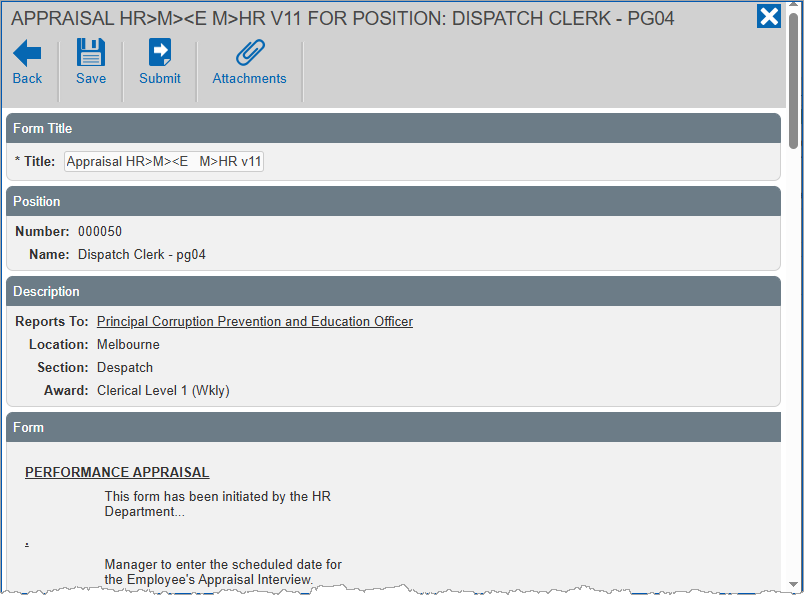
- Close the form details screen.
- EmpowerHR displays the Forms for Position... screen with the form listed.
© 2023 Fusion5. All rights reserved.