EmpowerHR allows you to update regular transactions with an effective date, in bulk.
You must use an effective date that is the start date of a pay period for the payroll cycle (for example, weekly, fortnightly, monthly).
EmpowerHR automatically end-dates the current regular transaction record with the previous pay run's pay period end date.

|
When not to use the date effective method Do not use this method if you want EmpowerHR to calculate super payments made after 1 July 2024 at, for example, 11.5%, even where payments relate to a period before 1 July 2024. By just updating the percentage currently held on the regular transaction, EmpowerHR applies 11.5% super to all superable payments made in future pay runs. See bulk update regular transactions for instructions. |
To bulk update regular transactions with an effective date: 
- Go to Tasks > Employees > Bulk Updates > Date Effective Regular Trans.
- At the Date Effective Regular Trans - Add screen, complete the fields using the following table as a guide.
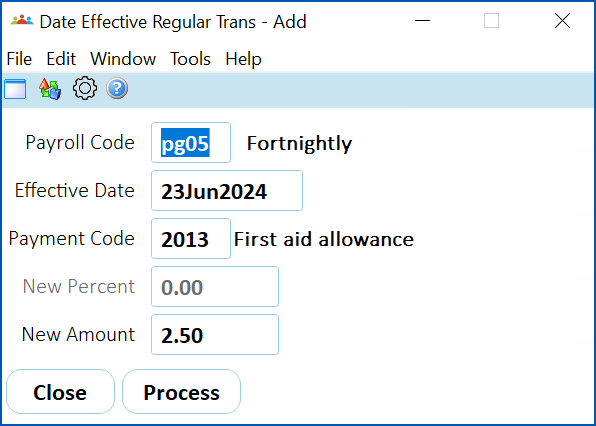
| At this field... | Do this... | ||
|---|---|---|---|
Payroll Code | Click Window, find and double-click the code to add it to the field. | ||
Effective Date | Click Window, find and double-click the payroll's period starting date to add it to the field.
| ||
Payment Code | Click Window, find and double-click the code to add it to the field.
| ||
New Percent New Amount | When you have selected a Payment Code and pressed Tab, EmpowerHR moves your cursor to either the New Percent or New Amount field. This depends on how the Percentage Calculation field on the payment code is set. If it's set to:
|
- Click Process. EmpowerHR updates all current records for the specified payment code on the employee's Regular Transaction screen, irrespective of the dollar amount or percentage.
© 2023 Fusion5. All rights reserved.