You can upload (take on) leave balances in bulk by providing the data in a spreadsheet and using the leave take-on process. You can use this process for all types of leave except long service leave (LSL).

|
Typically, you would only need to do this when you first implement EmpowerHR. A Fusion5 Consultant can help you with this process - make an iHelp request to get started. |
What file do I need to prepare?
You need to create an xml file containing the required data.
|
|
Remember to exclude column headings from the files. |
Here's the format to use. Each row should represent an employee and a leave type/code. An asterisk (*) shows which data is mandatory.
| Column > | A* | B* | C | D* | E* | F* | G* | H* |
|---|---|---|---|---|---|---|---|---|
Employee Code | Employment Number | Employee Position | Leave Type | Leave Code | Leave Balance | Last Accrual date
| Original Last Accrual date | |
| Characters > | 10 | 1 | 10 | 4 | 4 | 10 including up to 5 decimal places | DDMMYY | DDMMYY |
| Column > | I* | J | K | L | M | N | O |
|---|---|---|---|---|---|---|---|
Start Accrual date | Work Pattern Code | Pubic Holiday Code | Leave Loading Value | Ignore Deferrals | Leave Reason Code | Paid Date | |
| Characters > | DDMMYY | 4 | 4 | 10 including up to 5 decimal places | 1 | 4 | |
| Must be a valid paid date for the employee's payroll. If this data is provided, only then will Leave Entitlements be populated. |
Upload (take on) leave balances in bulk
To upload (take on) leave balances in bulk:
- Go to Tasks > Leave > Leave TakeOn > Leave Take-On.
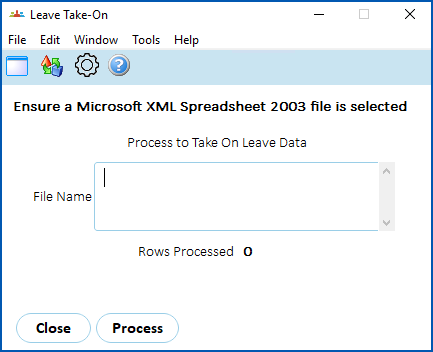
- Click Window and select the spreadsheet file.
- Click Process.
- EmpowerHR loads and validates the spreadsheet data.
- If any data fails validation, the system displays an error log.
© 2023 Fusion5. All rights reserved.