To open Query Manager:
Go to Enquiries > Query Manager.
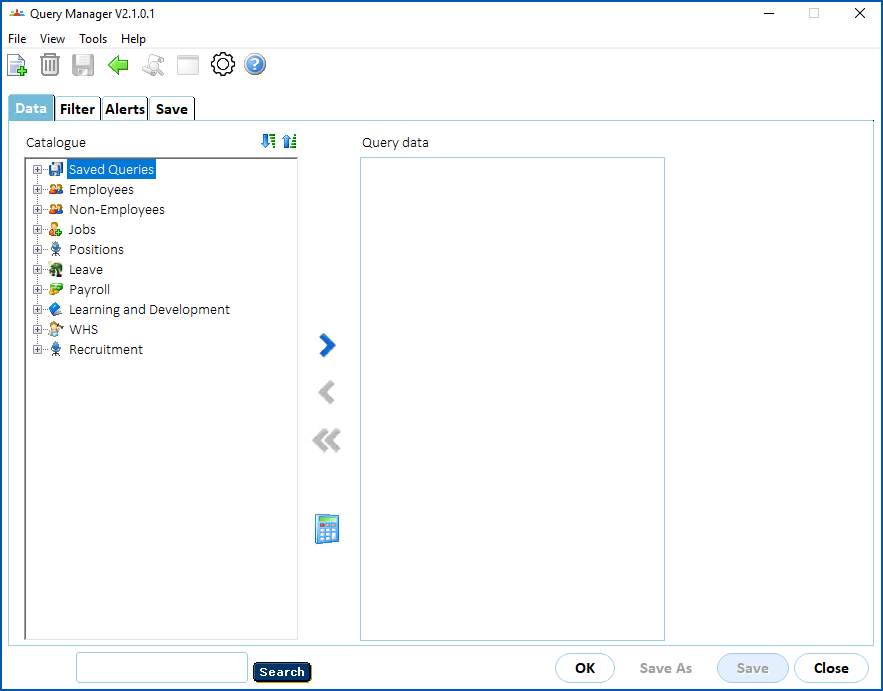
Tabs
Query Manager has the following tabs:
| Tab | Used for... |
|---|---|
| Data | Saved queries and data elements (fields) you can use to define a query |
| Filters | Data filters you can apply to the selected data elements to restrict the records the query returns |
| Alerts | Data highlighting to apply to query results and drill down to sub-queries |
| Save | Details of where to save a query definition |
Options
Query Manager options include the following:
| Option | Description |
|---|---|
Calculated Field | Displays a tab where you define the formula for a calculated field. |
Clear Table | Clears current field selections from the Query Data panel. Clear Table is only available when you select a field in the Query Data panel. |
Close | Exits Query Manager. |
Delete | Deletes an inactive query from your Saved Queries folder. You can only delete a query if you are the query owner. |
Move Left Move Right Move All Left | Arrows are for selecting/deselecting queries and fields (moving them between panels, for example, the Catalogue and Query Data panels).. Move Left and Move Right select/deselect individual fields/folders. Move All Left deselects all fields. |
Save | Saves changes to an existing query. |
Save As | Saves a new query, or saves a copy of an existing query. Save As is available from the Save tab. |
OK | Runs the query. |
Print Screen | Prints a screen shot to your default printer. |
Expand | Expands folders below the currently selected folder. |
Collapse | Collapses folders below the currently selected folder. |
Search | Searches the Catalogue for any field names containing the character string (search criteria) you enter. |
Display properties
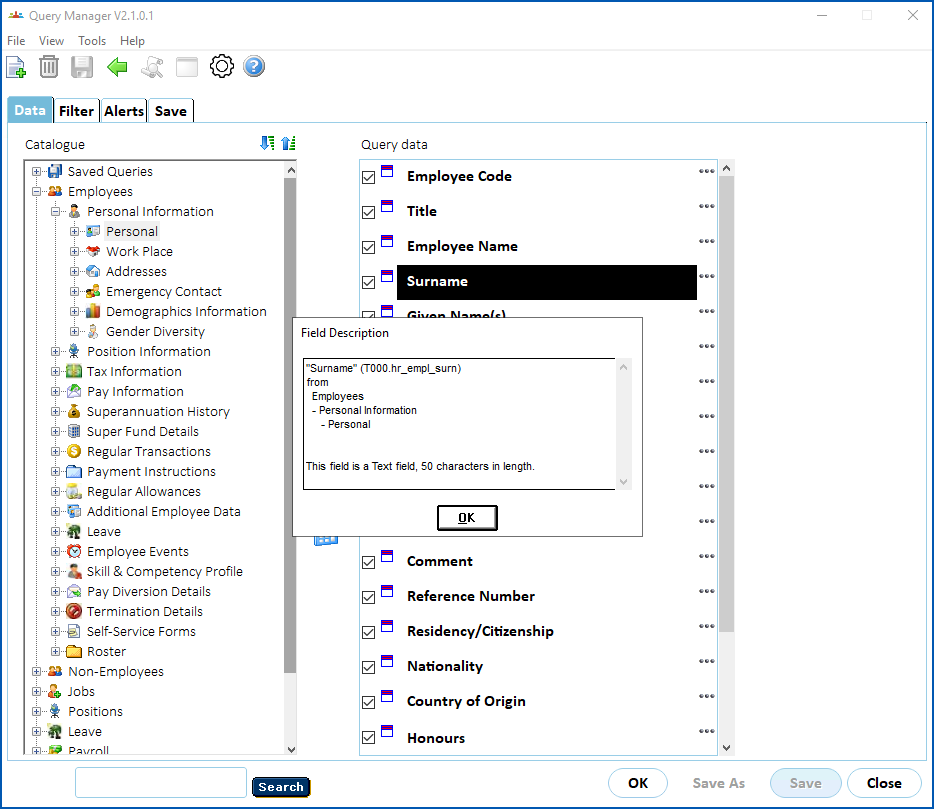
To display properties of a query, field, folder, or filter, right-click the object and the information displays in a pop-up window.
© 2023 Fusion5. All rights reserved.