If you are responsible for monitoring system activities, EmpowerHR provides a range of audit reports to make the task easy. Here's how to run the reports (with report samples) to get you started.
Consolidated audit report
To run the consolidated audit report (crroaudl):
Go to Background Jobs > Audit > Consolidated Audit Report.
- At the Consolidated Audit Report screen, make your entries in the consolidated audit parameter fields.
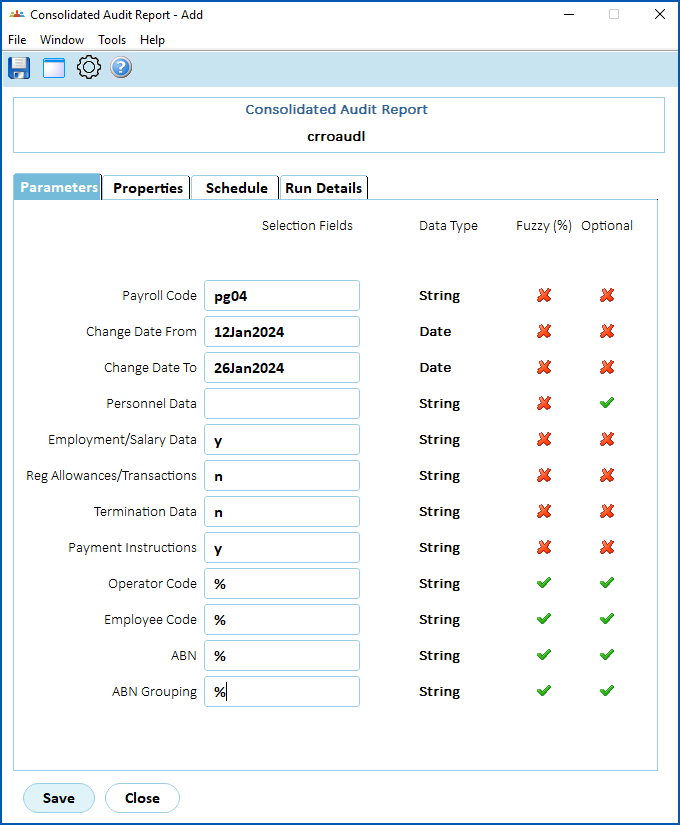
- Click Save. EmpowerHR runs the report.
- Go to Background Jobs > Requested Jobs > Requested Jobs to see the report.
| Sample report |
If you'd like to view or download a sample report, click the link: |
Audit files report
This report is designed to help with monitoring masterfile changes.
To run the audit files report (crroauah):
Go to Background Jobs > Audit > Audit Files.
- At the Audit Files screen, make your entries in the parameter fields:
- From Date
- To Date
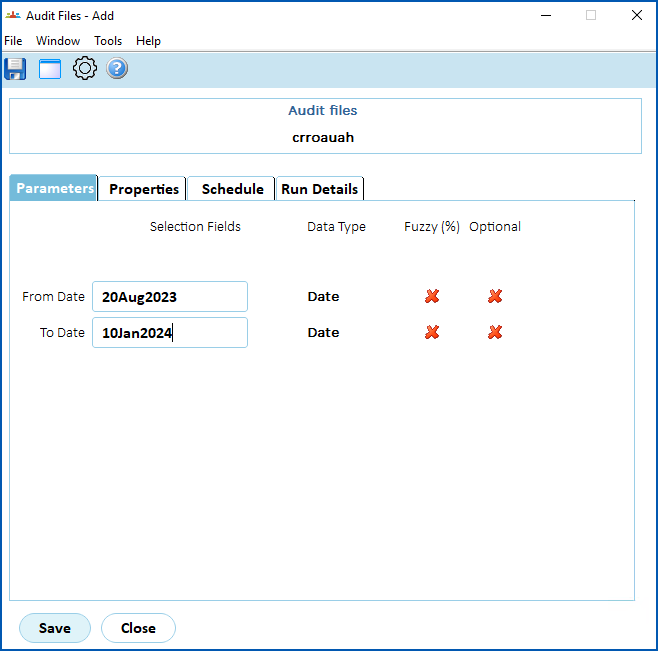
- Click Save. EmpowerHR runs the report.
- Go to Background Jobs > Requested Jobs > Requested Jobs to see the report.
 |
The report generates two csv files csv file = a text file format that uses commas to separate values (csv). A common data exchange format used by spreadsheet programs, makes it easy to use the data in Excel.
|

| Sample reports |
If you'd like to view or download samples of the report, click the link: |
Operator security report
This report shows changes made to operator codes, account templates, and menu access.
To run the operator security report (crroauos):
Go to Background Jobs > Audit > Operator Security.
- At the Operator Security screen, make your entries in the parameter fields:
- Operator Code (enter an individual operator code, or enter % to report on all operator codes)
- Date From
- Date To
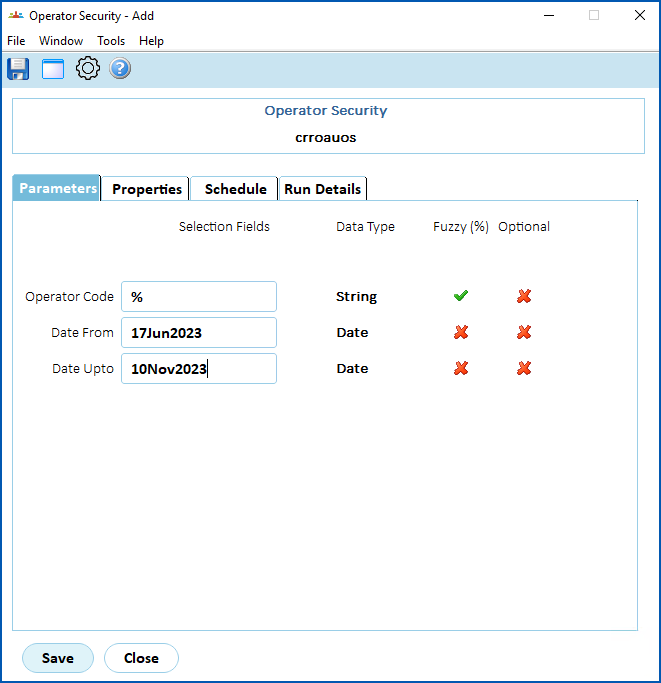
- Click Save. EmpowerHR runs the report.
- Go to Background Jobs > Requested Jobs > Requested Jobs to see the report.
| |
The report generates several csv files, where... Changes to operator codes include:
Changes to template and access include:
|
| Sample reports |
If you'd like to view or download samples of the report, click the link: |
© 2023 Fusion5. All rights reserved.