Action a time and claims payment request
You can action a time and claims payment request via your:
- Time and Claims action to do list (as shown in the following instructions), or
- Time and Claims catalogue (the actions available to you are the same - accept, redirect, reject, return)
To action a time and claims (payment) request:
- When you have requests to action, a Time and Claims alert appears in your Actions To Do box.
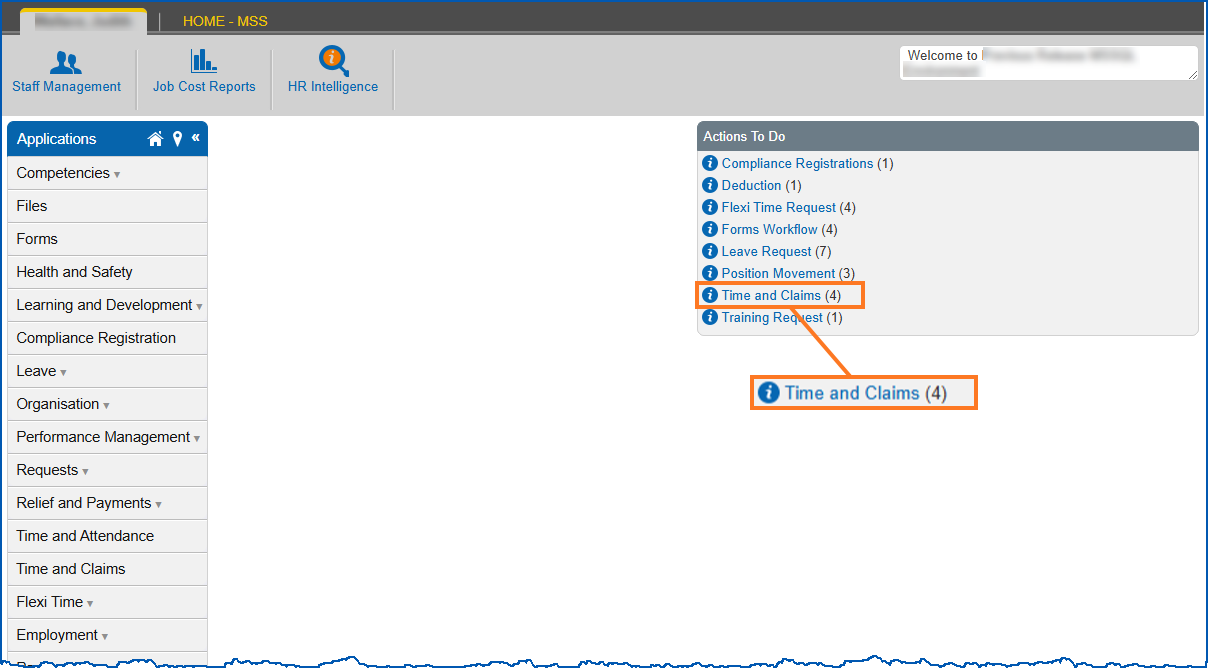
- Click the Time and Claims alert. The Actions To Do list displays.
- At a request row, click Actions and then select Edit from the menu.
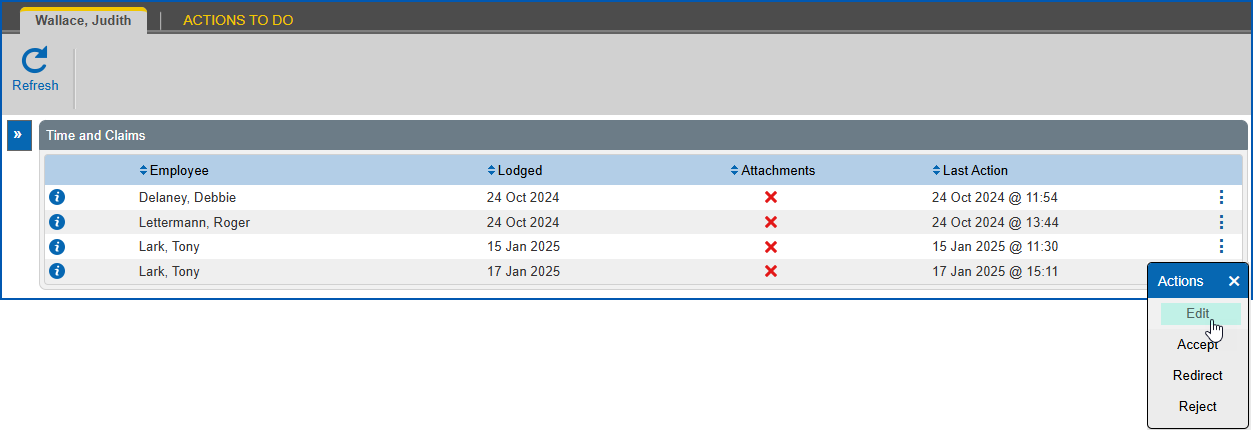
- The Process Claims Request For... screen displays.
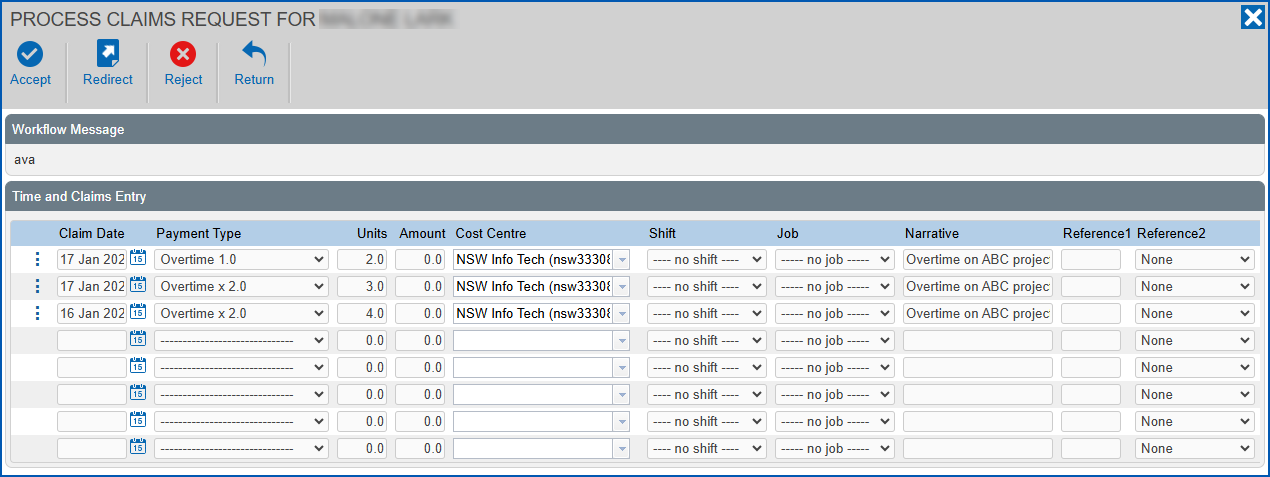
- Review the data and then complete or update it, if required.
- If there are attachments, you can click Attachments and review the attached documents.
- Determine whether to accept, redirect, reject, or return the request, and then use the following (relevant) instructions to complete the action.
Accept the time and claims payment request
To accept (approve) the request:
- Click Accept. How the approval workflow is set up in your organisation determines whether the Accept... dialog box displays (for example, to send the approved request to your payroll department, etc), or the request is automatically finalised.
- If the Accept... dialog box:
- does display, then go to step 3.
- does not display, then finalise the request when EmpowerHR prompts you. No further action is required.
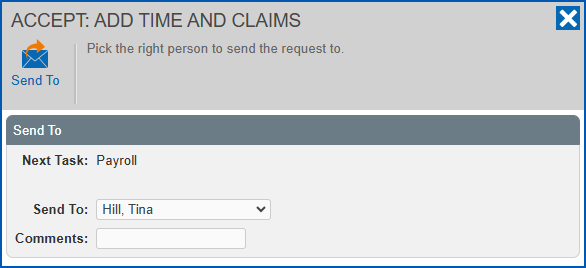
- At the Accept... dialogue box:
- select the person to send the approved request to from the Send To dropdown list
- enter Comments, if you wish
- click Send To
- The:
- request is removed from your Actions To Do list
- alert for the request is removed from your Actions To Do box
The finalisation process creates a pay data entry record (if the installation option lvrq is set to n).
Payroll/system administrator users may change, delete/add rows in the request via the pay data entry screen in the desktop, and the most recent record is only available from there.
While the changes don't get reflected in the original claim in the employee’s Time and Claims catalogue in self service, the time and claims dashboard in MSS does reflect the latest data.
Redirect the time and claims payment request
To redirect the request to another manager for their action:
- Click Redirect.
- At the Redirect... dialogue box:
- select the manager you want to redirect the request to from the Send To dropdown list
- enter Comments, if you wish (for example, the reason why you are redirecting the request)
- click Send To

- The:
- request is removed from your Actions To Do list
- alert for the request is removed from your Actions To Do box and appears in the redirected manager's Actions To Do box
Reject the time and claims payment request
To reject the request:
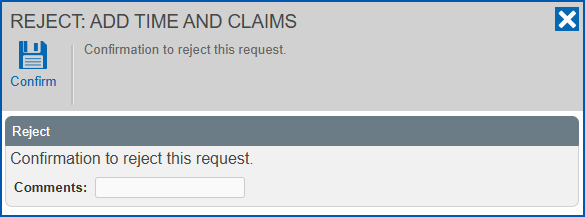
- Click Reject.
- At the Reject... dialogue box:
- enter Comments, if you wish (for example, the reason why you are rejecting the request)
- click Confirm
- The:
- request is removed from your Actions To Do list
- alert for the request is removed from your Actions To Do box
- employee is notified
Return the time and claims payment request
To return the request (when, for example, you require more details in the request):
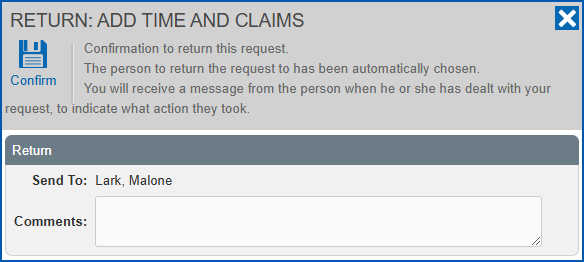
- Click Return.
- At the Return... dialogue box:
- enter Comments, if you wish (for example, the reason why you are returning the request)
- click Confirm
- The:
- request is removed from your Actions To Do list
- alert for the request is removed from your Actions To Do box
- request is returned to the last person who handled it to add or change details and re-submit the request for approval
© 2023 Fusion5. All rights reserved.