---
title: "Your time & claims dashboard"
id: "your-time-claims-dashboard"
project: "EHR User Guide"
url: "https://help.cloud5.com.au/articles/ehr-user-guide/your-time-claims-dashboard"
updated: 2026-10-19T00:53:41Z
---
# Your time & claims dashboard
MSS provides you with a time and claims dashboard.
To access the dashboard, click **Time and** **Claims** under **Applications**.
|  | You can also access the dashboard by first selecting an employee from **Staff Management** and then clicking **Time and Claims**. |
| --- | --- |
## Time and claims at a glance
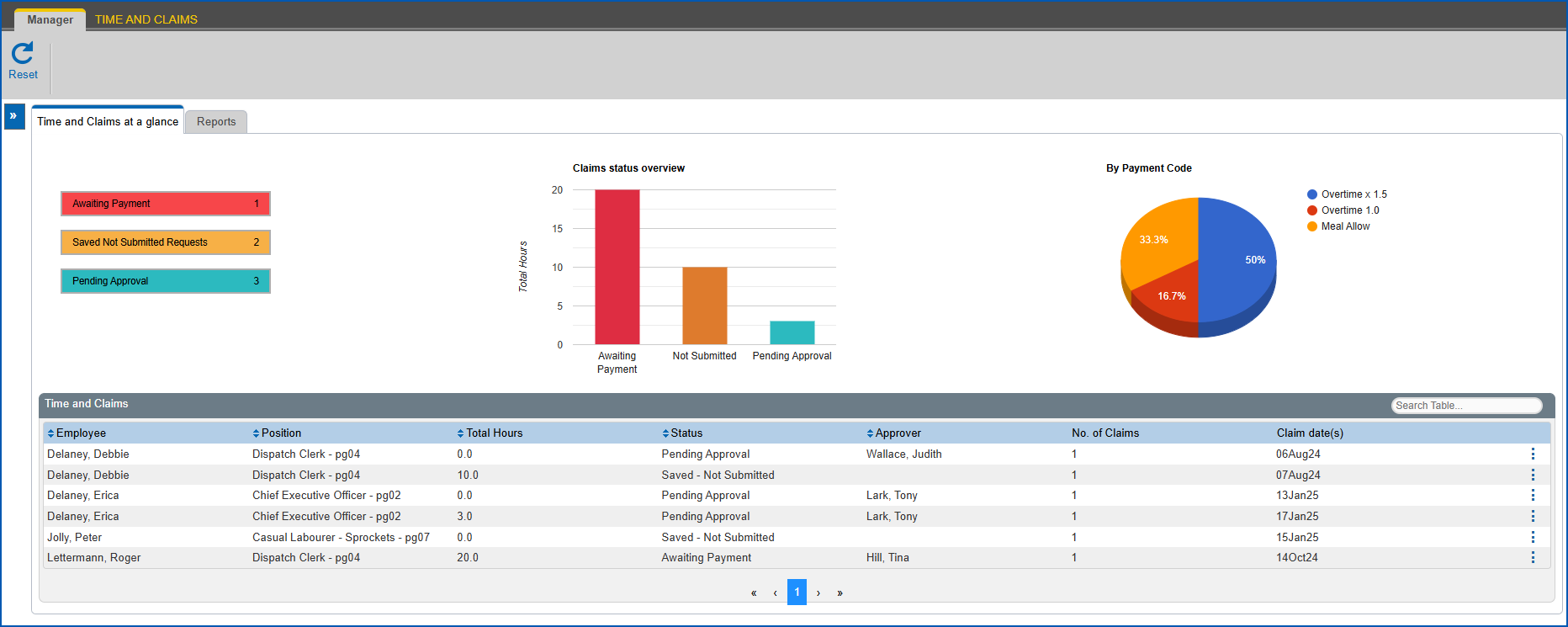
As the name suggests, this is a real-time snapshot of the status of the time and claims requests you're responsible for managing.
When you first display the tab, data for time and claims requests with a status of **Awaiting Payment**, **Pending Approval**, and **Saved - Not Submitted** displays.
### Buttons
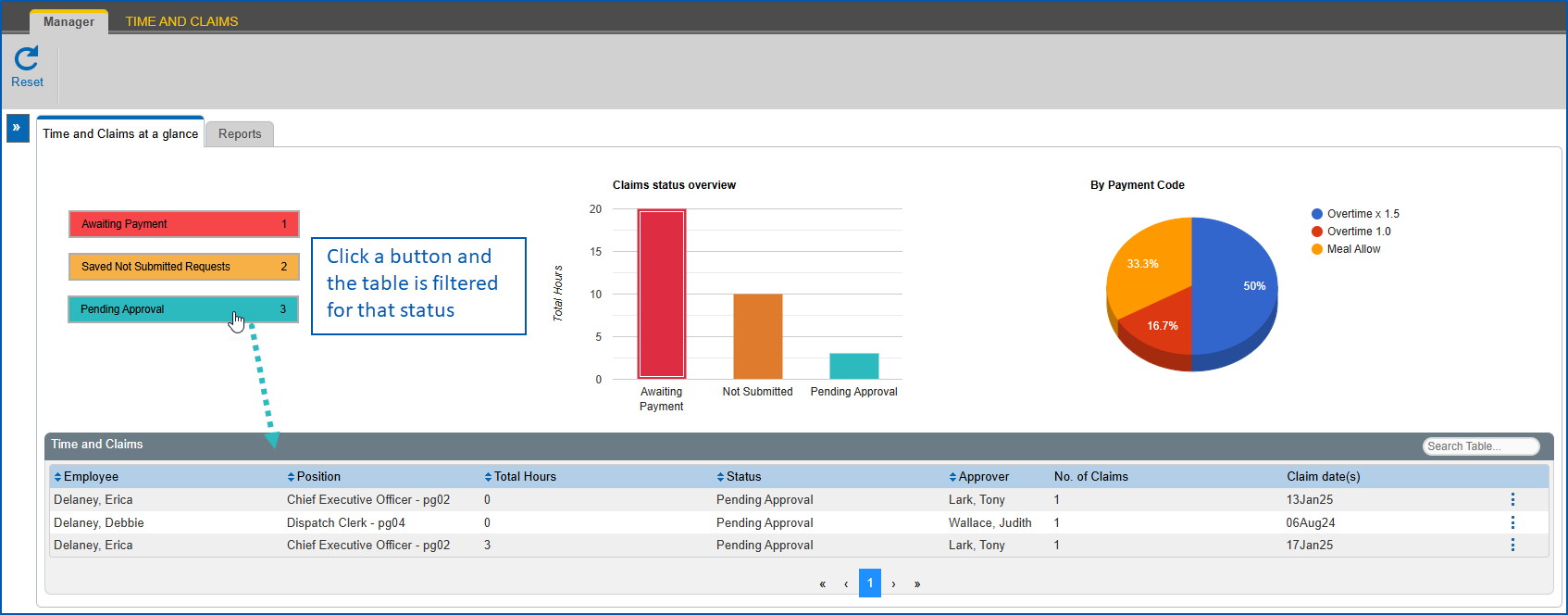
Colour-coded buttons on the left of the tab highlight the three types of request status, displaying their names and number of claims.
As shown in the following example, when you click a button such as **Pending Approval**, the data in the claims table is filtered to just that status.
### Charts
Dynamic charts provide a quick visual summary of statistics about claims.
#### Bar chart
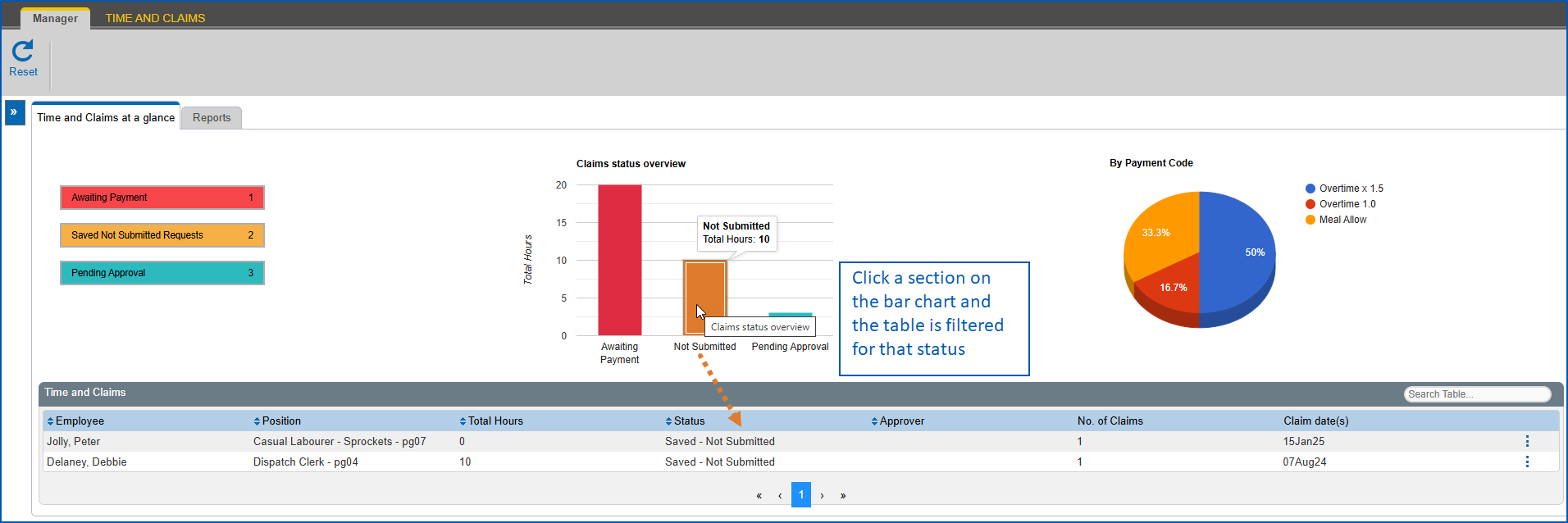
The colour-coded bar chart shows the total hours for each type of claim status. When you click a bar in the bar chart, the claims table is filtered to requests with that selected status.
#### Pie chart
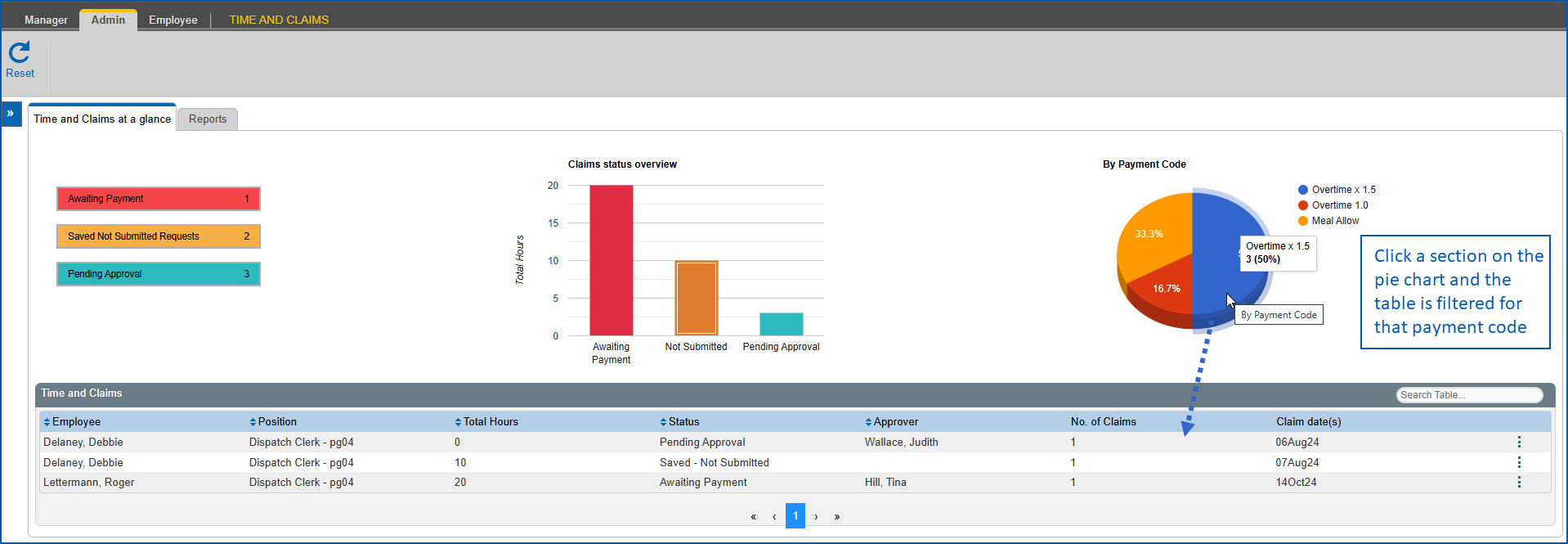
The colour-coded pie chart shows the number of claims by their payment codes (as a percentage). When you click a section of the pie chart, the claims table is filtered to requests with that selected payment code.
### Sort order of data
You can sort the data in the claims table by clicking a column heading.

### Reset
Use the **Reset** button to reset the page to its initial loading state, that is, what you see when you open the tab.
## Reports
From the dashboard **Reports**tab, you can apply detailed selection criteria to generate reports.
|  | When the **Reports** tab screen loads for the first time, it uses [tcmb and tcmf installation settings](/articles/ehr-user-guide/set-installation-preferences-time-claims/a/tcmbmf) to determine the how far back (and forward) from today to search for claims. |
| --- | --- |
When you first display the **Reports** tab, data for time and claims requests displays. It shows all status types including paid requests.
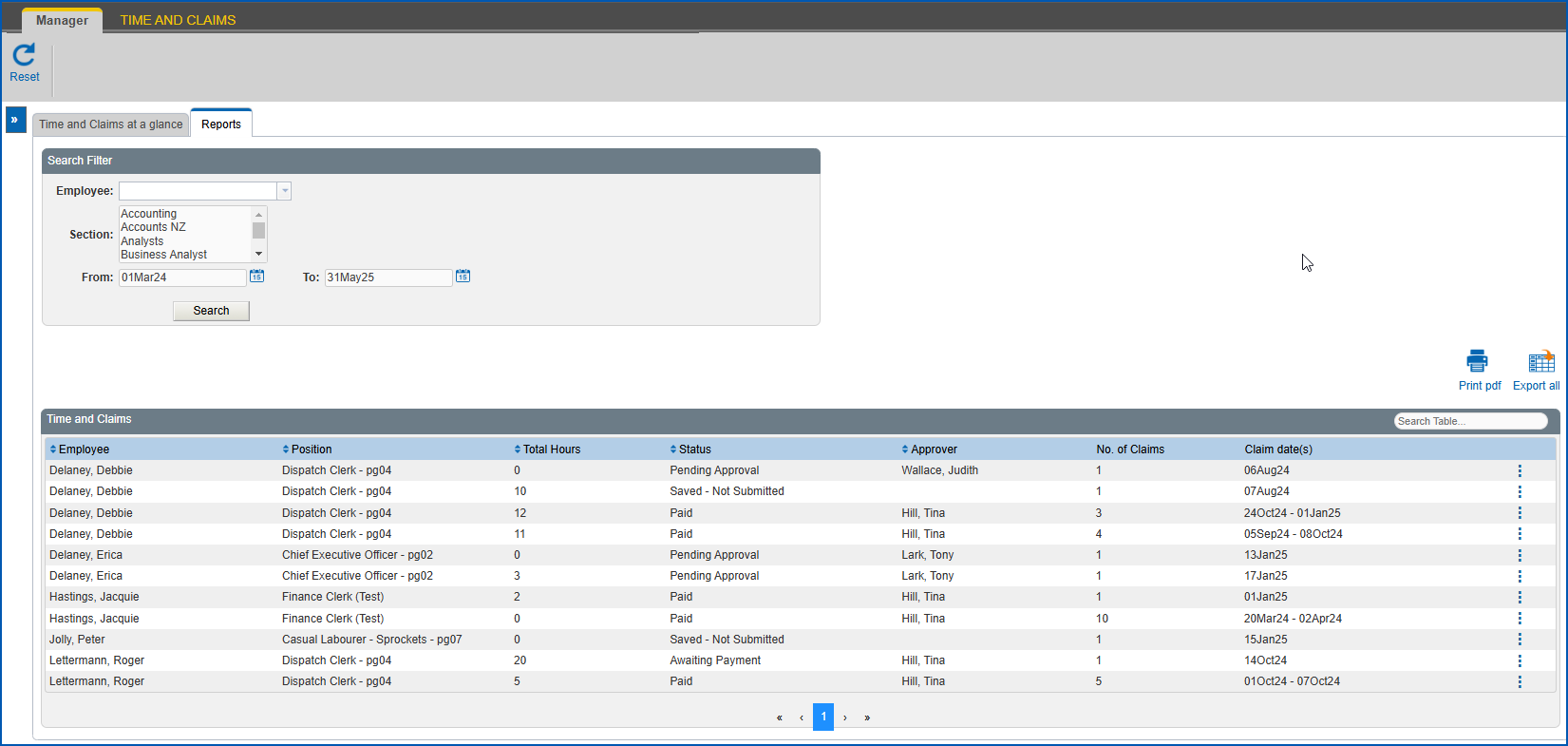
To:
* search for particular claims (by employee, and/or section, and/or date range), at **Search Filter**, complete the fields according to the type of search criteria you want to apply, and then click **Search** to see the results. If you want to:
* export the results of the search to a PDF file, click **Print pdf**.
PDF = portable document format
* export the results of the search to a spreadsheet, click **Export all**.
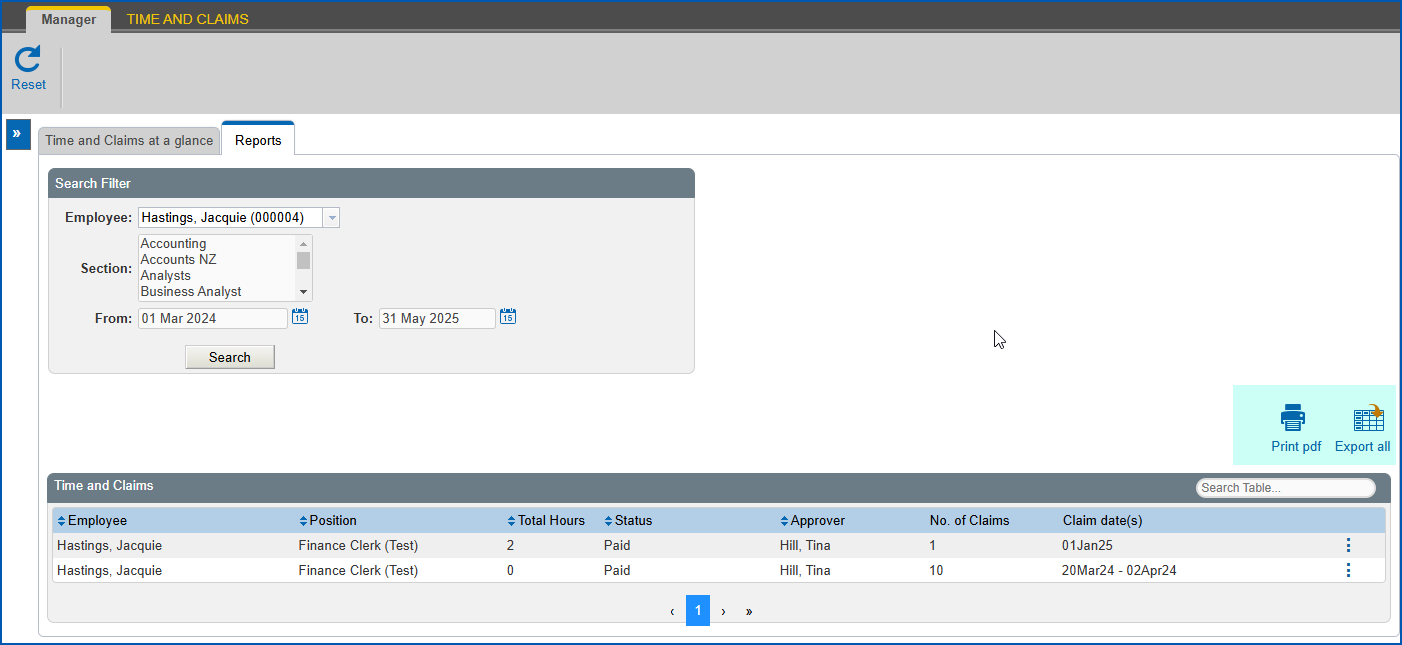
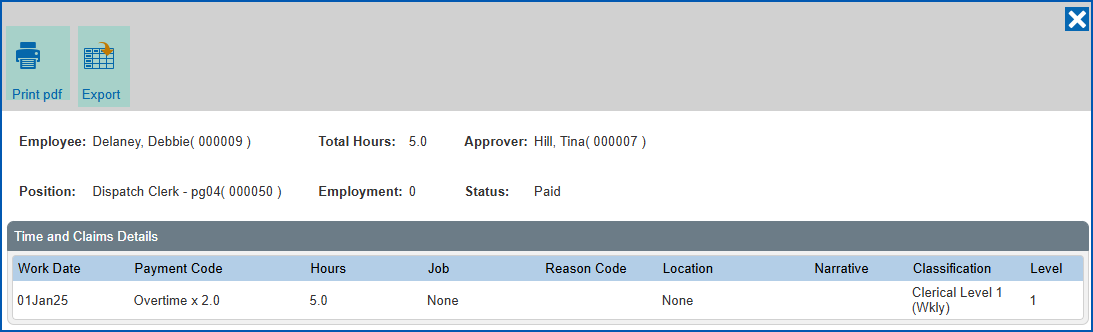
* view the details of a claim, at the claims table, on a claim row, click (ellipsis) and then select **Detail** from the **Actions** menu. If you want to:
* export the details of the claim to a PDF file, from the **Details** screen, click **Print pdf**.PDF = portable document format
* export the details of the claim to a spreadsheet, from the **Details** screen, click **Export**.
| Next topic
[Manage timesheet / payment](/articles/ehr-user-guide/manage-timesheet-payment) |
| --- |
© 2023 Fusion5. All rights reserved.