---
title: "Your dashboard"
id: "your-dashboard"
project: "EHR User Guide"
url: "https://help.cloud5.com.au/articles/ehr-user-guide/your-dashboard"
updated: 2026-10-19T00:54:07Z
---
# Your dashboard
MSS  provides you with a compliance registration dashboard. 
MSS = Manager Self Service
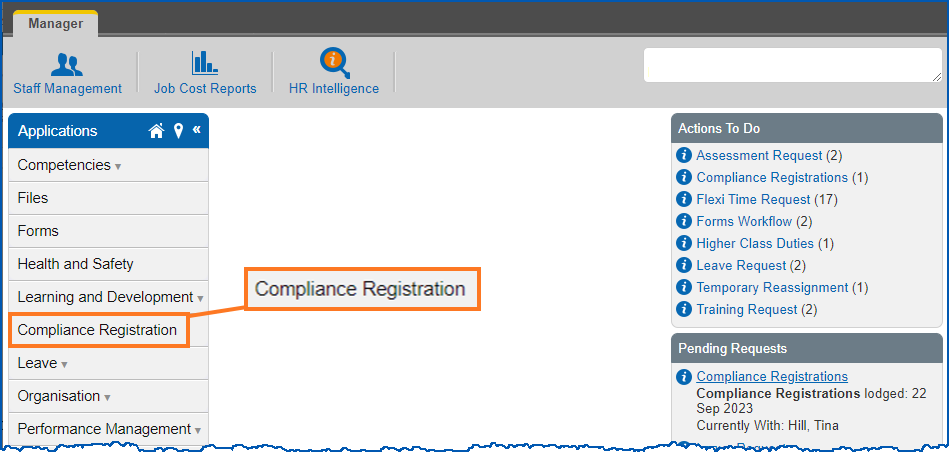
To access the dashboard, click **Compliance Registration** under **Applications**.
## Compliance at a glance
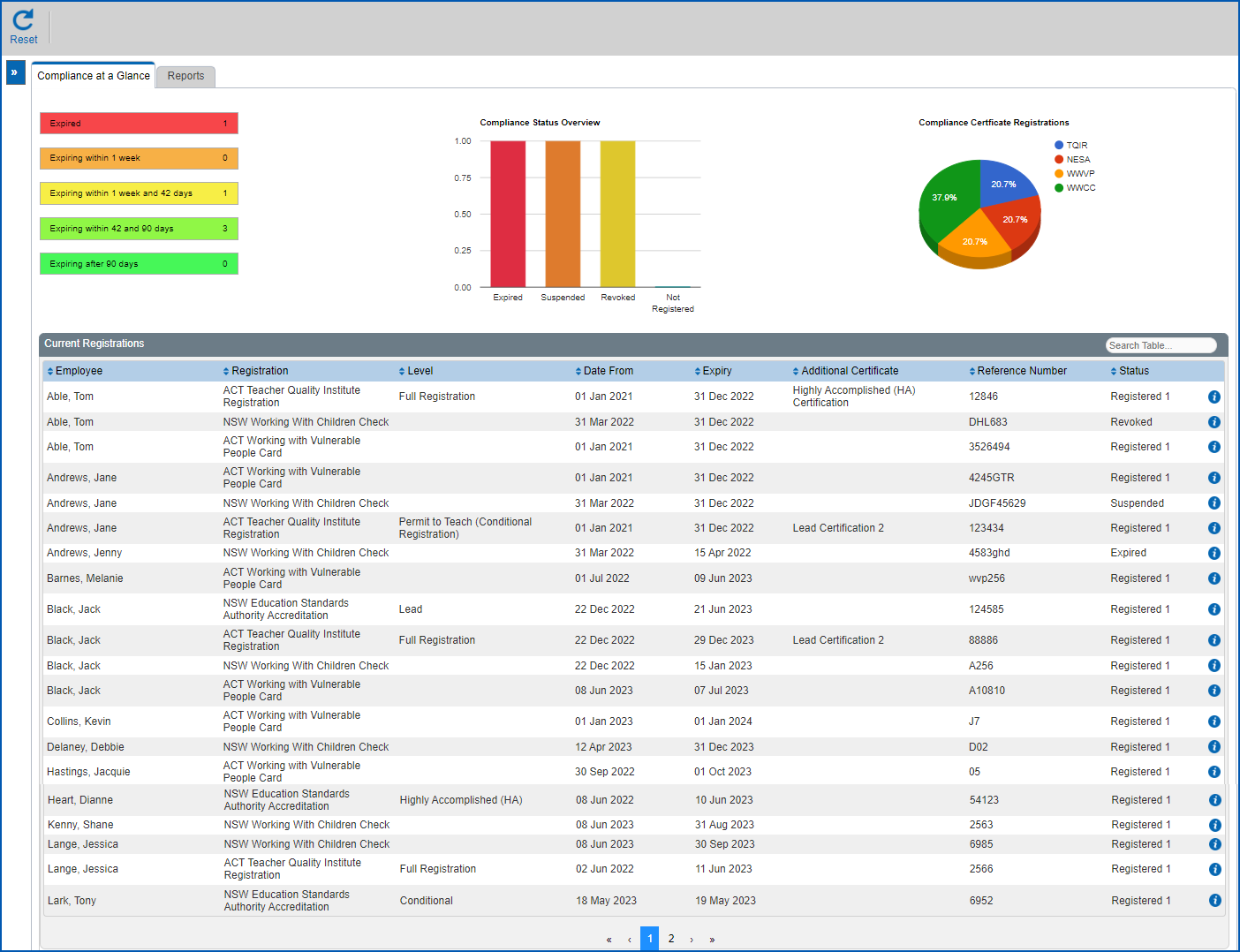
As the name suggests, this a is a real-time snapshot of the status of all the compliance registrations you’re responsible for managing.
When you first display the tab, all data for all compliance registration types and status displays.
### Buttons
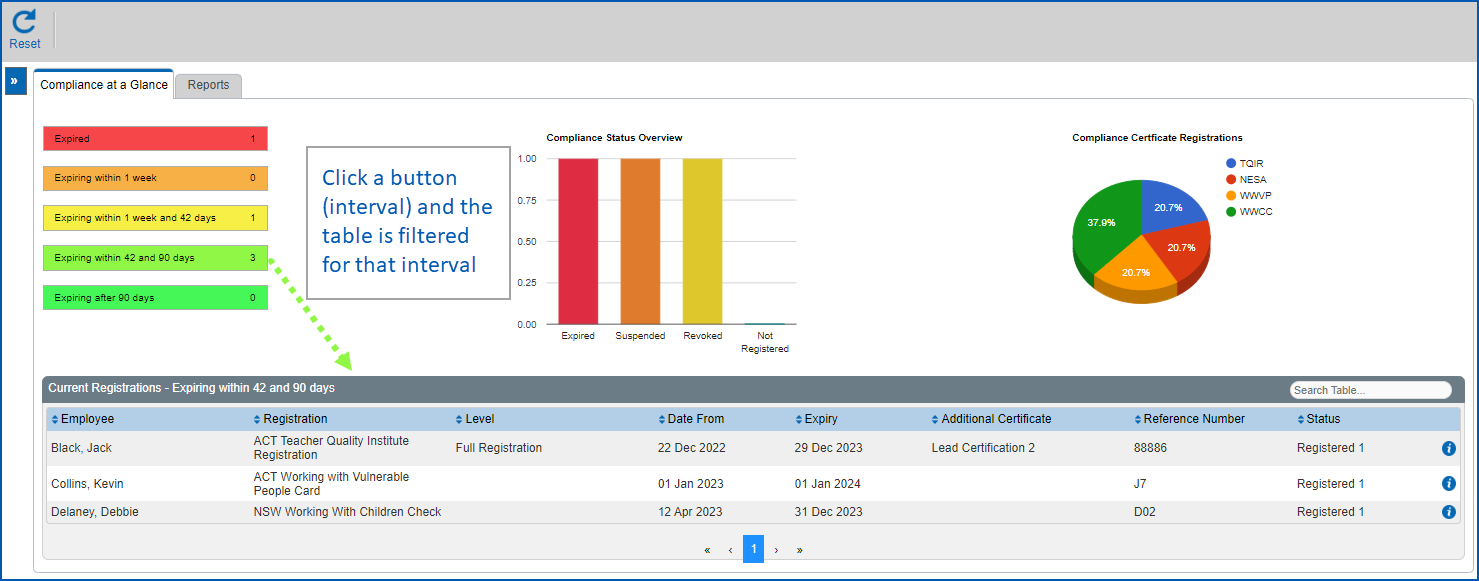
Colour-coded buttons on the left of the tab highlight certificates expiring at different intervals. As shown in the following example, when you click a button such as Expiring within 42 and 90 days, the data in the registrations table is filtered to just that interval and displays in ascending order.
### Charts
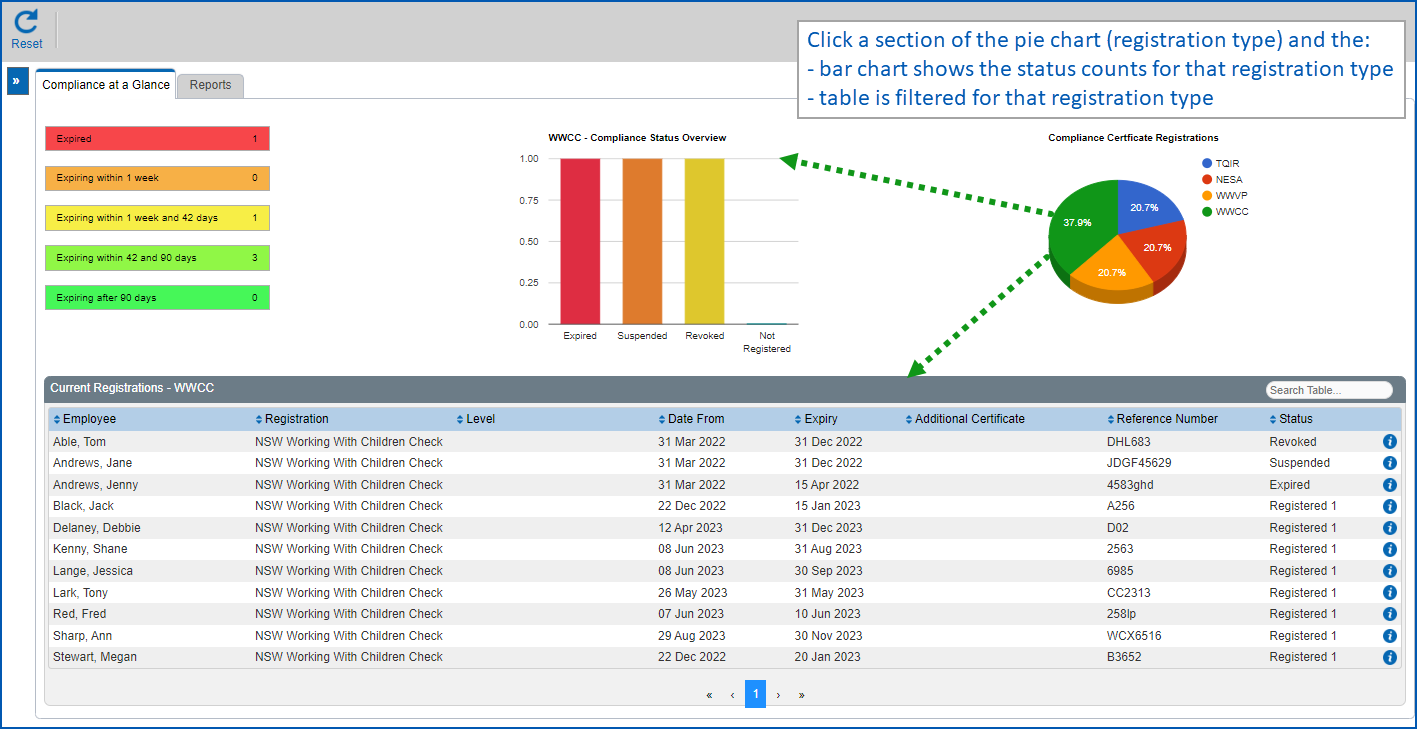
Dynamic charts provide a quick visual summary of statistics about registrations. As shown in the following example, when you click a section of the colour-coded pie chart such as WWCC:
* the bar chart dynamically updates to show the status counts for that selected registration type
* the data in the registrations table is filtered to just that selected registration type and displays in ascending order
#### Sort order of data
You can also sort the data in the registrations table by clicking any of the column headings:

### Reset
Use **Reset** to reset the page to its initial loading state, that is, what you see when you open the tab
## Reports
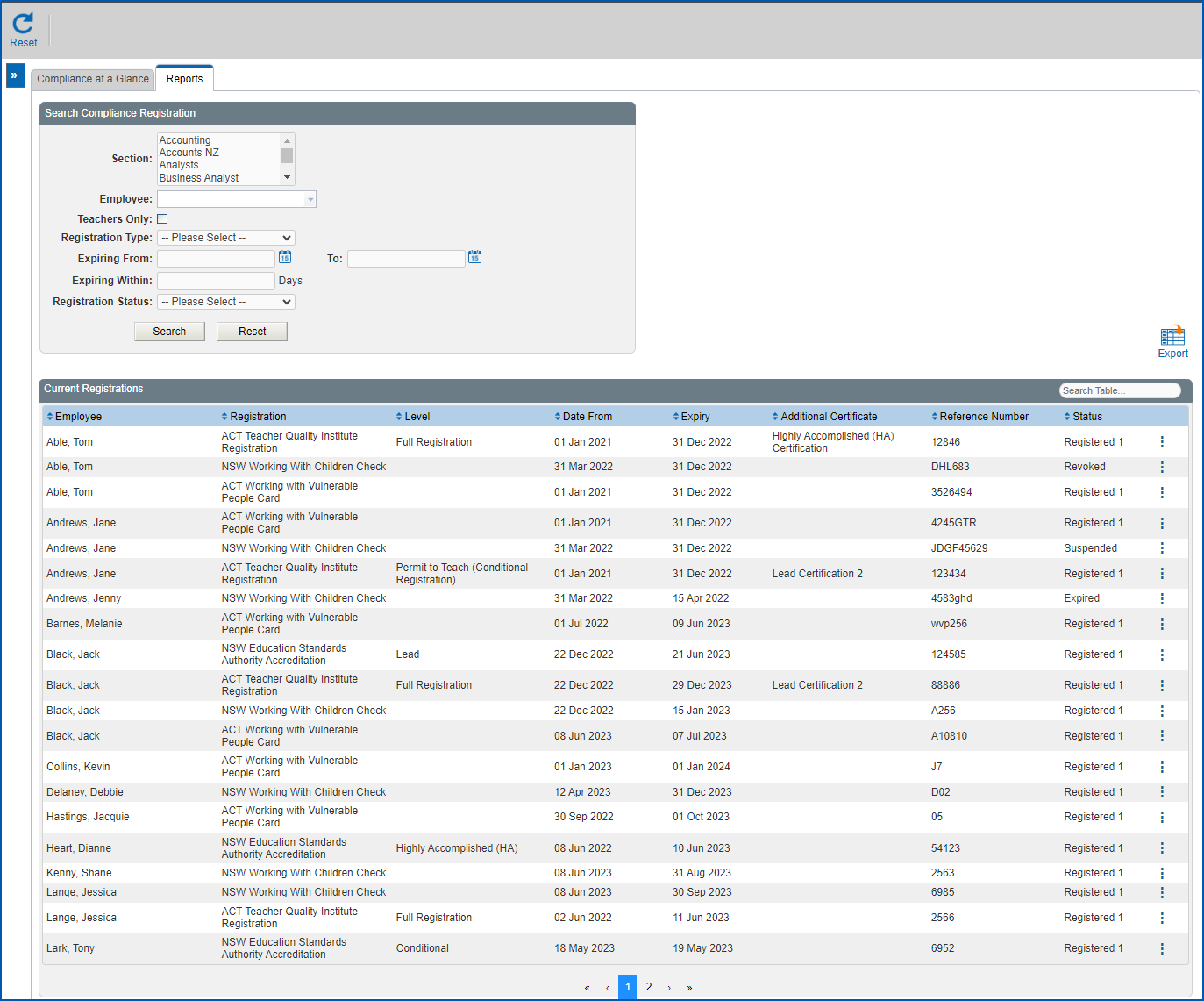
From the dashboard Reports tab you can apply detailed selection criteria to generate reports.
When you first display the **Reports** tab, all data for all compliance registration types and status displays.
### How can reports help me?
It’s a given that EHR captures the expiry dates of registrations and sends notifications, but employees who have never uploaded their registrations may go unnoticed.
There might be instances where teachers have uploaded their WWCC and/or WWVP checks but have not uploaded teacher registrations.
In such cases, reports can help to:
* identify teachers who have never uploaded their registrations
* identify any staff without a completed WWCC or WWVP check
### Using the reports feature
To use the reports feature: 
1. Click Compliance Registration. The Compliance Registration dashboard displays.
2. Click the Reports tab.
3. At Search Compliance Registration, complete the fields according to the type of search criteria you want to apply, and then click **Search** to see the results.
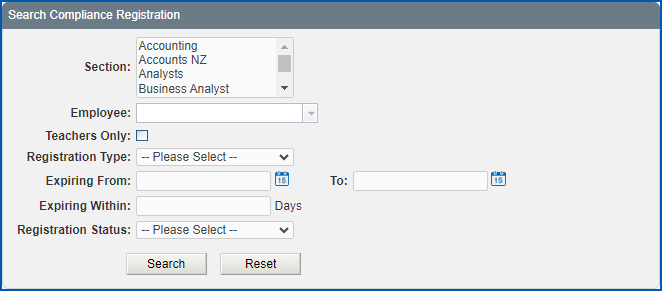
Here are two examples of reports you might find useful.
[+] [Example 1: identify teachers who have not uploaded their registrations](javascript:void%280%29)
[-] [Hide example 1](javascript:void%280%29)
| **How to identify teachers who have not uploaded their registrations** | **How to identify teachers who have not uploaded their registrations** |
| --- | --- |
| **At this field...** | **Do this...** |
| --- | --- |
| Section | If there is more than one section appearing in the dropdown list, you can select a section. Otherwise, no action is required.
|  | The sections that appear are based on your security profile. For example, if you're a:
- principle who has access only to a specific school which is represented as a section, then that's the only section you'll see
- manager with Global Access, then you'll see all sections
- manager who has been set up with Reports To access, then you'll see the sections of employees that report to you
- manager who has been set up to access Relief Staff, then you'll also see relief teachers in addition to your security profile
|
| --- | --- | |
| Employee | If you want to search for a specific employee, then:
- enter the first few characters of their surname and a list of employees whose names start with those characters displays
- select the employee you want from the list
Otherwise, leave this field blank. |
| Teachers Only | Select this checkbox to restrict the search to only teachers.
|  | When you select this checkbox, both T (teachers) and CT (casual teachers) are included in the search results. |
| --- | --- | |
| Registration Type | Select the teacher registration type to search by from the dropdown list. |
| Registration Status | Select the Missing Registration status from the dropdown list |
[+] [Example 2: identify any staff without a completed WWCC or WWVP check](javascript:void%280%29)
[-] [Hide example 2](javascript:void%280%29)
| **How to identify any staff without a completed WWCC or WWVP check** | **How to identify any staff without a completed WWCC or WWVP check** |
| --- | --- |
| **At this field...** | **Do this...** |
| --- | --- |
| Section | If there is more than one section appearing in the dropdown list, you can select a section. Otherwise, no action is required.
|  | The sections that appear are based on your security profile. For example, if you're a:
- principle who has access only to a specific school which is represented as a section, then that's the only section you'll see
- manager with Global Access, then you'll see all sections
- manager who has been set up with Reports To access, then you'll see the sections of employees that report to you
- manager who has been set up to access Relief Staff, then you'll also see relief teachers in addition to your security profile
|
| --- | --- | |
| Employee | If you want to search for a specific employee, then:
- enter the first few characters of their surname and a list of employees whose names start with those characters displays
- select the employee you want from the list
Otherwise, leave this field blank.
|
| Teachers Only | Keep this checkbox clear as you don't want to restrict the search to only teachers. |
| Registration Type | Select the **WWCC**or **WWVP**registration type to search by from the dropdown list. |
| Registration Status | Select the Missing Registration status from the dropdown list |
###
### What else do I need to know about the reports feature?
* Searches only apply to substantive positions, not acting positions.
* You can search by other Registration Status types, for example, Expired, Suspended, etc.
* If you want to export the results of a search to a spreadsheet, click **Export** located on the righthand side of the Reports tab screen.
* Use **Reset** at Search Compliance Registration to clear the search criteria fields before making different selections.
* Use **Reset** (at the top of the page) to reset the page to its initial loading state, that is, what you see when you open the tab.
| Next topic
[Workplace reporting](/articles/ehr-user-guide/workplace-reporting) |
| --- |
© 2023 Fusion5. All rights reserved.