---
title: "Wrong income stream"
id: "wrong-income-stream"
project: "EHR User Guide"
url: "https://help.cloud5.com.au/articles/ehr-user-guide/wrong-income-stream"
updated: 2026-10-19T00:53:33Z
---
# Wrong income stream
 How do I change an incorrect income stream?
When you complete a pay run, EmpowerHR writes the records to Pay History together with the income stream.
If the income stream for any record is incorrect, you can update it via the **STP Income Stream Adjustment** screen. This screen only shows records for completed pay runs.
To change an incorrect income stream: 
1. Go to **Tasks** > **Payroll** > **Payroll Processing** > **STP Income Stream Adjustment**.
2. At the **STP Income Stream Adjustment** summary screen, first filter your search by selecting a type of record in **Look In**, and then entering a date range in the **Payment Date From** and **Payment Date To** fields.
|  | EmpowerHR accesses payment history records, which are many, so it's best to filter your search. |
| --- | --- |
1. Click **Find Now**.
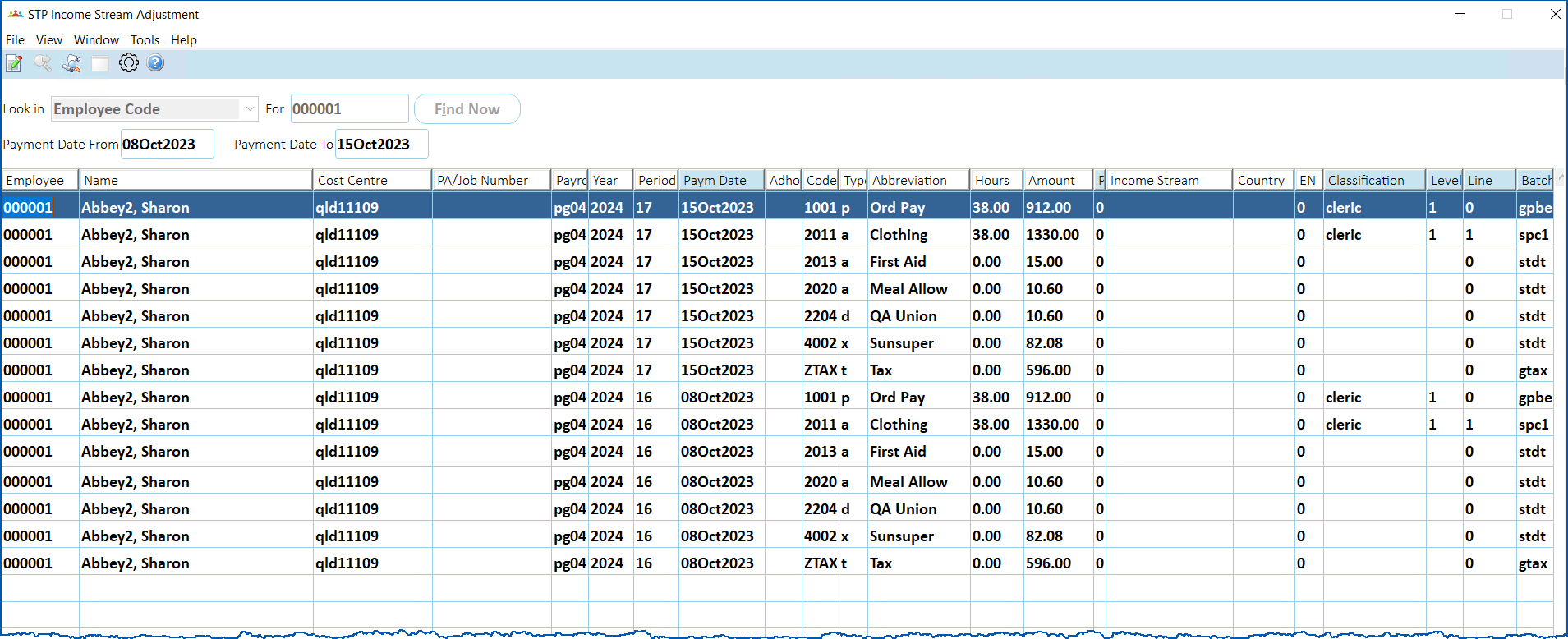
1. Select the record you want to change, and then click **Open**.
2. At the **STP** **Income Stream Adjustment** details screen, change the **Income Stream** (and, if required, the **Country Code**).
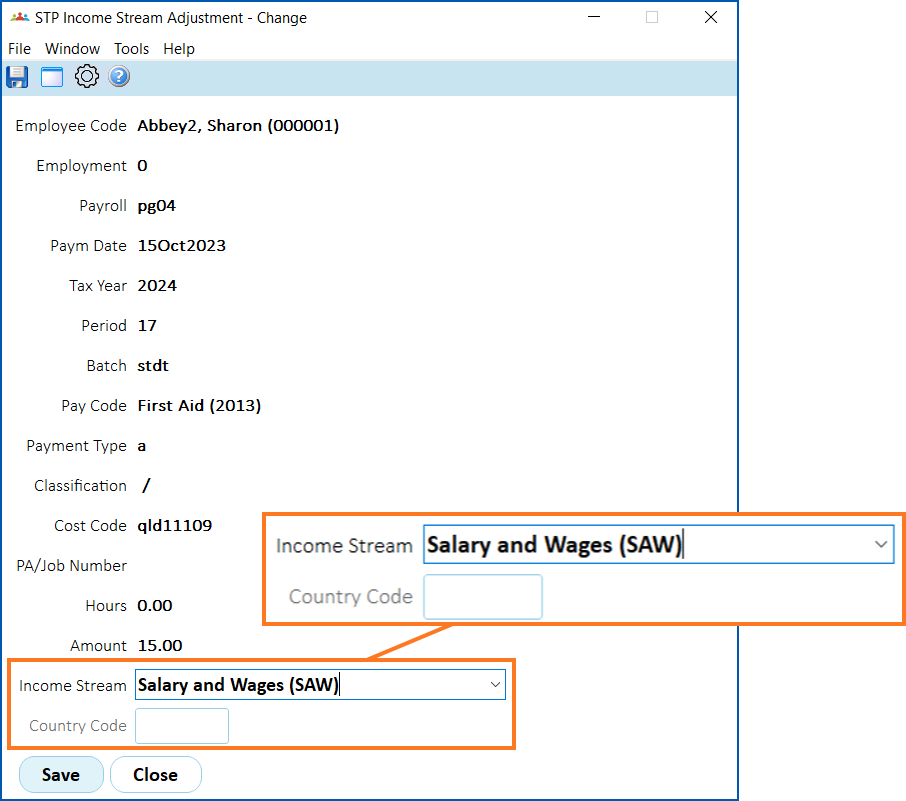
1. Click **Save**.
| Next topic
[When to alert the ATO about changes](/articles/ehr-user-guide/when-to-alert-the-ato-about-changes) |
| --- |
© 2023 Fusion5. All rights reserved.