---
title: "What you need to set up (STP)"
id: "what-you-need-to-set-up-stp"
project: "EHR User Guide"
url: "https://help.cloud5.com.au/articles/ehr-user-guide/what-you-need-to-set-up-stp"
updated: 2026-10-19T00:53:35Z
---

# What you need to set up \(STP\)

Here we show what to do to ensure you can successfully run STP reports.

## Confirm installation options and menu items![](/resources/Storage/ehr-user-guide/ehr-user-guide/icons/desktop%20icon.png)


| **What to confirm** | **How** |
| --- | --- |
| Installation option: STP version | To confirm the STP version installation option is set:<br>
<ol><li style="color: #4d4d4d; text-decoration-color: initial;"><span style="font-family: Arial, &quot;Helvetica Neue&quot;, Helvetica, sans-serif;"><span style="font-size: 10pt;"><span style="">Go to&#160;<b>Administration&#160;</b>&gt;&#160;<b>Agency Management&#160;</b>&gt;&#160;<b>Installation Option</b></span></span></span></li>
<li style="color: #4d4d4d; text-decoration-color: initial;"><span style="font-family: Arial, &quot;Helvetica Neue&quot;, Helvetica, sans-serif;"><span style="font-size: 10pt;"><span style="">Check the installation option called&#160;<b>STP Version running (stpv)&#160;</b>to&#160;make sure the&#160;<b>Select&#160;</b>column is set to<b>&#160;2</b>.</span></span></span></li> </ol> |
| Menu items: payroll and update events | To confirm the payroll and update event menu items are available:<br><ol><li style="color: #4d4d4d; text-decoration-color: initial;"><span style="font-family: Arial, &quot;Helvetica Neue&quot;, Helvetica, sans-serif;"><span style="font-size: 10pt;"><span style="">Go to&#160;<b>Background Jobs&#160;</b>&gt;&#160;<b>STP&#160;</b>&gt;&#160;<b>STP Files Generation</b>.</span></span></span></li><li style="color: #4d4d4d; text-decoration-color: initial;"><span style="font-family: Arial, &quot;Helvetica Neue&quot;, Helvetica, sans-serif;"><span style="font-size: 10pt;"><span style="">At the&#160;<b>STP Files Generation</b>&#160;menu, check the the following items appear:</span></span></span><ol><li><span style="font-family: Arial, &quot;Helvetica Neue&quot;, Helvetica, sans-serif;"><span style="font-size: 10pt;"><span style=""><b>STP Payroll Event - Phase 2</b></span></span></span></li><li><span style="font-family: Arial, &quot;Helvetica Neue&quot;, Helvetica, sans-serif;"><span style="font-size: 10pt;"><span style=""><b>STP Update Event - Phase 2</b></span></span></span></li></ol></li></ol> |
| Menu items: reconciliation reports | To confirm the reconciliation reports menu items are available:<br>
<ol><li style="color: #4d4d4d; text-decoration-color: initial;"><span style="font-family: Arial, &quot;Helvetica Neue&quot;, Helvetica, sans-serif;"><span style="font-size: 10pt;"><span style="">Go to&#160;<b>Background Jobs</b>&#160;&gt;&#160;<b>STP&#160;</b>&gt;&#160;<b>STP Reconciliation Reports</b></span></span></span></li>
<li style="color: #4d4d4d; text-decoration-color: initial;"><span style="font-family: Arial, &quot;Helvetica Neue&quot;, Helvetica, sans-serif;"><span style="font-size: 10pt;"><span style="">At the&#160;<b>STP Reconciliation Reports</b>&#160;menu, check the following items appear:</span></span></span><ol><li><span style="font-family: Arial, &quot;Helvetica Neue&quot;, Helvetica, sans-serif;"><span style="font-size: 10pt;"><span style=""><b>STP Checking Report - Phase 2</b></span></span></span></li>
<li><span style="font-family: Arial, &quot;Helvetica Neue&quot;, Helvetica, sans-serif;"><span style="font-size: 10pt;"><span style=""><b>STP Pay History Rec - Phase 2</b></span></span></span></li>
<li><span style="font-family: Arial, &quot;Helvetica Neue&quot;, Helvetica, sans-serif;"><span style="font-size: 10pt;"><span style=""><b>STP Pay Hist Rec Check Phase 2</b></span></span></span></li>
<li><span style="font-family: Arial, &quot;Helvetica Neue&quot;, Helvetica, sans-serif;"><span style="font-size: 10pt;"><span style=""><b>STP Payment Code Totals Reconc</b></span></span></span></li>
</ol></li>
</ol> |
| Menu item: income stream adjustment | To confirm the income stream adjustment menu item is available:<br><ol><li style="color: #4d4d4d; text-decoration-color: initial;"><span style="font-family: Arial, &quot;Helvetica Neue&quot;, Helvetica, sans-serif;"><span style="font-size: 10pt;"><span style="">Go to&#160;<b>Tasks&#160;</b>&gt;&#160;<b>Payroll&#160;</b>&gt;&#160;<b>Payroll Processing</b>.</span></span></span></li><li style="color: #4d4d4d; text-decoration-color: initial;"><span style="font-family: Arial, &quot;Helvetica Neue&quot;, Helvetica, sans-serif;"><span style="font-size: 10pt;"><span style="">At the&#160;<b>Payroll Processing</b>&#160;menu, check the following item appears:</span></span></span><ol><li><span style="font-family: Arial, &quot;Helvetica Neue&quot;, Helvetica, sans-serif;"><span style="font-size: 10pt;"><span style=""><b>STP Income Stream Adjustment</b>&#160;</span></span></span></li></ol></li></ol> |

## Confirm sending service provider (SSP) name ![](/resources/Storage/ehr-user-guide/ehr-user-guide/icons/desktop%20icon.png)


To confirm the name of your SSP is correct:

1. Go to Administration &gt; Agency Management &gt; Installation Settings.
2. At the Installation Settings summary screen, find and select the setting called **Sending Service Provider Name (**serp).
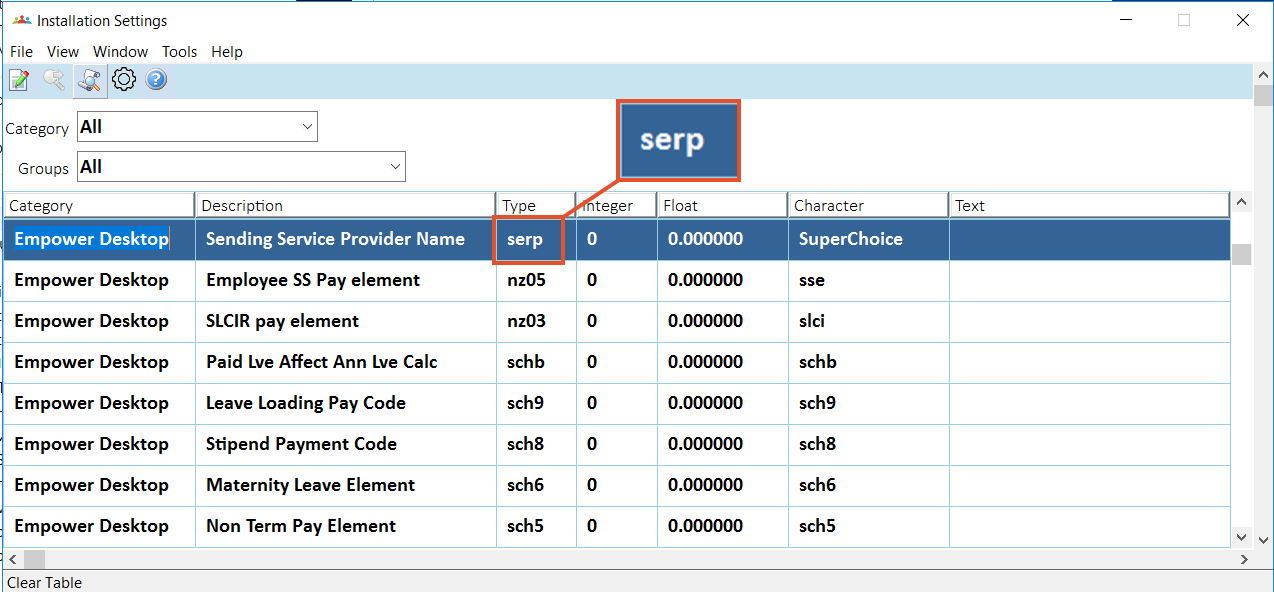

![TableDescription automatically generated](/resources/Storage/ehr-user-guide/confirm-settings/confirm-settings-2023-10-24.png)

1. Click **Open**.
2. At the Installation Settings detail screen, make sure the SSP name in the Character Variable field is correct. Otherwise, change the name, and then click **Save**.
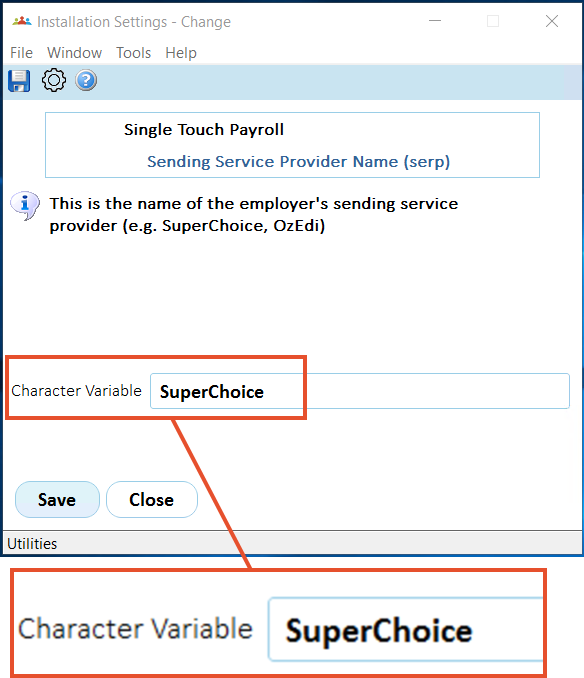

![Graphical user interface, text, application, emailDescription automatically generated](/resources/Storage/ehr-user-guide/confirm-settings/confirm-settings-2023-10-24-3.png)

## Confirm supplier/payer ABN details ![](/resources/Storage/ehr-user-guide/ehr-user-guide/icons/desktop%20icon.png)


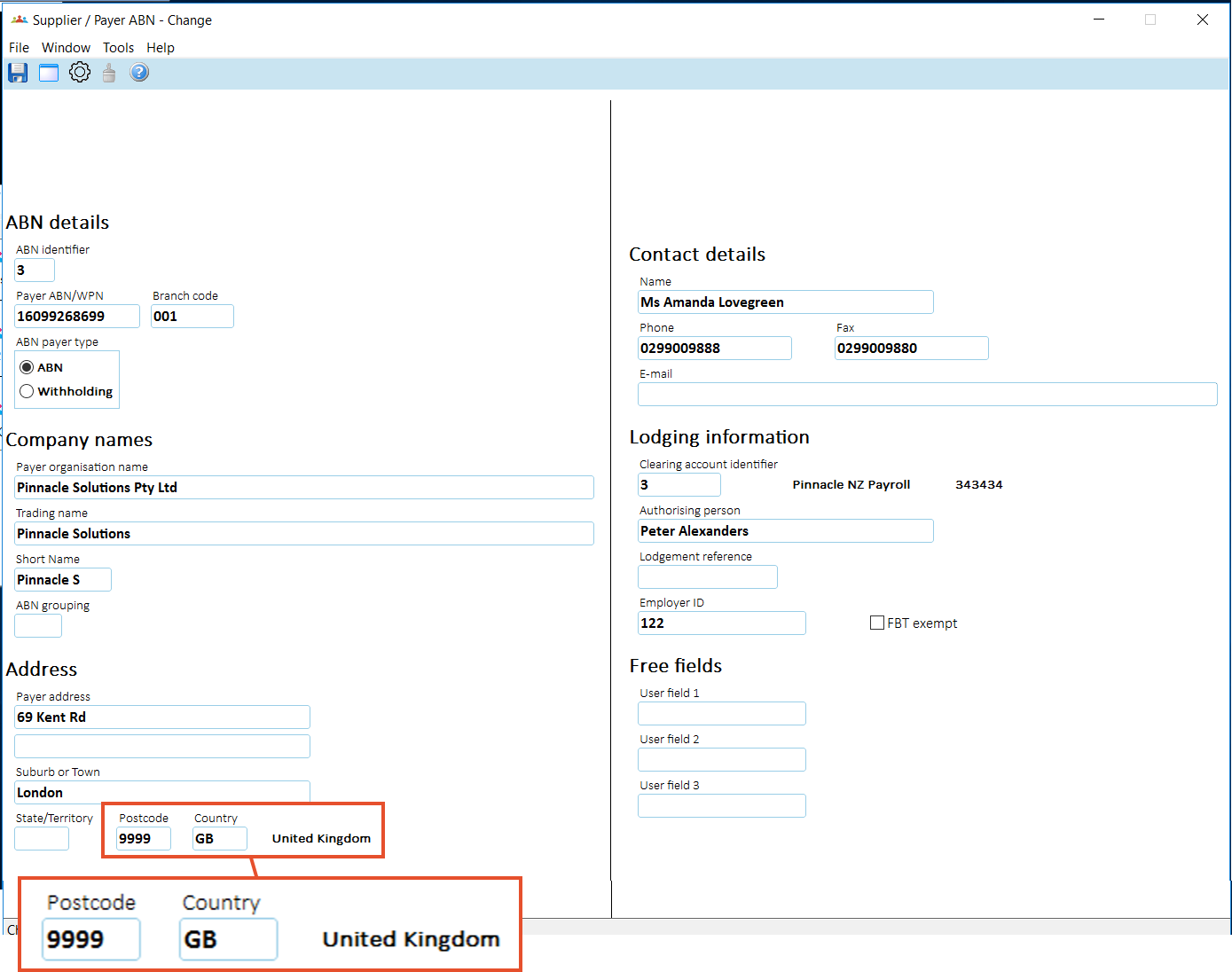
| ![Information](/resources/Storage/ehr-user-guide/ehr-user-guide/Info.png) | For any *non-Australian* supplier/payer ABN address, the **Postcode** field must show **9999**, with the correct country in the **Country** field.<br><br>(The **Country** field does not show for Australian addressees). |
| --- | --- |

To confirm supplier/payer ABN details for *non-Australian* addresses:

1. Go to Administration &gt; Agency Management &gt; Supplier/Payer ABN.
2. At the Supplier/Payer ABN summary screen, select a supplier/payer ABN, and then click **Open**.
3. At the Supplier/Payer ABN detail screen, make sure the Postcode for the non-Australian address is 9999, and the Country field shows the correct country. If selections are:
    1. correct, go to step 8.
    2. incorrect, go to step 4.
4. Change the postcode to 9999.
5. At the Country field, click **Window** to view a list of countries.
6. Find and double-click the country code to add it to the Country field on the Supplier/Payer ABN detail screen.

![Graphical user interface, applicationDescription automatically generated](/resources/Storage/ehr-user-guide/confirm-settings/confirm-settings-2023-10-24-7.png)

1. Click **Save**.
2. Repeat this procedure, starting at step 2, until you’re satisfied every non-Australian supplier/payer ABN address is set up correctly.

## Report SGC ![](/resources/Storage/ehr-user-guide/ehr-user-guide/icons/desktop%20icon.png)


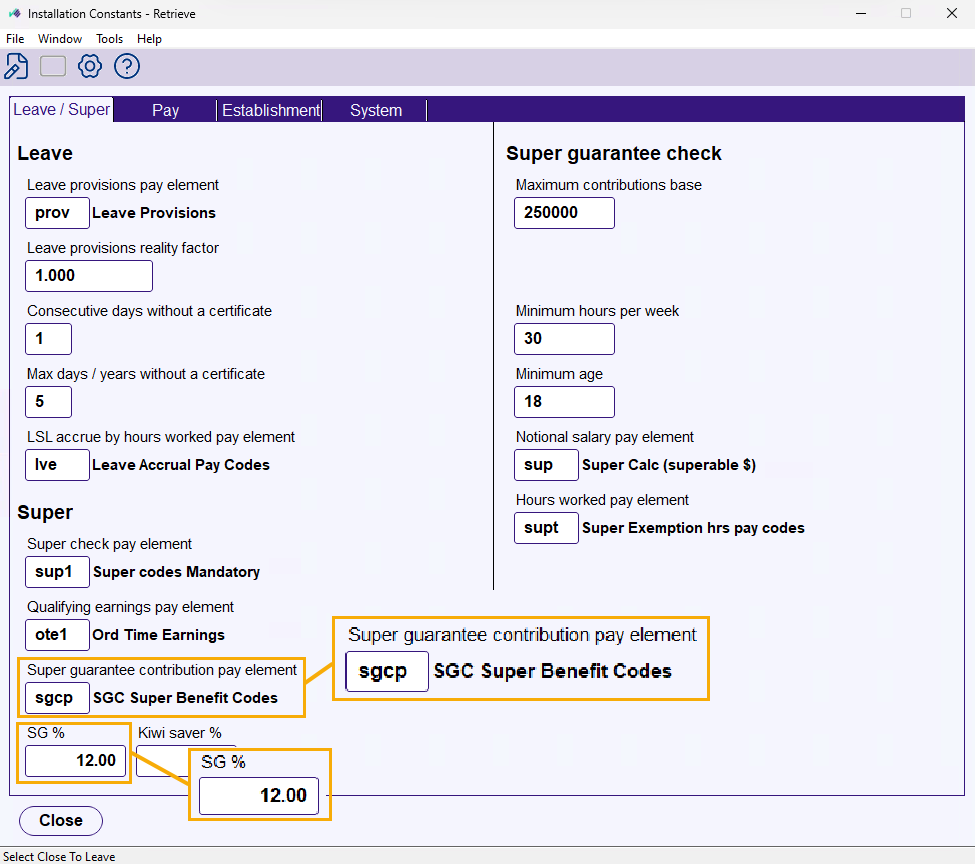
| Version EHR 2026 | To report the actual SGC paid:<br><ol><li><span style="font-family: &quot;Segoe UI&quot;, Frutiger, &quot;Frutiger Linotype&quot;, &quot;Dejavu Sans&quot;, &quot;Helvetica Neue&quot;, Arial, sans-serif;">Identify which payment codes are used to pay SGC.</span></li><li><span style="font-family: &quot;Segoe UI&quot;, Frutiger, &quot;Frutiger Linotype&quot;, &quot;Dejavu Sans&quot;, &quot;Helvetica Neue&quot;, Arial, sans-serif;">Go to <span style="font-weight: bold;">Control Tables</span> &gt; <span style="font-weight: bold;">Payment</span> &gt; <span style="font-weight: bold;">Pay Element Codes</span>. </span></li><li><span style="font-family: &quot;Segoe UI&quot;, Frutiger, &quot;Frutiger Linotype&quot;, &quot;Dejavu Sans&quot;, &quot;Helvetica Neue&quot;, Arial, sans-serif;">At <span style="font-weight: bold;">Pay Element Codes</span>, create a new <a href="/articles/ehr-user-guide/pay-element-codes" onclick="return n(&#39;!ehr-user-guide/pay-element-codes&#39;,this);">pay element code</a>, add the payment codes to that element, and then click <b>Save</b>.</span></li><li><span style="font-family: &quot;Segoe UI&quot;, Frutiger, &quot;Frutiger Linotype&quot;, &quot;Dejavu Sans&quot;, &quot;Helvetica Neue&quot;, Arial, sans-serif;">Go to <span style="font-weight: bold;">Administration</span> &gt; <span style="font-weight: bold;">Agency Management</span> &gt; <span style="font-weight: bold;">Installation Constants</span>. </span></li><li><span style="font-family: &quot;Segoe UI&quot;, Frutiger, &quot;Frutiger Linotype&quot;, &quot;Dejavu Sans&quot;, &quot;Helvetica Neue&quot;, Arial, sans-serif;">At <span style="font-weight: bold;">Installation Constants</span>, on the <span style="font-weight: bold;">Leave/Super</span> tab:</span><ol><li><span style="font-family: &quot;Segoe UI&quot;, Frutiger, &quot;Frutiger Linotype&quot;, &quot;Dejavu Sans&quot;, &quot;Helvetica Neue&quot;, Arial, sans-serif;">add the new pay element code to the <span style="font-weight: bold;">SGC pay codes pay element</span> field.</span></li><li><span style="font-family: &quot;Segoe UI&quot;, Frutiger, &quot;Frutiger Linotype&quot;, &quot;Dejavu Sans&quot;, &quot;Helvetica Neue&quot;, Arial, sans-serif;">enter the percentage amount in the <span style="font-weight: bold;">SGC %</span> field (for example, <span style="font-weight: bold;">11</span>%).</span></li></ol></li></ol><br>![](/resources/Storage/ehr-user-guide/confirm-settings/Installation%20Constants%20-%20Report%20SGC%20-%20EHR2026.png)<br><ol><li value="6"><span style="font-family: &quot;Segoe UI&quot;, Frutiger, &quot;Frutiger Linotype&quot;, &quot;Dejavu Sans&quot;, &quot;Helvetica Neue&quot;, Arial, sans-serif;">Click <b>Save</b>.</span></li></ol> |
| --- | --- |
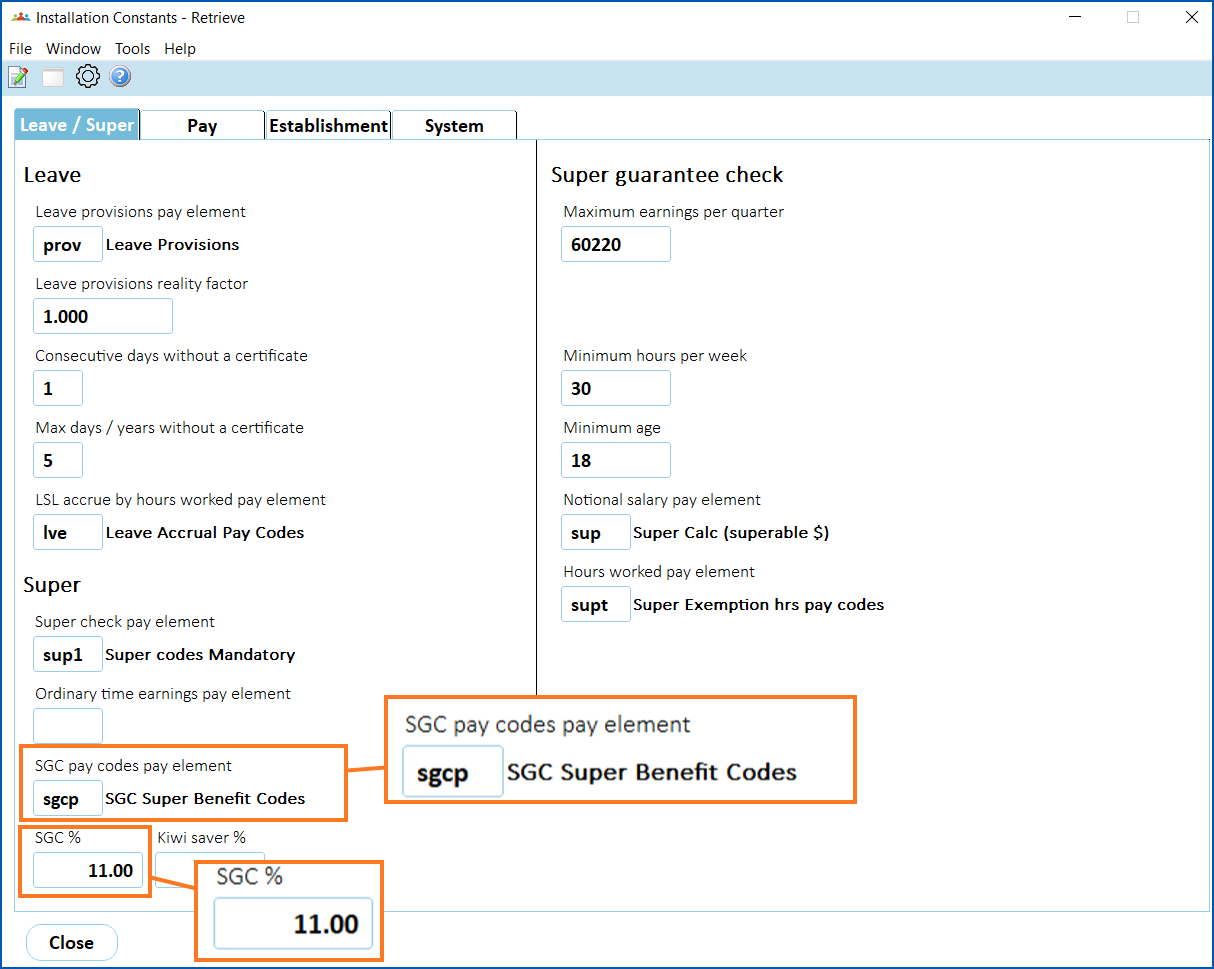
| Version EHR 2025 | To report the actual SGC paid:<br><ol><li><span style="font-family: &quot;Segoe UI&quot;, Frutiger, &quot;Frutiger Linotype&quot;, &quot;Dejavu Sans&quot;, &quot;Helvetica Neue&quot;, Arial, sans-serif;">Identify which payment codes are used to pay SGC.</span></li><li><span style="font-family: &quot;Segoe UI&quot;, Frutiger, &quot;Frutiger Linotype&quot;, &quot;Dejavu Sans&quot;, &quot;Helvetica Neue&quot;, Arial, sans-serif;">Go to <span style="font-weight: bold;">Control Tables</span> &gt; <span style="font-weight: bold;">Payment</span> &gt; <span style="font-weight: bold;">Pay Element Codes</span>. </span></li><li><span style="font-family: &quot;Segoe UI&quot;, Frutiger, &quot;Frutiger Linotype&quot;, &quot;Dejavu Sans&quot;, &quot;Helvetica Neue&quot;, Arial, sans-serif;">At <span style="font-weight: bold;">Pay Element Codes</span>, create a new <a href="/articles/ehr-user-guide/pay-element-codes" onclick="return n(&#39;!ehr-user-guide/pay-element-codes&#39;,this);">pay element code</a>, add the payment codes to that element, and then click <b>Save</b>.</span></li><li><span style="font-family: &quot;Segoe UI&quot;, Frutiger, &quot;Frutiger Linotype&quot;, &quot;Dejavu Sans&quot;, &quot;Helvetica Neue&quot;, Arial, sans-serif;">Go to <span style="font-weight: bold;">Administration</span> &gt; <span style="font-weight: bold;">Agency Management</span> &gt; <span style="font-weight: bold;">Installation Constants</span>. </span></li><li><span style="font-family: &quot;Segoe UI&quot;, Frutiger, &quot;Frutiger Linotype&quot;, &quot;Dejavu Sans&quot;, &quot;Helvetica Neue&quot;, Arial, sans-serif;">At <span style="font-weight: bold;">Installation Constants</span>, on the <span style="font-weight: bold;">Leave/Super</span> tab:</span><ol><li><span style="font-family: &quot;Segoe UI&quot;, Frutiger, &quot;Frutiger Linotype&quot;, &quot;Dejavu Sans&quot;, &quot;Helvetica Neue&quot;, Arial, sans-serif;">add the new pay element code to the <span style="font-weight: bold;">SGC pay codes pay element</span> field.</span></li><li><span style="font-family: &quot;Segoe UI&quot;, Frutiger, &quot;Frutiger Linotype&quot;, &quot;Dejavu Sans&quot;, &quot;Helvetica Neue&quot;, Arial, sans-serif;">enter the percentage amount in the <span style="font-weight: bold;">SGC %</span> field (for example, <span style="font-weight: bold;">11</span>%).</span></li></ol></li></ol><br>![](/resources/Storage/ehr-user-guide/confirm-settings/install%20constant%20-%20report%20sgc.png)<br><ol><li value="6"><span style="font-family: &quot;Segoe UI&quot;, Frutiger, &quot;Frutiger Linotype&quot;, &quot;Dejavu Sans&quot;, &quot;Helvetica Neue&quot;, Arial, sans-serif;">Click <b>Save</b>.</span></li></ol> |

## Check termination reason codes

Make sure the termination reason codes for your organisation all contain the right cessation types so your STP reporting is reliable.

See [termination reason codes](/articles/ehr-user-guide/termination-reason-codes) for instructions.

## Check custom tax scales

If you've created your own custom tax scales, check they are set up with the correct tax treatment code.

See [tax scale codes](/articles/ehr-user-guide/tax-scale-codes) for instructions.

## Set up payment codes

STP requires reporting income against a range of specific payment types so ensure your payment codes are set up correctly.

See [payment codes](/articles/ehr-user-guide/payment-codes) for instructions.

| Next topic<br> <br>[Run STP events and reports](/articles/ehr-user-guide/run-stp-events-reports) |
| --- |

© 2023 Fusion5. All rights reserved.