---
title: "What you need to set up (staff absence calendar)"
id: "what-you-need-to-set-up-staff-absence-calendar"
project: "EHR User Guide"
url: "https://help.cloud5.com.au/articles/ehr-user-guide/what-you-need-to-set-up-staff-absence-calendar"
updated: 2026-10-19T00:52:46Z
---
# What you need to set up \(staff absence calendar\)
Before your organisation can use EmpowerHR's staff absence calendar, you need to perform the following setup tasks:
* [Add screen to template](/articles/ehr-user-guide/what-you-need-to-set-up-staff-absence-calendar/a/h2__198354218)
* [Set installation setting](/articles/ehr-user-guide/what-you-need-to-set-up-staff-absence-calendar/a/h2_1111377247)
* [Set installation option](/articles/ehr-user-guide/what-you-need-to-set-up-staff-absence-calendar/a/h2_425793240)
* [Schedule background jobs](/articles/ehr-user-guide/what-you-need-to-set-up-staff-absence-calendar/a/h2__380639425)
* [Schedule auto event processing job](/articles/ehr-user-guide/what-you-need-to-set-up-staff-absence-calendar/a/h3_1817221810)
* [Schedule automatic leave without pay job](/articles/ehr-user-guide/what-you-need-to-set-up-staff-absence-calendar/a/h3__254970098)
## Add screen to template 
You need to add the following screen to the relevant template in self service:
* **Staff Absences**
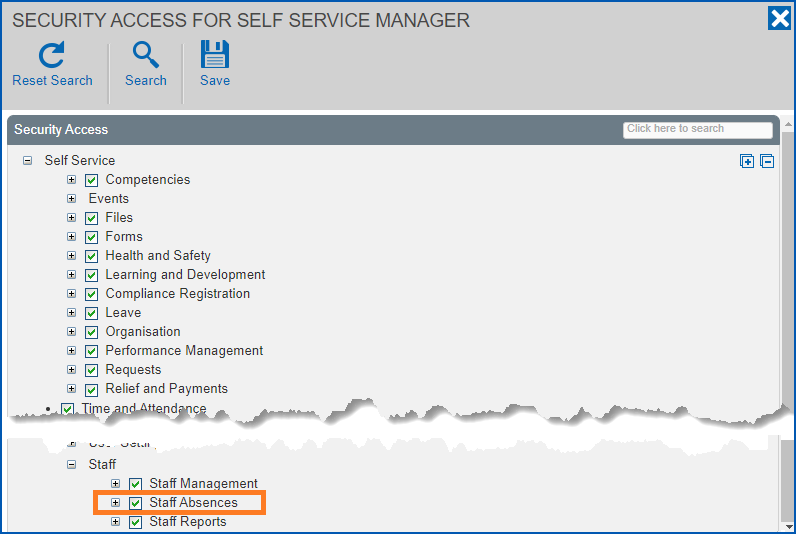
If you're not sure how to do this, see [create and update self service templates](/articles/ehr-user-guide/create-and-update-self-service-templates "Click to open page in new window"), and here's the Staff Absences screen's location in the security access settings:
## Set installation setting
The installation setting called **(ablw) automatic leave without pay** is where you nominate how long before EmpowerHR creates a LWOP request for an absence, and where you set the leave type and code to use for the request. You can set it in desktop or in self service.
LWOP = leave without payTo find the setting:
* In desktop , go to **Administration > Agency Management > Installation Settings**. Find **ablw** in the **Type** column, and then double-click the row to open the **Installation Settings – Change** window.
* In self service , go to **Administration > Configuration > All Configuration**. Expand **Self Service > Absence Calendar**, and then click **(ablw) Automatic Leave Without Pay**.
If you need help on how to find the **ablw** setting, see [installation settings](/articles/ehr-user-guide/installation-settings "Click to open page in new window").
On the setting, update the fields using the following examples and table as a guide.
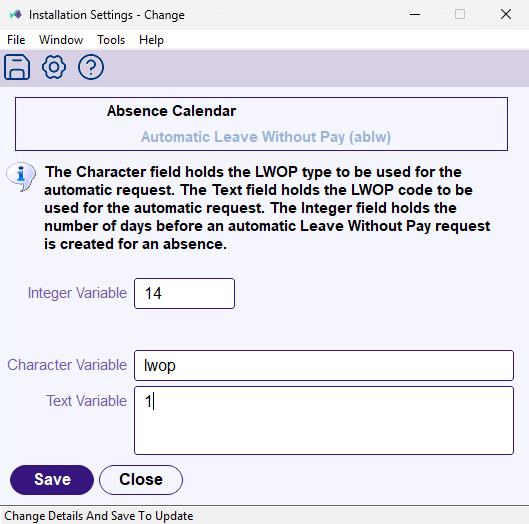
|  | Installation setting in desktop |
| --- | --- |
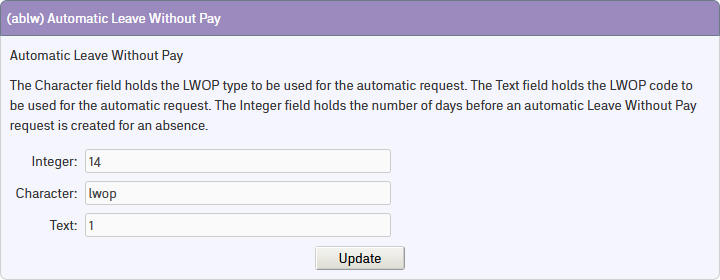
|  | Installation setting in self service |
| --- | --- |
| **At this field...** | **Do this...** |
| --- | --- |
| **Integer** | Enter the number of days you want to nominate before EmpowerHR automatically creates and submits a LWOP request on the employee's behalf. |
| **Character** | Enter the leave type, **LWOP**. EmpowerHR uses this when creating and submitting a leave request. |
| **Text** | Enter the leave type code to use for the automatic request, for example, **1** |
## Set installation option
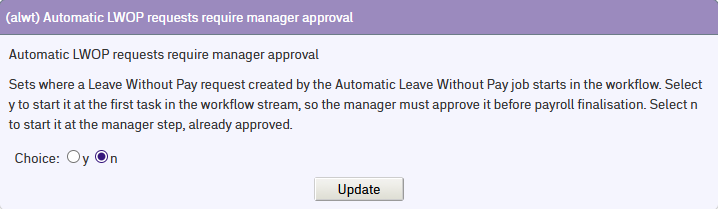
The installation option called **(alwt)** **Automatic LWOP requests require manager approval** is where you decide whether a LWOP request created by the automatic leave without pay job goes to the employee's manager for approval first. You can set it in desktop or in self service.
LWOP = leave without pay
To find the option:
* In desktop , go to **Administration > Agency Management > Installation** **Options**. Find **alwt** in the **Code** column.
* In self service , go to **Administration > Configuration > All Configuration**. Expand **Self Service > Leave**, and then click **(alwt) Automatic LWOP requests require manager approval**.
If you need help finding the **alwt** option, see [installation options](/articles/ehr-user-guide/installation-options "Click to open page in new window").
Select an option using the following examples and table as a guide.
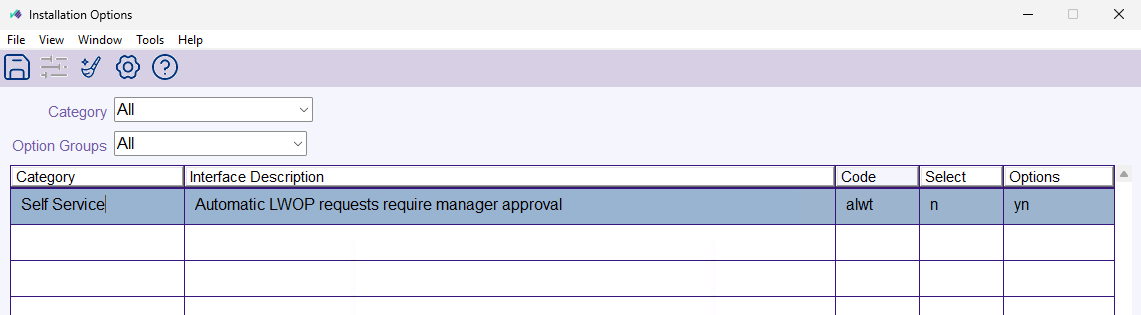
|  | Installation option in desktop |
| --- | --- |
|  | Installation option in self service |
| --- | --- |
| **Select...** | **To...** |
| --- | --- |
| **y** | Send the request to the employee's manager at the first step in the workflow. The manager can then approve it, or reject it and follow up the missing leave request. |
| **n** | Send the request to the next approver after the manager, as if the manager had raised it. This is the default. |
## Set up absence leave reminders
So employees can receive an automatic reminder to submit a leave request, you need to set up the **absence leave reminder (zalr)**.
To set up the absence leave reminder:
1. Go to Administration > **Auto Event Definition**.
2. At the Auto Event Definition summary screen, click **New**.
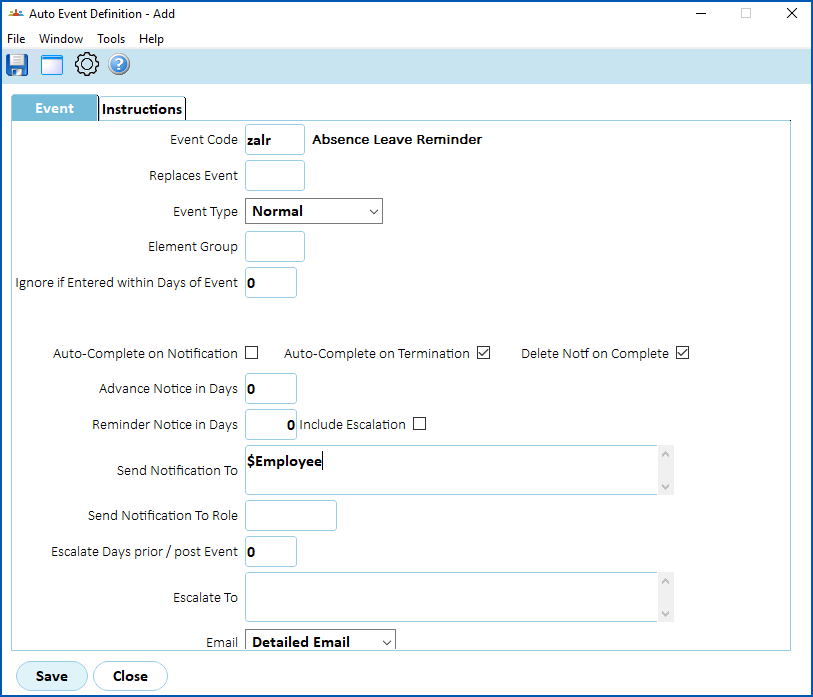
3. At the Auto Event Definition detail screen, on the **Event** tab, complete the fields using the following table as a guide.
| **At this field...** | **Do this...** |
| --- | --- |
| Event Code | Enter **zalr** and then press **Tab**. EmpowerHR displays the event description, **Absence Leave Reminder**. |
| Event Type | Nothing. Keep the default selection of **Normal**. |
| Auto-Complete on Termination | Select this checkbox so that when an employee leaves your organisation and EmpowerHR's termination process is run, the system automatically completes the employee's uncompleted events. |
| Delete Notf on Complete | Select this checkbox to delete the notification once the event is complete (that is, the employee has created and submitted the leave request). |
| Send Notification To | Enter the symbolic name: **$Employee;**
This symbolic name recognises the email address held in the employee record. |
| Email | Select **Detailed Email** from the dropdown list. |
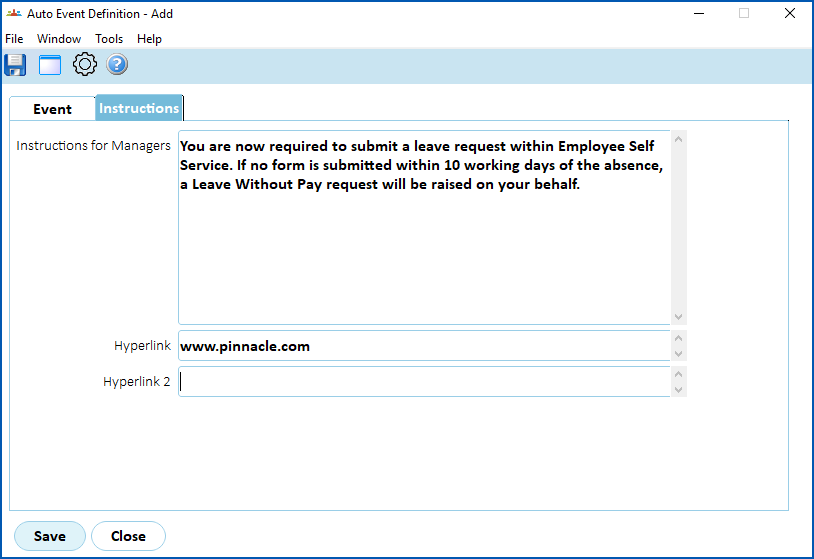
1. Click the **Instructions** tab, and then enter:
1. **Instructions for Managers**
2. a **Hyperlink** to self service, if you wish
For example:
1. Click **Save**.
##
| Example of absence leave reminder | When the auto event processing job runs, EmpowerHR sends a reminder to any employee who is [marked as absent](/articles/ehr-user-guide/manage-staff-absences/a/MkStaffAbs) and has not submitted a leave request. The wording shown in the second paragraph below is just an example. When setting up the reminder, you can enter the wording you prefer on the **Instructions** tab.
08/03/2024 A leave request for your absence on 08/03/2024 at Mountain Heights School has not yet been submitted, Eliza Chan (000090).
You are now required to submit a leave request within Employee Self Service. If no form is submitted within 10 working days of the absence, a Leave Without Pay request will be raised on your behalf. |
| --- | --- |
## Schedule background jobs
When you schedule the following background jobs, we recommend you schedule them to run *each day* and at a time that best suits your organisation.
* **Auto event processing** - schedules the absence reminder event
* **Automatic leave without pay** - creates the LWOP request after the nominated time period
|  | The automatic leave without pay job:
- runs in a correctly configured environment if Fusion5 hosts your EmpowerHR, or in self service if your organisation hosts it
- requires run in order to create the job definition
For assistance or more information, let us know by logging an [iHelp request](https://infusion.fusion5.com/). |
| --- | --- |
### Schedule auto event processing job
|  | If this background job is already scheduled (e.g. for other auto events), you can skip the following procedure. |
| --- | --- |
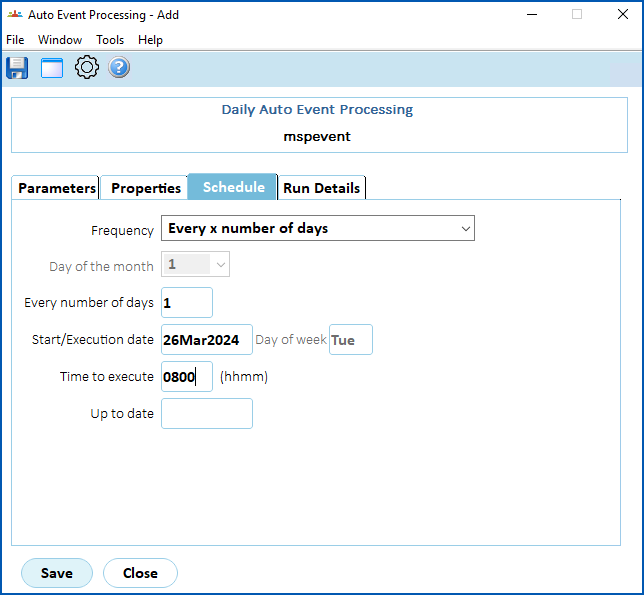
To schedule the daily auto event processing job: 
1. Go to **Background Jobs**> **Daily Processing** > **Auto Event Processing**.
2. At the Auto Event Processing screen, click the **Schedule** tab.
3. Complete the fields to suit your organisation's needs. Here's an example:
1. Click **Save**.
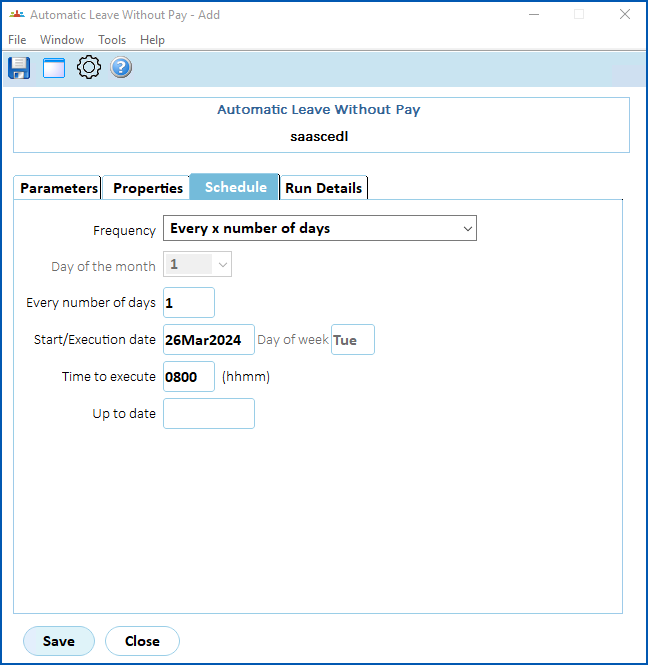
### Schedule automatic leave without pay job
To schedule the automatic leave without pay job: 
1. Go to **Background Jobs**> **Daily Processing**>**Automatic Leave Without Pay**.
2. At the **Automatic Leave Without Pay** ****screen, click the **Schedule**tab.
3. Complete the fields to suit your organisation's needs. Here's an example:
1. Click **Save**.
| Next topic
[Manage staff absences](/articles/ehr-user-guide/manage-staff-absences) |
| --- |
© 2023 Fusion5. All rights reserved. SaaSU