---
title: "View LSL "
id: "view-lsl"
project: "EHR User Guide"
url: "https://help.cloud5.com.au/articles/ehr-user-guide/view-lsl"
updated: 2026-10-19T00:52:39Z
---
# View LSL
EmpowerHR provides an overview of the long service leave (LSL) balance and how much LSL has been taken.
## View LSL balance
To view LSL balance:
1. Go to **Enquiries**>**Leave**>**Long Service Leave**.
2. At the **Long Service Leave** summary screen, with **Employee** selected from the **Look In** dropdown list, enter the employee code in the **For** field to view a specific employee's information, or else leave the field blank to view all employees.
3. Click **Find Now**. The results are displayed.
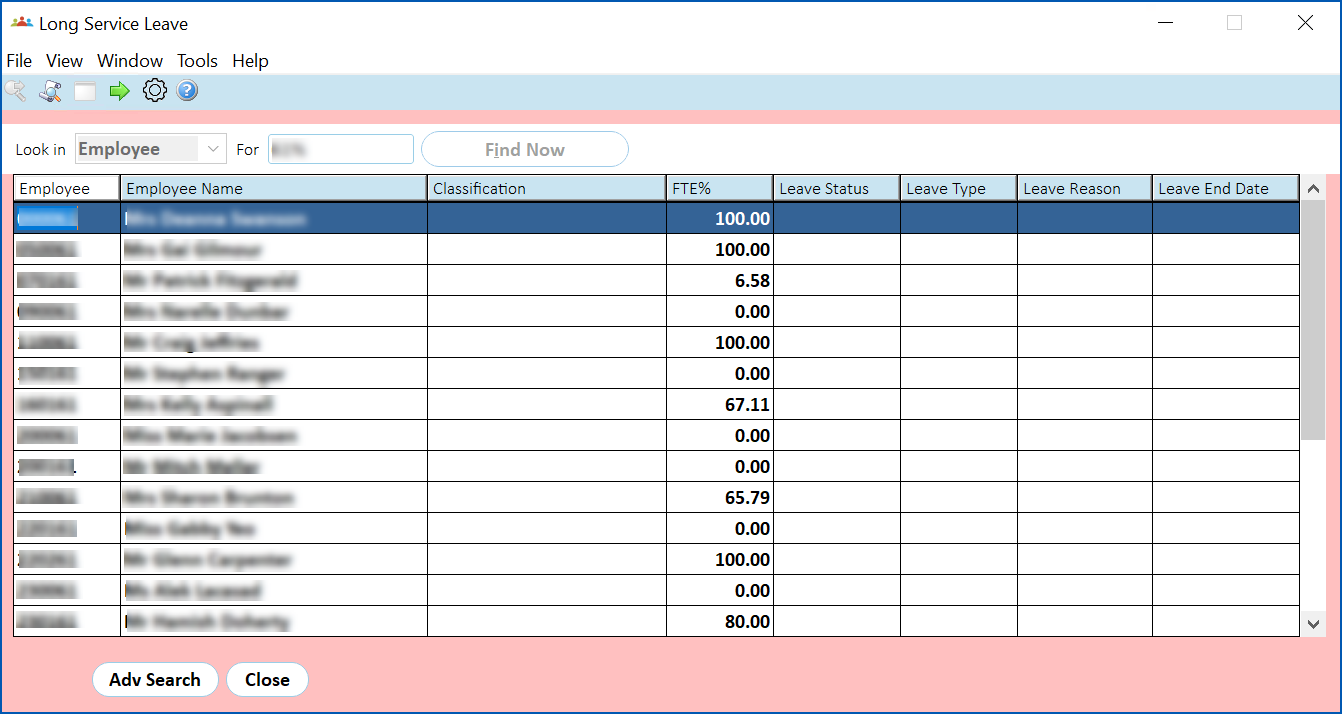
1. Select an employee and click **Next Level**.
2. The **Long Service Leave** screen displays.
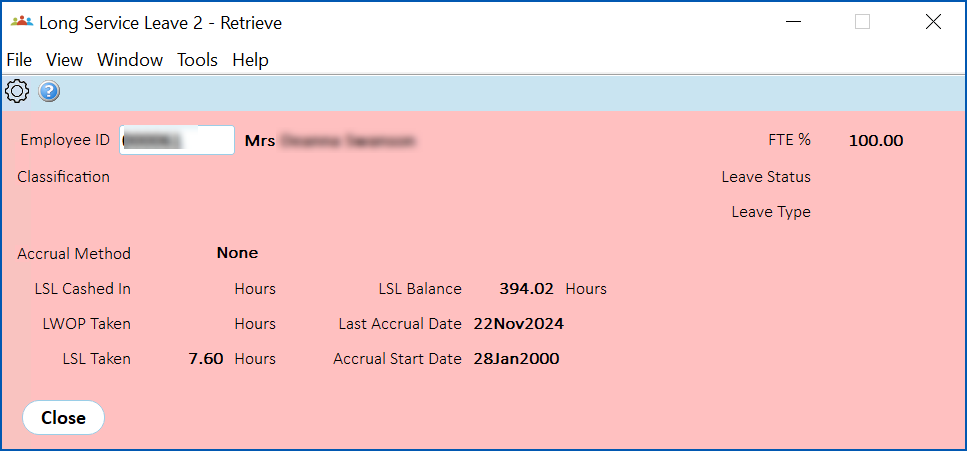
1. The screen shows the:
* **Accrual Method Code** - from the **Authority** field on the Employee Position Information screen
* **Accrual Method Description** - belonging to the **Authority** field on the Employee Position Information screen
* **LSL Cashed in** - hours recorded for payments made against payment code 1031
##
| Next topic
[Information security](/articles/ehr-user-guide/information-security) |
| --- |
© 2023 Fusion5. All rights reserved.