---
title: "View incident messages (leave entitlements)"
id: "view-incident-messages-leave-entitlements"
project: "EHR User Guide"
url: "https://help.cloud5.com.au/articles/ehr-user-guide/view-incident-messages-leave-entitlements"
updated: 2026-10-19T00:52:51Z
---
# View incident messages \(leave entitlements\)
EmpowerHR provides incident logs where you can check what has happened after processing long service leave entitlements. They are:
* View Run Incident Messages
* View Generation Incidents
The two logs are controlled by the setting on the installation option called **pay advice leave entitlements (advl)**. Here are the settings explained:
| **When you set advl to...** | **EmpowerHR...** | **You can see the log at Payroll > Payroll Processing >** |
| --- | --- | --- |
| **r** | calculates entitlements during the following payroll processes:
- Run Pay Calcs
- up to Finalise Payrun
| View Run Incident Messages |
| **y** | calculates entitlements during the following payroll process:
| View Generation Incidents |
| **n** | does not calculate leave entitlements | N/A |
## View run incident messages
To view run incident messages:
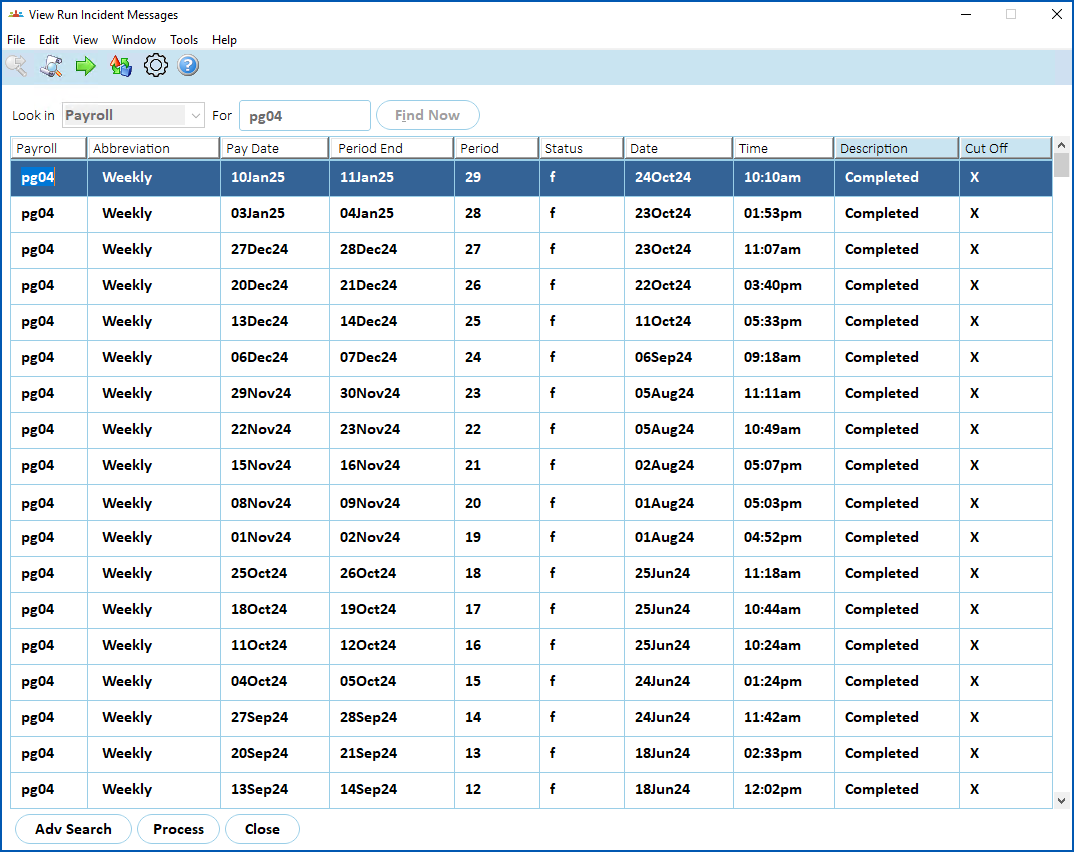
1. Go to **Tasks**> **Payroll**> **Payroll Processing > View Run Incident Messages**.
2. The **View Run Incident Messages** screen displays.
3. At **Look in**, select **Payroll** from the dropdown list, and then enter the code for the payroll in **For**.
4. Click **Find Now**. The results are displayed.
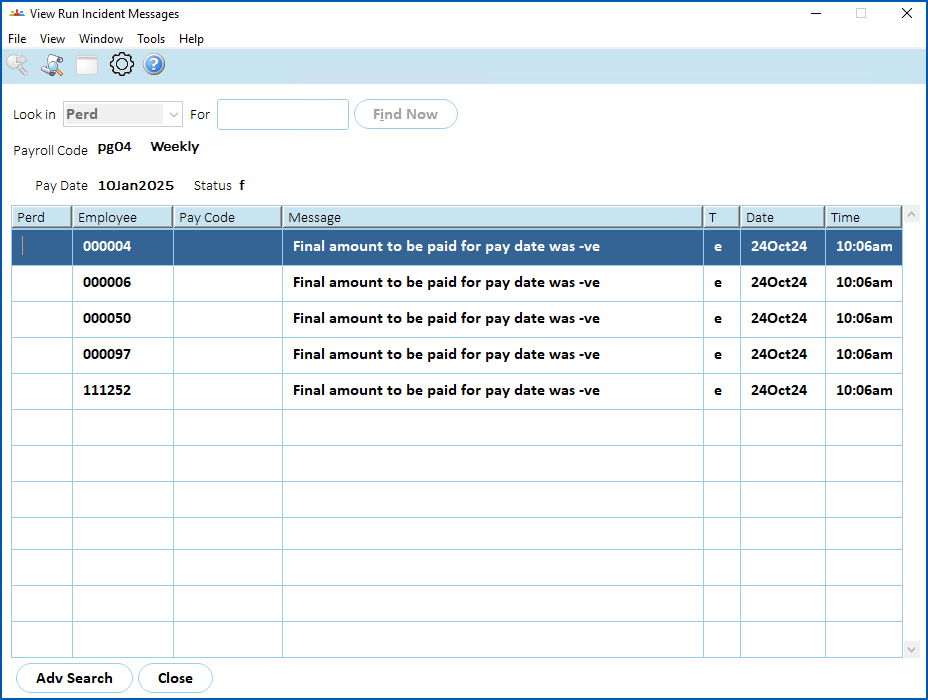
1. Click **Process**. EmpowerHR displays the incidents.
## View generation incidents
To view generation incidents:
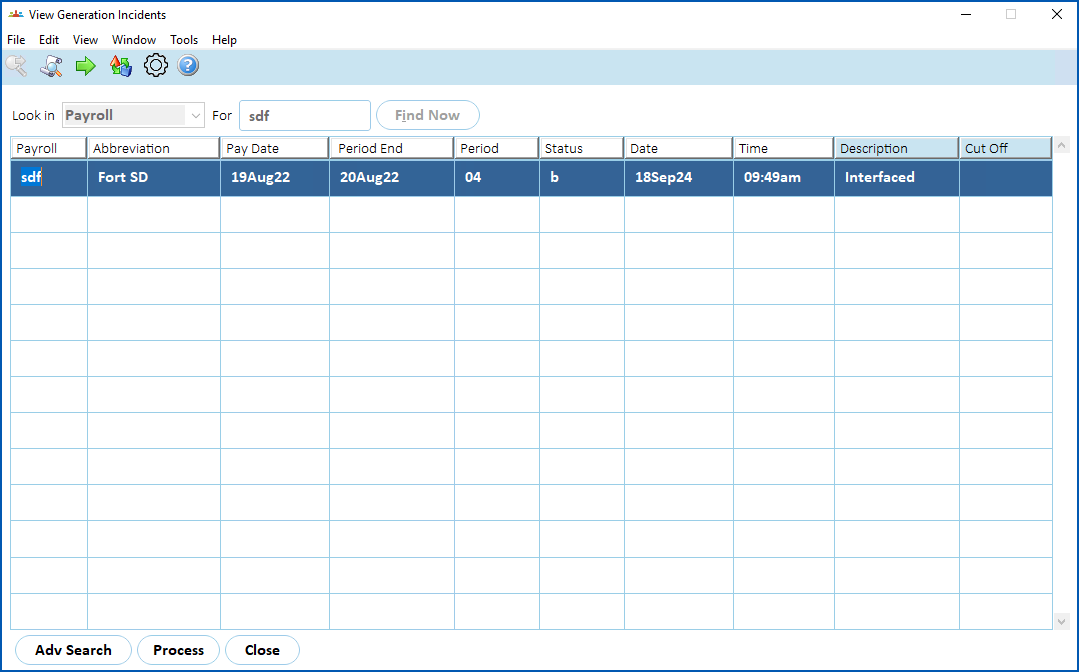
1. Go to **Tasks**> **Payroll**> **Payroll Processing > View Generation Incidents**.
2. The **View Generation Incidents** screen displays.
3. At **Look in**, select **Payroll** from the dropdown list, and then enter the code for the payroll in **For**.
4. Click **Find Now**. The results are displayed.
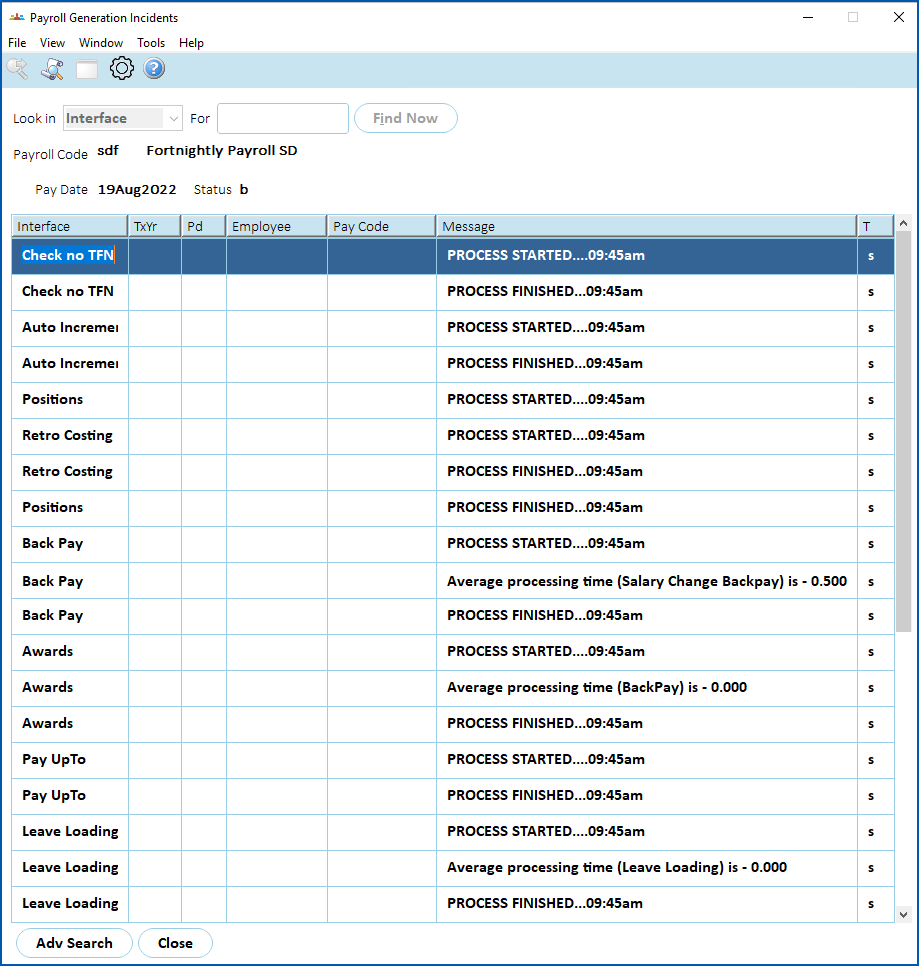
1. Click **Process**. EmpowerHR displays the incidents.
| Next topic
[Payroll reporting](/articles/ehr-user-guide/payroll-reporting) |
| --- |
© 2023 Fusion5. All rights reserved.