---
title: "View formula type employee details"
id: "view-formula-type-employee-details"
project: "EHR User Guide"
url: "https://help.cloud5.com.au/articles/ehr-user-guide/view-formula-type-employee-details"
updated: 2026-10-19T00:53:15Z
---
# View formula type employee details
After the formula check process is run, you can view the employees due to receive either a Formula 1 or Formula 2 payment.
To view formula type employee details:
1. Go to **Enquiries** > **School** > **View Formula Type**.
2. At the **View Formula Type** summary screen, click **Adv Search**.
3. At the **Adv Search** screen, do an advanced search using the following examples as a guide.
| **To check the...** | **Do this...** |
| --- | --- |
| formula type used to pay formula amounts to an employee's termination | Enter the **Employee code**.
Enter the termination date in the **Calculated For** field.
Click **Find Now**. |
| formula type for an employee paid a block payment | Enter the **Employee code**.
Enter the paid date in the **Calculated For** field.
Click **Find Now**. |
| formula type details for the completed school year
(where the current date is now in the new school year) | Enter the last day of Term 4 in the **Calculated For** field.
Click **Find Now**. |
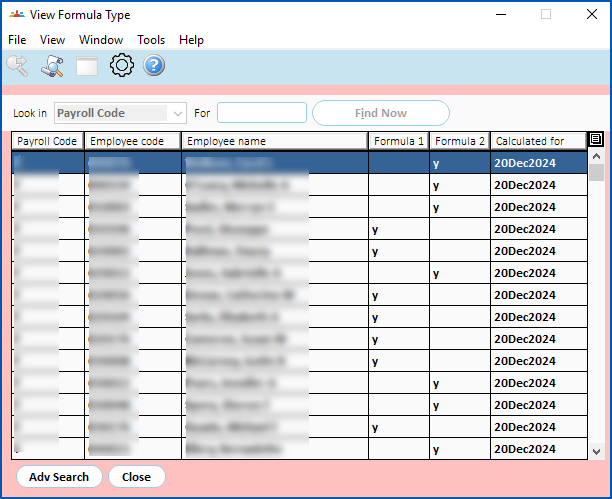
1. EmpowerHR displays the results of your search.
| Next topic
[View formula pay calculations](/articles/ehr-user-guide/view-formula-pay-calculations) |
| --- |
© 2023 Fusion5. All rights reserved.