---
title: "View form attachments"
id: "view-form-attachments"
project: "EHR User Guide"
url: "https://help.cloud5.com.au/articles/ehr-user-guide/view-form-attachments"
updated: 2026-10-19T00:53:39Z
---
# View form attachments
You can view, and where allowed, delete attachments to forms via EmpowerHR's Files screen.
## View form attachments (files) in ESS
In ESS, an employee:
* can only view attachments to a position-based form where the **Occupant Assoc.** field on the form template is set to **y** and the employee occupies the position.
* can only view, not delete, attachments to a position-based form.
To view form attachments (files) in ESS:
1. Click **Files**.
2. EmpowerHR displays the **Files** screen listing all attachments, grouped by the type of form (and any other type of attachment submitted, such as compliance registration, requests, etc).
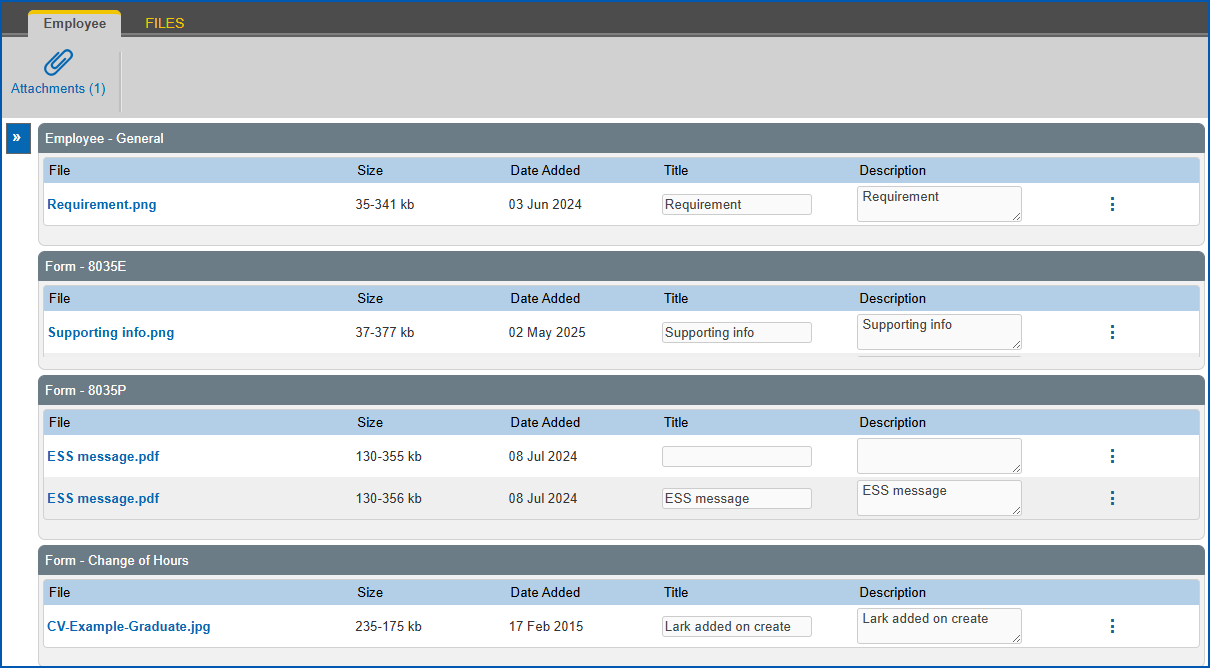
1. To:
1. view an attachment file, in the **File** column, click the filename. EmpowerHR displays the file in a new window.
2. delete an attachment file, on the row containing the file, click **Actions** and then select **Delete File**from the menu. At the **File Details** screen, click **Confirm Delete** and EmpowerHR deletes the file.
|  | You cannot delete a file attached to a position-based form. |
| --- | --- |
## View an employee's form attachments (files) in MSS
In MSS, a manager:
* can access attachments to a position-based form where the manager has hierarchical access to the position.
* can view and also delete attachments to a position-based form (provided functional security allows deletion).
To view an employee's form attachments (files) in MSS:
1. Click **Staff Management**
2. At **Staff Managemen** **t**, search for the employee.
3. In **Staff Lookup**, on the row containing the employee, click **Actions** and then select**Files**from the menu.
4. EmpowerHR displays the **Files for...**screen listing attachments submitted by the selected employee, grouped by the type of form.
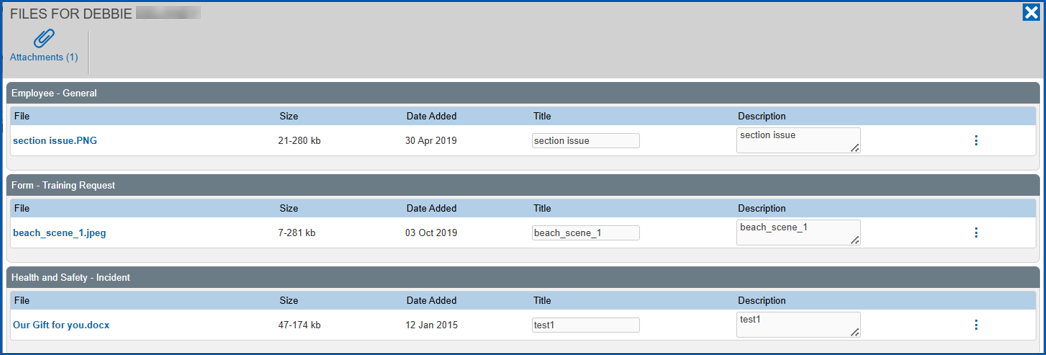
1. To:
1. view an attachment file, in the **File** column, click the filename. EmpowerHR displays the file in a new window.
2. delete an attachment file, on the row containing the file, click **Actions** and then select **Delete File**from the menu. At the **File Details** screen, click **Confirm Delete** and EmpowerHR deletes the file.
| Next topic
[View/edit rejected forms](/articles/ehr-user-guide/view-edit-rejected-forms) |
| --- |
© 2023 Fusion5. All rights reserved.