---
title: "Use temporary position history screen"
id: "use-temporary-position-history-screen"
project: "EHR User Guide"
url: "https://help.cloud5.com.au/articles/ehr-user-guide/use-temporary-position-history-screen"
updated: 2026-10-19T00:54:05Z
---
# Use temporary position history screen
You can also record temporary movements from the **Temp Position Histor** **y** **** screen, typically, when a movement doesn't fall within your organisation's usual higher duties or secondment conditions.
When you use this method, no additional remuneration is payable, but EmpowerHR records a temporary movement and sets the processing flag (**/**) column to **h** (history).
To record an employee temporary movement from the **Temp Position History** screen: 
1. Go to **Tasks** > **Employees** > **Temporary Movements** > **Temp Position History**.
2. At the **Temp Position History******summary screen, in **Employee Code**:
1. enter the code if you know it, *or*
2. click **Window**, find and double-click the code to add it to the field
3. Press **Tab**. EmpowerHR displays the employee's temporary position movement records if any exist, otherwise the list is empty.
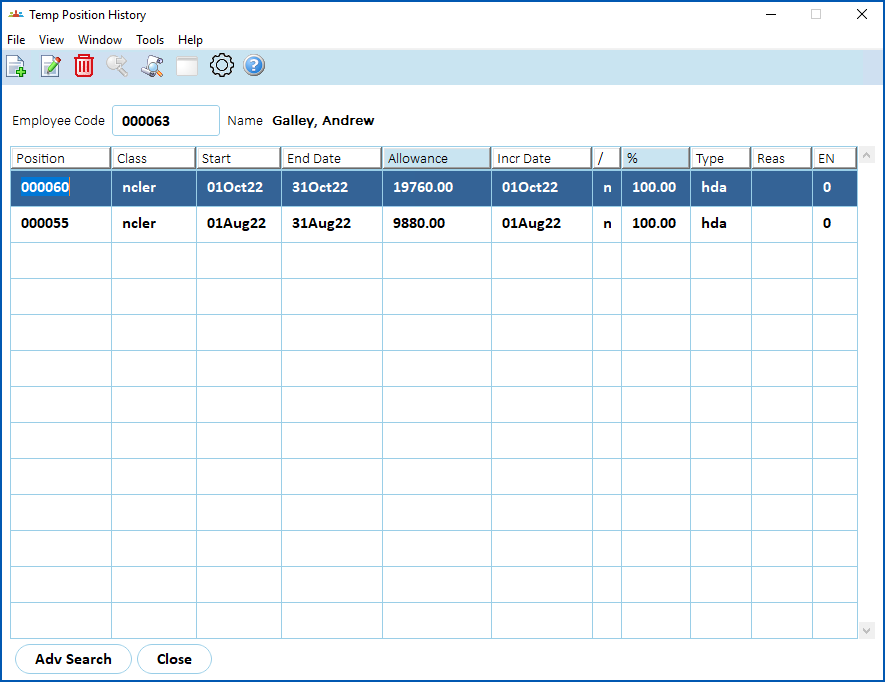
1. Click **New**.
2. At the **Temp Position History (add)**detail screen, in the **New** **Temporary Position Details (Type)** field, click **Window**, find and double-click the code to add it to the field.
|  | The **Position Movement Reason** control table holds eligible codes, where the **Temp** (temporary) flag is set to **y** (yes). |
| --- | --- |
1. Complete the fields. If you need more help, see the table explaining the fields in [record an employee HDA](/articles/ehr-user-guide/record-an-employee-hda).
|  | You'll find you cannot access the **HDA Increment Date**, **HDA%**, **HDA Annual Allowance**, and **Payment Code** fields. |
| --- | --- |
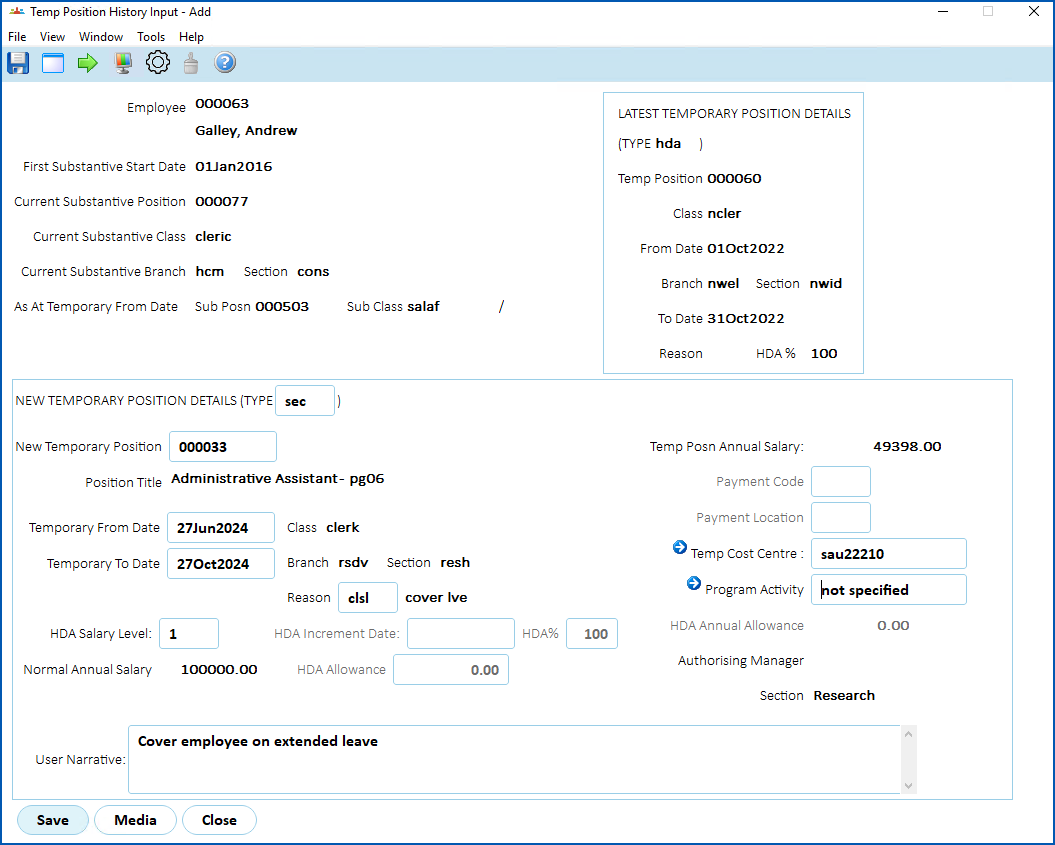
1. Click **Save**.
| Next topic
[Delete and reverse a position movement](/articles/ehr-user-guide/delete-and-reverse-a-position-movement) |
| --- |
© 2023 Fusion5. All rights reserved.