---
title: "Use functions, literals & parameters"
id: "use-functions-literals-parameters"
project: "EHR User Guide"
url: "https://help.cloud5.com.au/articles/ehr-user-guide/use-functions-literals-parameters"
updated: 2026-10-19T00:54:09Z
---
# Use functions, literals & parameters
## Use functions
On the Advanced Filter's **User Filter Definition** screen, **Operand 2** offers a range of **Functions**, based on the data type you selected in **Operand 1**. For example:
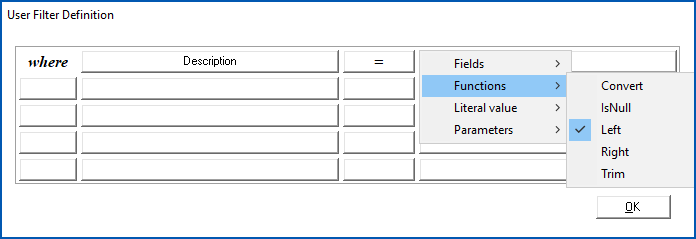
Then, when you select a function in **Operand 2**, EmpowerHR displays the **Define Function Parameters...** for that selected function. For example, if you select the **Left** function to filter by the left-most characters, you define the **String** and **Length** function parameters:
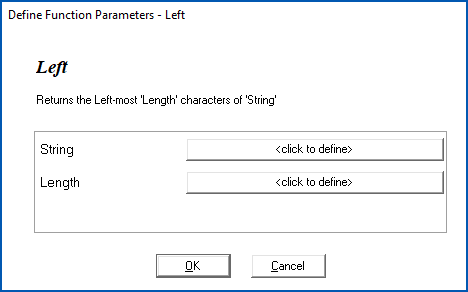
Click a button on the **Define Function Parameters...** screen. EmpowerHR displays the available options for the particular parameter.
## Use literal values
When defining an advanced filter, you can enter a **Literal value** as a static parameter. However, where you're likely to want to change the value at runtime, we recommend you use a **Parameter** option rather than a literal value.
For example, when you specify a **Literal value** for Employment Status (e), the filter restricts the selected data to employees. This means you must modify the query to enable selection of non-employees. Whereas, if you use a **Parameter** instead, you can select either employees or non-employees by simply responding to the prompt EmpowerHR displays at runtime.
You are only prompted for a literal type that corresponds to the data type you select in **Operand 1**. In the following example where **Annual Salary** is a money data type (Annual Salary), you can only select the **Money** literal definition.
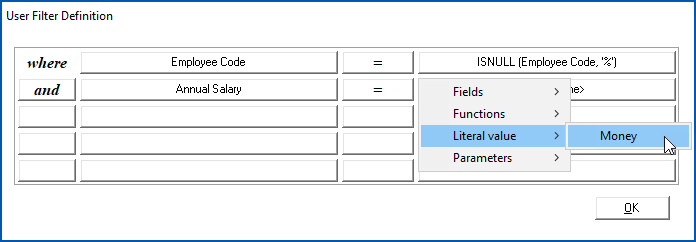
After you click **Money**, EmpowerHR prompts you to enter a literal value, **Money Value**.
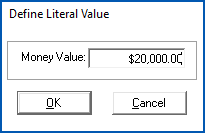
EmpowerHR displays the amount in **Operand 2** and encloses the amount in quotes to indicate it is a literal value, like this: **'$20,000'**
## Use parameters
**Parameters** are similar to **Literal values** but, rather than entering a value when creating the query, EmpowerHR prompts you to enter the value when you run the query.
### Use a standard parameter
To use a [standard parameter](/articles/ehr-user-guide/standard-parameters), in **Operand 2**, click **Parameters**, and then select a parameter from the list. For example:
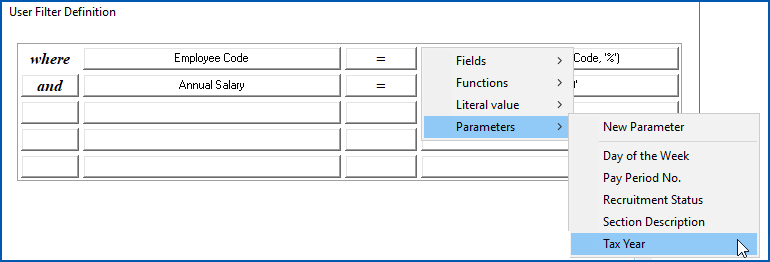
Once you make a selection, EmpowerHR displays the parameter in **Operand 2** and encloses it in parentheses to indicate it is a parameter definition, like this: **&(Tax Year)**
### Create a new parameter
If no [standard parameter](/articles/ehr-user-guide/standard-parameters) meets the query condition you need, you can create a new parameter.
To create a new parameter:
1. In **Operand 2**, click **Parameters**, and then select **New Parameter**.
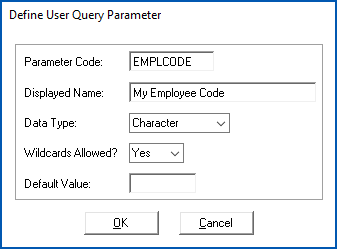
2. EmpowerHR displays the **Define User Query Parameter** screen.
3. Enter the definition details using the following table as a guide.
| **At this field...** | **Do this...** |
| --- | --- |
| Parameter Code | Enter a unique parameter code.
Do not use a leading **$** (dollar sign). EmpowerHR uses the leading **$** to identify in-built parameters. |
| Displayed Name | Enter a name for the parameter.
EmpowerHR uses this text to prompt the user at query runtime. |
| Data Type | Select the parameter's data type.
|  | If you create a parameter with a data type that doesn't match the data type in **Operand 1**, the parameter is not available in **Operand 2**. |
| --- | --- | |
| Wildcards Allowed? | EmpowerHR enables this option if you select **character** as the**** **Data Type**.
Select this option to allow wild-card text matching (for example **Bill Blog%**) so when you use the parameter together with the **Operator**, **like** or **not like**, you can use wildcards. |
| Default Value | EmpowerHR loads this value by default when prompting you for parameter inputs. |
1. Click **OK**. EmpowerHR displays the parameter in **Operand 2** and encloses it in parentheses to indicate it is a parameter definition, like this: **&** **(EMPLCODE)**
| Next topic
[Run a sub-query](/articles/ehr-user-guide/run-a-sub-query) |
| --- |
© 2023 Fusion5. All rights reserved.