---
title: "Use calculated fields"
id: "use-calculated-fields"
project: "EHR User Guide"
url: "https://help.cloud5.com.au/articles/ehr-user-guide/use-calculated-fields"
updated: 2026-10-19T00:54:09Z
---
# Use calculated fields
The Calculated Field feature lets you define a new field based on a calculation that includes one or more other [fields, literals, functions, or parameters](/articles/ehr-user-guide/use-functions-literals-parameters).
You define calculated fields in an unrestricted and uncontrolled way. There are no rules or constraints defined to ensure the syntax and integrity of a calculated field definition. Also, SQL errors occur if fields are used in the definition without being selected in the query.
Calculated fields:
* are only available in the query in which they are defined.
* can result in runtime errors when used in a query with aggregates - unless the calculated field is aggregated, you can not aggregate any other field used in the calculated field.
Some calculated fields are provided in the standard Catalogue and cannot be modified (for example, **Age**, **Initials**).
To define a calculated field:
1. Go to **Enquiries**> **Query Manager**.
2. At the **Data** tab, select the query, and click **Move Right** to****displays the fields in the **Query data**panel.
3. Click **Calculated Fields**.
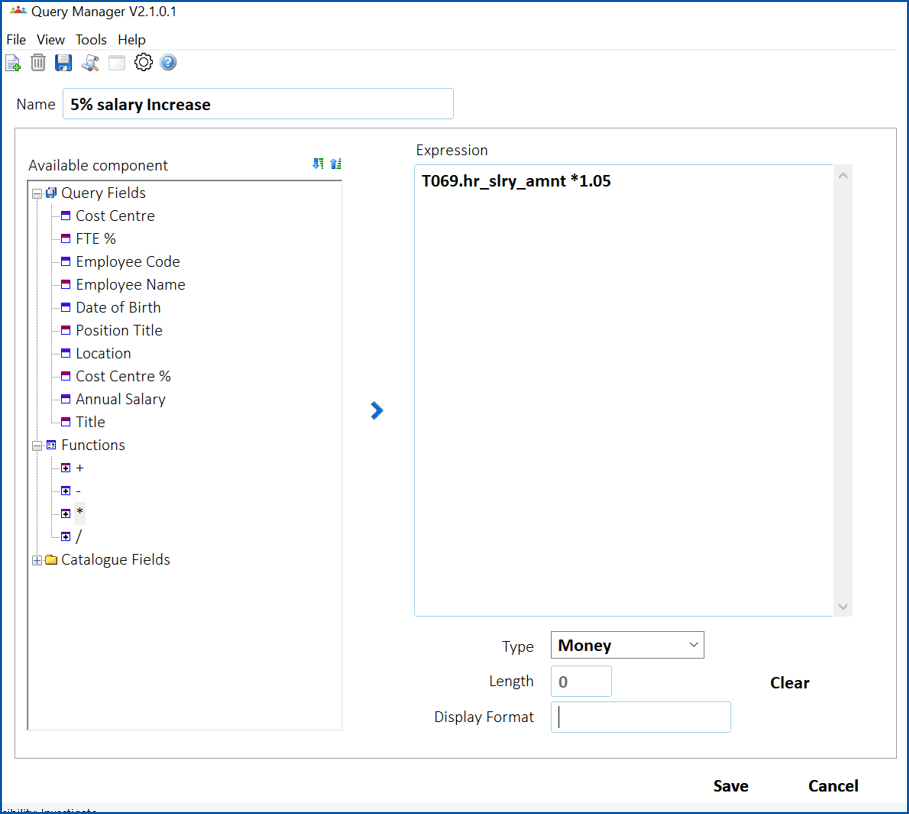
4. EmpowerHR displays a screen for defining the calculated field, where the **Available component** panel displays:
* **Query Fields**
* **Functions** (plus, minus, multiply, divide)
* **Catalogue Fields**
1. Expand the folders in the **Available component**panel until you locate the field you want, and then double-click the field to add it to the **Expression** panel.
2. Double-click a function to add it to the **Expression** panel.
In the following example, we want to see what a salary increase of 5% would cost the organisation.
1. Repeat this procedure, starting at step 5, if you want to add more fields and functions to the calculated field.
2. At **Name**, enter a unique name for the field.
3. At **Type**, select the data type for the calculated field.
4. If you selected **Char** (character) as the **Type**, enter the **Length** of the field.
5. At **Display Format**, enter a format, if required (optional).
6. Click **Save**.
7. EmpowerHR displays Query Manager's **Data** tab.
8. The calculated field appears in the the **Query d** **ata**panel, ready for you to run, or save, the query.
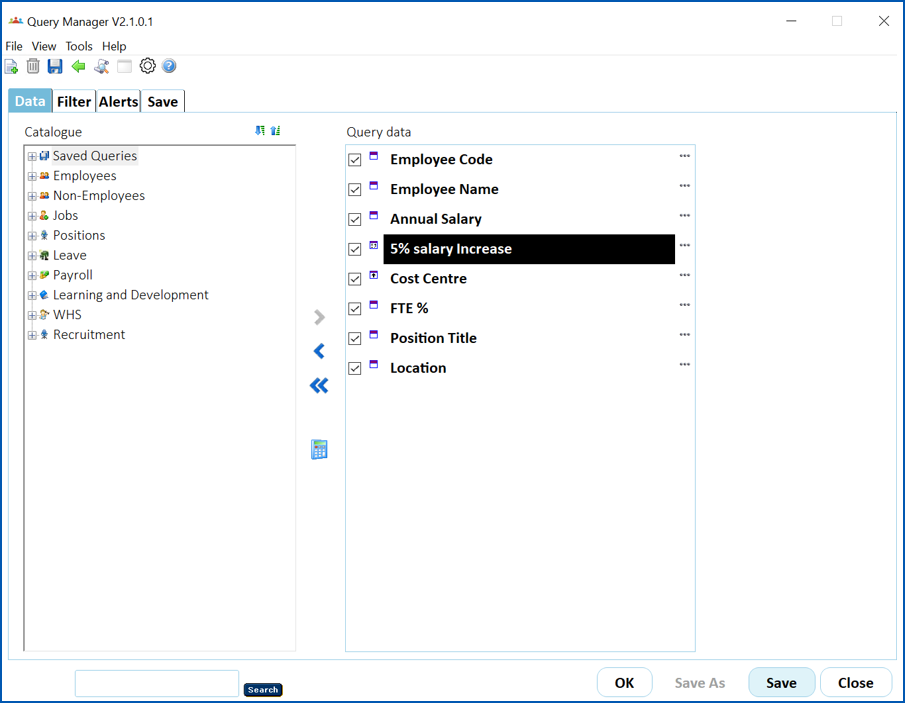
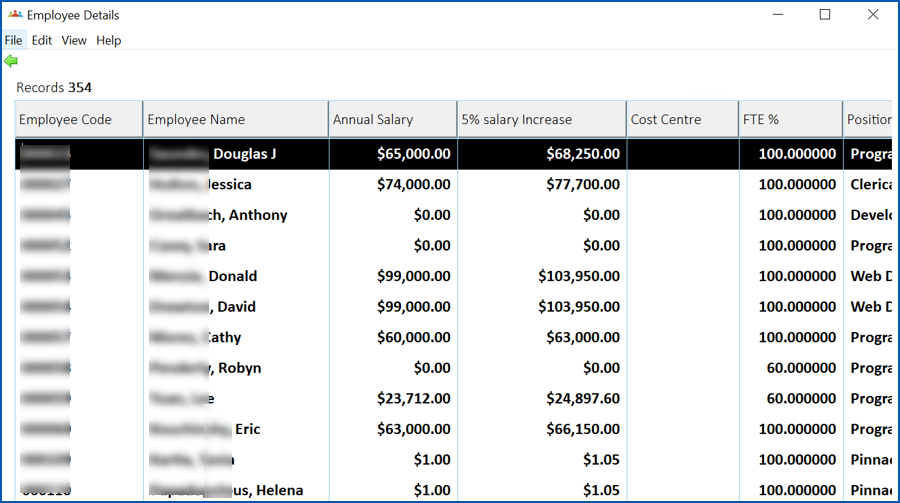
Here's what happens when we run our query, using a calculated field to work out a 5% salary increase.
| Next topic
[Run a union query](/articles/ehr-user-guide/run-a-union-query) |
| --- |
© 2023 Fusion5. All rights reserved.