---
title: "Update the agency record"
id: "update-the-agency-record"
project: "EHR User Guide"
url: "https://help.cloud5.com.au/articles/ehr-user-guide/update-the-agency-record"
updated: 2026-10-19T00:52:49Z
---
# Update the agency record
To update the agency record:
1. Go to Administration > Agency Management > Agency Record.
2. At the Agency Records screen, click **Open**.
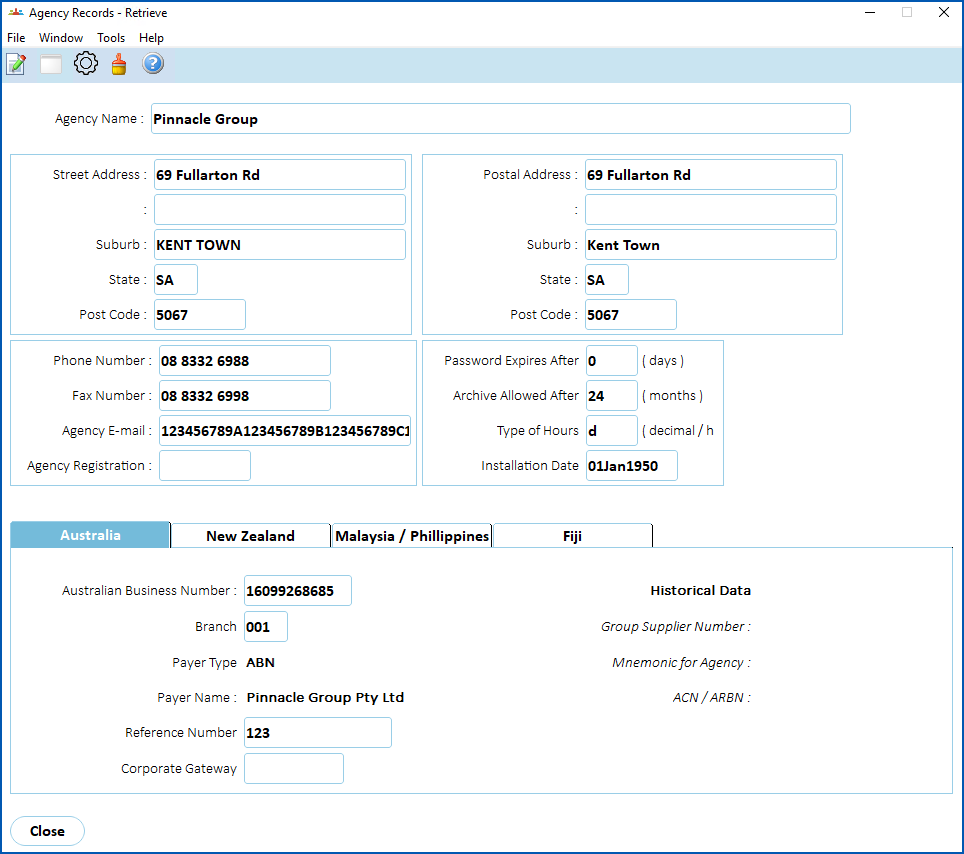
1. Make your changes. See the following table for field descriptions.
| **Field** | **Description** |
| --- | --- |
| Agency Name | Your agency's name |
| Street Address | Your agency's address |
| Postal Address | Your agency's postal address |
| Phone Number
Fax Number
Agency E-mail | Your agency's contact details |
| Agency Registration | Your agency's registration number |
| Australian Business Number | Your agency's ABN used for taxation/payroll purposes - from the Supplier/Pay ABN record |
| Branch | Your agency's ABN branch number - from the Supplier/Pay ABN record |
| Payer Type
Payer Name | Defaults from the Supplier/Pay ABN record |
| Reference Number | Used for taxation/payroll purposes (optional) |
| Corporate Gateway | Optional |
| Group Supplier Number | Display only |
| Mnemonic for Agency | Display only |
| ACN/ARBN 
ACN = Australian Company Number. Every company in Australia is issued with a unique, nine-digit number when registered.
ARBN = Australian Registered Body Number. A unique 9-digit identifying number issued to every registered Australian body upon registration. | Display only |
| Password Expires After | Sets the number of days before forcing all user passwords to change |
| Archive Allowed After | Sets the number of months transaction log data is retained - a minimum of 14 months and maximum of 99 months. |
| Type of Hours | Sets your organisation's preferred way of expressing hours:
- d (decimal) - for example 1.5 hours, or
- m (hours and minutes) - for example, 1.30 hours
|
| Installation Date | The date when EmpowerHR data is considered valid. Employee history will not be restored before this date. |
1. Click **Save**.
| Next topic
[Create a login message](/articles/ehr-user-guide/create-a-login-message) |
| --- |
© 2023 Fusion5. All rights reserved.