---
title: "Update non date-effective position details"
id: "update-non-date-effective-position-details"
project: "EHR User Guide"
url: "https://help.cloud5.com.au/articles/ehr-user-guide/update-non-date-effective-position-details"
updated: 2026-10-19T00:53:58Z
---
# Update non date\-effective position details
You make changes to a position that are not date-effective via the **Position Details** and related next level screens. The types of changes include:
* ANZSCO code
* FTE Allocation
* Position Type and Condition
* Reports To
* Payroll Code
* Base Hours
* % Full Time
* Some narrative fields
To update a position's (non date-effective) details:
1. Go to **Tasks** > **Establishment** > **Positions** > **Create Positions**.
2. At the **Create Positions** summary screen, enter the position number and then click **Search**.
3. Double-click the position. EmpowerHR displays the **Position Details** screen.
4. Go to the tab containing the field you want to update, or else click **Next Level** to go to another screen containing the field you want to update.
5. Click **Open**.
6. Make the changes you want. In the following example, we update the **Reports To** field.
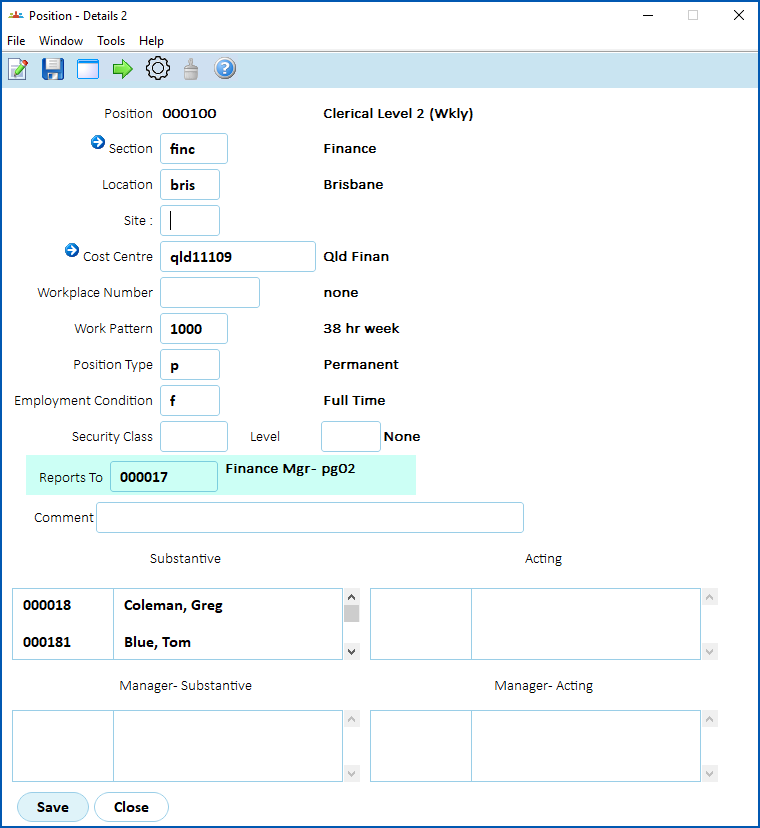
1. Click **Save**.
| Next topic
[Update date-effective position details](/articles/ehr-user-guide/update-date-effective-position-details) |
| --- |
© 2023 Fusion5. All rights reserved.