---
title: "Update formula values"
id: "update-formula-values"
project: "EHR User Guide"
url: "https://help.cloud5.com.au/articles/ehr-user-guide/update-formula-values"
updated: 2026-10-19T00:52:55Z
---
# Update formula values
You can change the formula amounts being disbursed for the relevant period in school vacation pay period(s) from the Update Formula Values screen.
EmpowerHR allows updates to formula values provided:
* the pay period flagged as **Christmas Leave Pay/Loading Period?** is closed
* the pay period for the formula amount being disbursed is not yet closed
* formula values you enter are not negative values (however, you can enter a zero formula value)
|  | You can also enter a zero value for a closed employment at **Tasks** > **School** > **Closed Employments**. |
| --- | --- |
To update (change) the formula values:
1. Go to **Tasks** > **School** > **Update Formula Values**.
2. At the **Update Formula Values** summary screen:
1. select an option from the **Look In** dropdown list
2. enter your search criteria in the **For** field, and then click **Find Now**
3. EmpowerHR displays only records containing formula values (**schl** batch) which are not yet paid for the pay period.
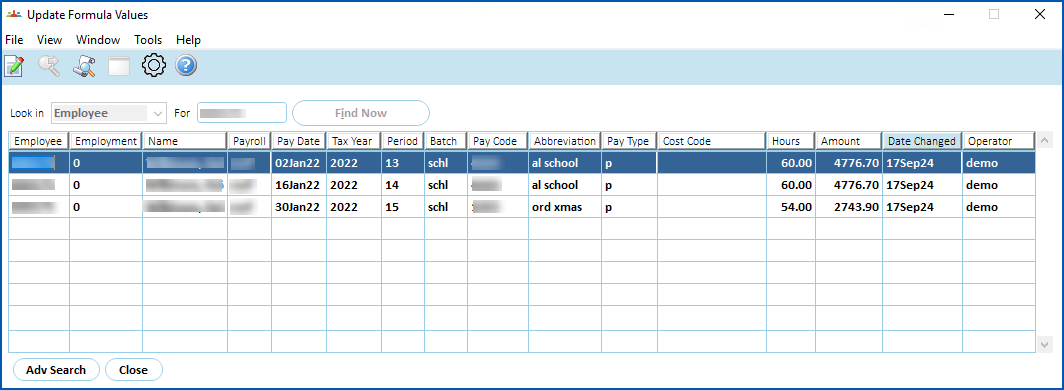
1. Double-click the record you want to update.
2. At the **Update Formula Values** details screen, enter the formula amount in the **Amount Override** field.

1. Click **Save**.
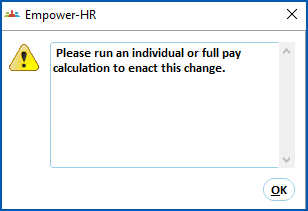
2. EmpowerHR displays the following message to remind you to run an individual or full pay calculation to process the change.
1. Click **OK**.
2. The updated value displays on the **Update Formula Values** summary screen.
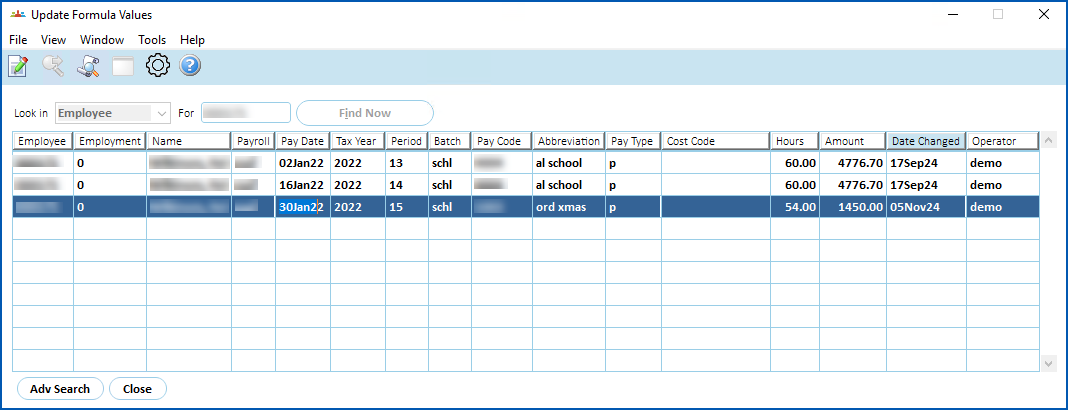
|  | If the Formula amounts you updated are for an employee, EmpowerHR also displays the revised values at:
|
| --- | --- |
##
|  | After you manually update formula values, EmpowerHR creates an audit record. See [view audit records](/articles/ehr-user-guide/view-audit-records). |
| --- | --- |
| Next topic
[Manage employee block payments](/articles/ehr-user-guide/manage-employee-block-payments) |
| --- |
© 2023 Fusion5. All rights reserved.