---
title: "Update formula type"
id: "update-formula-type"
project: "EHR User Guide"
url: "https://help.cloud5.com.au/articles/ehr-user-guide/update-formula-type"
updated: 2026-10-19T00:53:15Z
---
# Update formula type
You can change an employee's formula calculation type using the Update Formula Type screen.
Only change the formula type during the pay period flagged as the Christmas Pay period on the **Tax Year Period** control code, for example, **Christmas Leave Pay/Loading Period?** = **y**.
To update (change) an employee's formula calculation type: 
1. Go to **Tasks** > **School** > **Update Formula Type**.
2. At the **Update Formula Type** screen, to:
1. list all employees and their formula types, click **Find Now**, *or*
2. narrow your search to a specific employee, enter an employee code in the **For** field, and then click **Find No** **w**
1. EmpowerHR displays the results of your search.
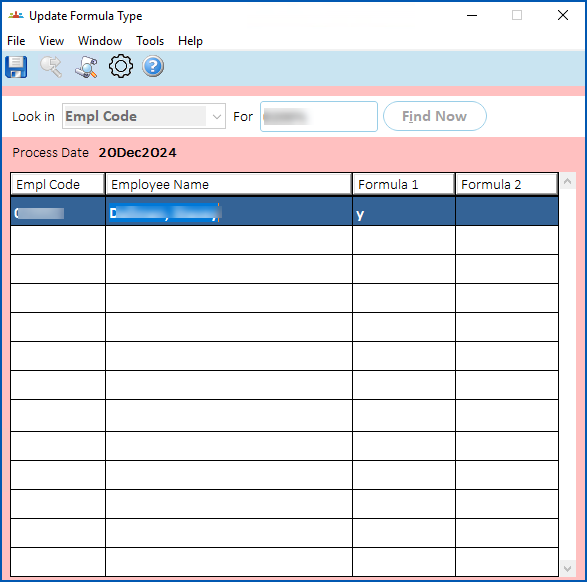
1. Change the formula type for an employee by:
1. first deleting **y** from the column of the Formula you want to change from
2. entering **y** in the column of the Formula you want to change to
|  | If you want to change the employee to no formula type (no variation), delete **y** from both Formula columns. |
| --- | --- |
1. Click **Save** **.**
2. Perform a Pay Calculation to recalculate the formula amount.
| Next topic
[Manage Christmas formula pay out](/articles/ehr-user-guide/manage-christmas-formula-pay-out) |
| --- |
© 2023 Fusion5. All rights reserved.