---
title: "Update employee pay information"
id: "update-employee-pay-information"
project: "EHR User Guide"
url: "https://help.cloud5.com.au/articles/ehr-user-guide/update-employee-pay-information"
updated: 2026-10-19T00:52:36Z
---
# Update employee pay information
Here we show how to change an employee's salary details, including:
* classification level
* pay basis
* next increment date
* pay by exception flag
* pay flag
The fields are located on the employee's **Pay Information**screen. Typically, you don't update the fields directly on this screen, but change the information by entering a movement reason code and date of effect.
You can make retrospective changes, or changes in the current pay, or changes for a future date. EmpowerHR determines when to process the movement in the payroll and identifies any pay arrears, where required.
|  | See [fixed remuneration option](/articles/ehr-user-guide/fixed-remuneration-option) and [salary sacrifice option](/articles/ehr-user-guide/salary-sacrifice-option) to learn about these optional EmpowerHR features. |
| --- | --- |
## Transaction rules
EmpowerHR considers a change to salary a type of position movement, even though there are no actual changes to the position. All types of position movements have associated transaction rules. EmpowerHR includes standard movement reasons with the system (by default). Your organisation may choose to change these to suit requirements.
Fore more information, see:
* [transaction rules](/articles/ehr-user-guide/transaction-rules)
* [employee position movements](/articles/ehr-user-guide/employee-position-movements)
## Change an employee's salary details
To change an employee's salary details: 
1. Go to **Tasks** > **Employees** > **Position Movement** > **Salary Change**.
2. At the **Salary Change** summary screen, in **Employee Code**:
1. enter the code if you know it, *or*
2. click **Window**, find and double-click the code to add it to the field
3. EmpowerHR displays the employee's salary record.
4. Click **New**.
5. The **Add Remuneration Key** screen displays. At:
1. **Movement Code**, select a code from the dropdown list, and then press **Tab**. In our example, we use **incr** (salary increment), however, your organisation defines the movement codes for you to use.
2. **New Movement/Change Date**, enter the date the change is to occur, and then press **Tab**.
6. EmpowerHR displays the current position number in the **Old Position Number** field. Do not change this field!
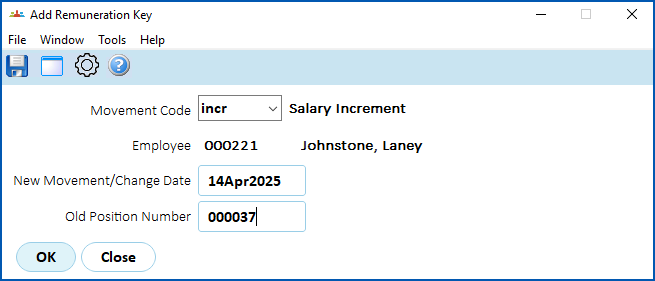
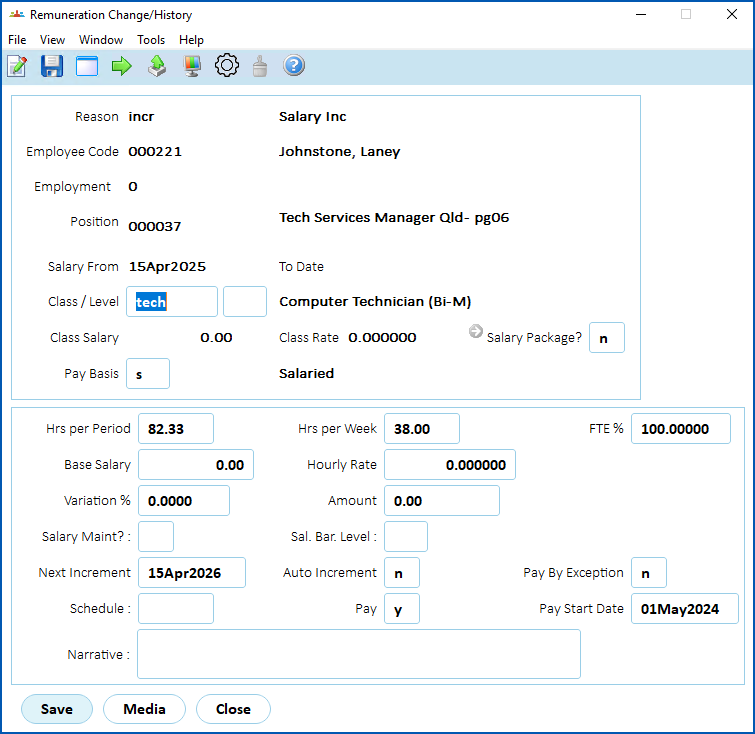
1. Click **OK**. The **Remuneration Change History** screen displays.
|  | If the employee is on HDA , or has future HDA, EmpowerHR displays a warning message. You must manually cease or change the HDA to correct the new rate.
HDA = Higher Duties Allowance |
| --- | --- |
1. Depending on the transaction rules associated with the movement reason code, information from the previous movement displays by default. The transaction rules also determine the fields you can change with this movement reason.
For example, when doing a manual increment, EmpowerHR displays:
* the current increment level (for information purposes), which you could change, if required
* a new increment date 12 months from the change date, which you could also change, if required
1. At **Class/Level** enter the level for the classification.
2. Make any further changes, as required. For example, salaried rates, **Pay Basis**, **Pay By Exception** flag, **Pay** flag.
3. Where the movement reason code doesn't fully describe the change you're making, it's good practice to enter an explanation in the **Narrative** field so anyone accessing the record can see at a glance why it was created.
4. Click **Save**.
| Next topic
[Update employee super fund details](/articles/ehr-user-guide/update-employee-super-fund-details) |
| --- |
© 2023 Fusion5. All rights reserved.