---
title: "Update a position's cost centre"
id: "update-a-position-s-cost-centre"
project: "EHR User Guide"
url: "https://help.cloud5.com.au/articles/ehr-user-guide/update-a-position-s-cost-centre"
updated: 2026-10-19T00:53:45Z
---
# Update a position's cost centre
Use the following procedure to change a position's cost centre. You can also change other fields from the same screen, for example, Occupation Category, Discipline, Stream.
|  | EmpowerHR does not allow you to change a position where a change has already been made for the same date. |
| --- | --- |
To update a position's cost centre:
1. Go to **Tasks** > **Establishment** > **Positions** > **Responsibility of Position**.
2. At the **Responsibility of Position** summary screen, enter the position number, or click **Window**, find and double-click the position number to add it to the field.
3. Press **Tab**. EmpowerHR lists the position history.
4. Click **New**.
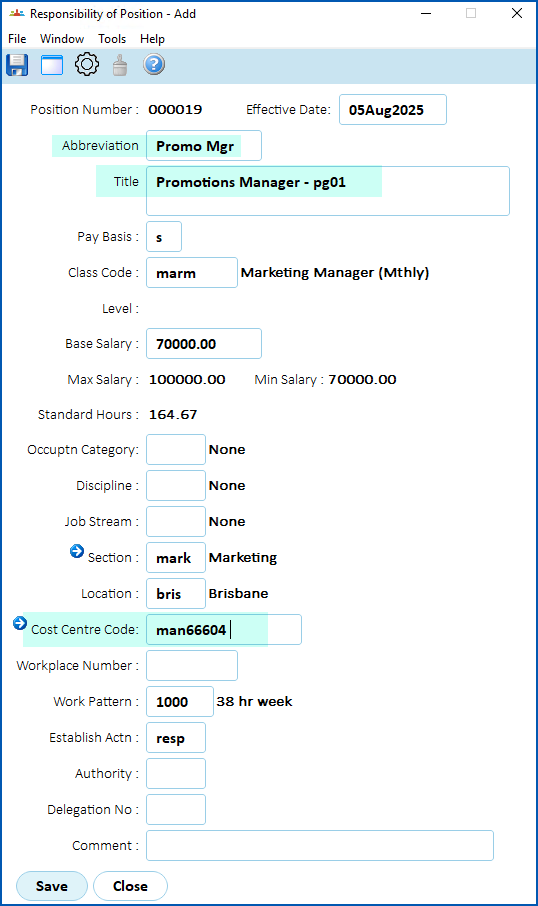
5. EmpowerHR displays the **Responsibility of Position - Add** screen, with the **Establish Actn** field showing the code, **resp** (responsibility change).
6. In **Effective Date**, enter the date the change will take effect, and then press **Tab**.
7. EmpowerHR populates the fields with existing position information.
8. If required, change the **Abbreviation** and **Title** fields. EmpowerHR records the changes in the establishment history and also updates all relevant screens with the changes.
9. In **Cost Centre Code**, enter the new code, or click **Window**, find and double-click the code to add it to the field.
1. Make any other entries, as required by your organisation.
2. Click **Save**.
3. If the position is:
1. not substantively occupied, go to step 15.
2. substantively occupied at (or after) the **Effective Date**, EmpowerHR displays the **Position Query** screen, listing all the occupants (employees). Go to step 13
|  | The **resp** transaction rules default some of the employee data (such as **Classification Level**), which is why we recommend you *don't* close the **Position Query** screen without first checking the proposed employee changes (see step 13).
If you do close the **Position Query** screen, EmpowerHR automatically applies the position changes to the employees at the effective date and a **resp** movement occurs on their records. |
| --- | --- |
1. At the **Position Query** screen, select an employee, and then click **Open**.
|  | If the installation setting called **allow empl position change** is set to:
- yes, then EmpowerHR displays the employee's Position Movement Information screen.
- no, then EmpowerHR displays the employee's Remuneration Change/History screen, bypassing the Position Movement Information screen.
|
| --- | --- |
1. At the **Position Movement Information** screen and/or **Remuneration Change/History** screen, check the details, make any required changes, and then click **Save**.
2. EmpowerHR displays the **Position Query** screen. Repeat this procedure, starting at step 13, until you have checked (and, where required, changed) any other employee records.
3. When you're finished, close the **Position Query** screen.
4. At the **Responsibility of Position** screen, click **Close**.
| Next topic
[Relocate a position](/articles/ehr-user-guide/relocate-a-position) |
| --- |
© 2023 Fusion5. All rights reserved.