---
title: "Timesheet-driven leave rules"
id: "timesheet-driven-leave-rules"
project: "EHR User Guide"
url: "https://help.cloud5.com.au/articles/ehr-user-guide/timesheet-driven-leave-rules"
updated: 2026-10-19T00:53:14Z
---
# Timesheet\-driven leave rules
If leave is timesheet-driven in your organisation, there are flags you set on the leave rule:
* Auto timesheet accrual
* Auto timesheet booking
| Example 1 | Set the flag called **Auto timesheet accrual** to **y** (yes).
Set the flag called **Auto timesheet booking** to **n** (no).
Bookings are made via Leave Bookings.
The hours paid multiplied by % to accrue per hour is the credit.
Formula = (annual accrual in hours / hours per year) \* 100
Example = (152h / 1976h) \* 100 = 7.69237692308% |
| --- | --- |
| Example 2 | Set the flag called **Auto timesheet accrual** to **y** (yes).
Set the flag called **Auto timesheet booking** to **y** (yes).
History is made available via the **Enquiries** > **Leave** > **Timesheet Leave Bkg Enquiry** screen. Consider Rostered Days Off (RDOs) worked with time accrued to be taken in lieu. |
EmpowerHR applies accruals for timesheet rules during the pay run. To define which codes to accrue on, use a [pay element code](/articles/ehr-user-guide/pay-element-codes).
Setting the [installation option](/articles/ehr-user-guide/installation-options) called **Pay Advice Entitlement** **s (advl)** to **r**(run) helps control this feature.
## Set up a timesheet-driven leave rule
To create a timesheet-driven leave rule:
1. Go to **Tasks** > **Leave** > **Leave Accruals and Rules** > **Leave Rules**.
2. At the **Leave Rules** summary screen, click **New**.
3. At the **Leave Rules** detail screen, make your selections and entries in the [leave rule fields](/articles/ehr-user-guide/leave-rule-fields).
4. Click the **Edit leave sequences** button.
|  | EmpowerHR makes the **Edit leave sequences** button active (available) when you click the **Multi leave rule** option. |
| --- | --- |
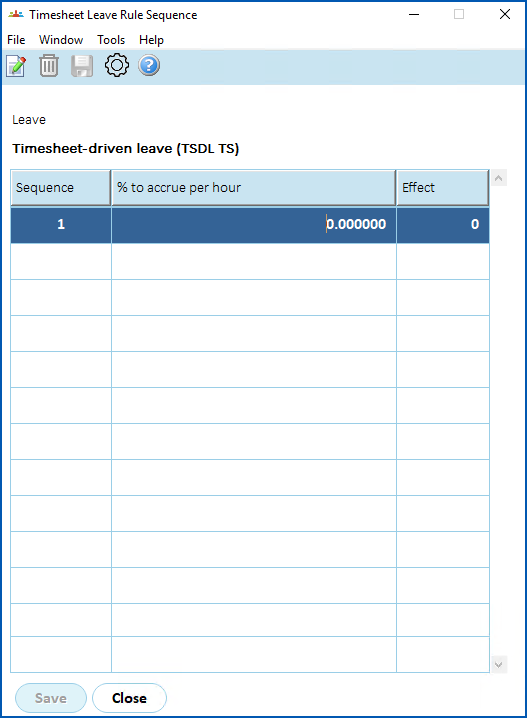
1. The **Timesheet Leave Rules Sequences** screen displays.
2. Make your entries in the [leave rules sequence fields](/articles/ehr-user-guide/leave-rules-sequence-fields).
1. Click **Save**.
| Next topic
[Leave rule fields](/articles/ehr-user-guide/leave-rule-fields) |
| --- |
© 2023 Fusion5. All rights reserved.