---
title: "Termination reason codes"
id: "termination-reason-codes"
project: "EHR User Guide"
url: "https://help.cloud5.com.au/articles/ehr-user-guide/termination-reason-codes"
updated: 2026-10-19T00:53:32Z
---
# Termination reason codes
There are many reasons why employees leave and you must include the reason in your STP reports.
To ensure this happens, check each of your termination reason codes to make sure they show the correct cessation types.
|  | The ATO website has the list of cessation types (reasons) and their definitions. |
| --- | --- |
To check the cessation type on a termination reason code:
1. Go to **Control Tables** > **Termination** > **Termination Reason**.
2. At the **Termination Reason** summary screen, find and select a code, and then click **Open**.
3. At the **Termination Reason** detail screen, make sure the **Cessation Type** shows the correct selection.
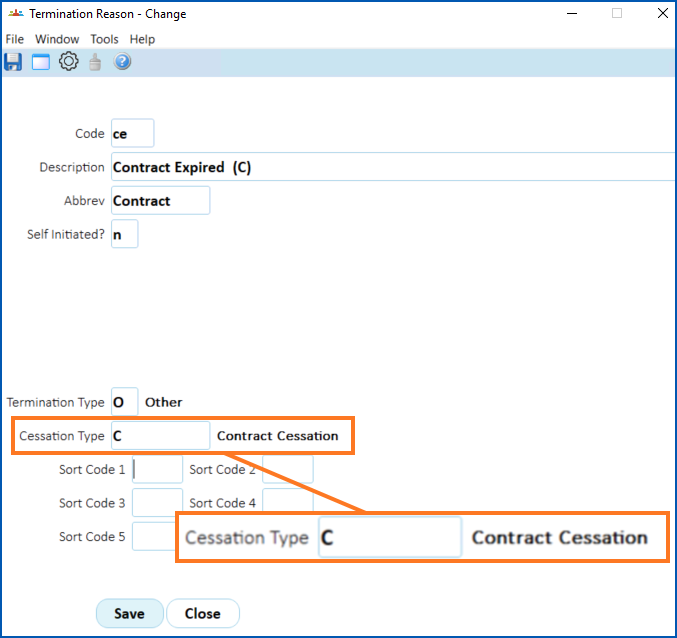
1. If the selection is:
1. correct, go to step 7
2. incorrect, go to step 4
2. Go to the **Cessation Type** field, and then click **Window** to view a list of cessation type codes.
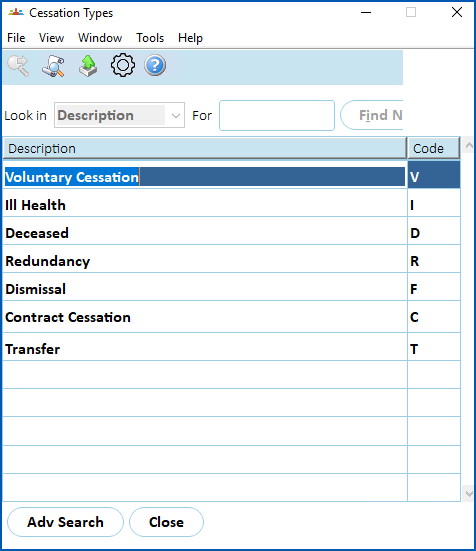
1. Find and double-click a code to add it to the **Cessation Type** field on the **Termination Reason** detail screen.
2. Click **Save**.
3. Repeat this procedure, starting at step 2, until you're satisfied all termination reason codes are set up with the correct cessation types.
| Next topic
[Vacancy reason codes](/articles/ehr-user-guide/vacancy-reason-codes) |
| --- |
© 2023 Fusion5. All rights reserved.