---
title: "Tax detail fields"
id: "tax-detail-fields"
project: "EHR User Guide"
url: "https://help.cloud5.com.au/articles/ehr-user-guide/tax-detail-fields"
updated: 2026-10-19T00:54:21Z
---
# Tax detail fields
Here’s how to complete (or update) the tax detail fields for an employee.
| **At this field...** | **Do this**... |
| --- | --- |
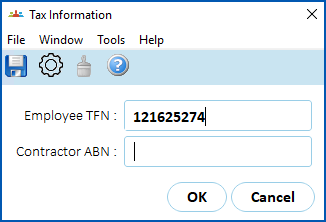
| Employee TFN/Contractor ABN | Click **arrow**.
At the **Tax Information** pop-up, enter a valid TFN  or ABN , and then click **OK**.
TFN = Tax File NumberABN = Australian Business Number
|  | The **Payee ABN** is not used if the employee is a standard employee for tax purposes. |
| --- | --- | |
| Tax Scale | Select the relevant tax scale from the dropdown list. EmpowerHR populates the **Tax Treatment** field based on the tax scale you choose. |
| Generate Study and Training Support Loan Replacement | Enter:
If you enter **y** (yes), EmpowerHR calculates and displays an additional tax as STSL Tax**.**
|  | Only select **y** (yes) if you have not chosen a **Tax Scale** that already includes STSL, otherwise it will be doubled. |
| --- | --- | |
| Tax Treatment | EmpowerHR populates this field based on the **Tax Scale** you choose.
You can change it, if required, by entering a valid six-character code.
This code tells the ATO how the employee should be taxed. It holds tax scales as well as information like study training and support loans. |
| Income Stream | Select an income stream from the dropdown list. Payment types are grouped by income stream. |
| Country Code | This field only displays when you select any of the following **Income Streams**:
- FEI – the host country where the work is performed, or foreign entity is located
- IAA – the employee’s home country where they were a tax resident before coming to Australia
- WHM – the employee’s home country
If the field displays, you must enter a country code. |
| Flat Tax Rate | Enter a rate to generate a fixed percentage tax amount, if required.
Otherwise, leave this field blank.
|  | You cannot use this field if you have selected a**Tax Scale**. |
| --- | --- | |
| Date Dec Form Signed | If you are lodging the employee's tax declaration details electronically with the ATO, then:
- Click arrow.
- At the Employee Tax Declaration summary screen, click New.
- The Employee Tax Declaration details screen displays. The numbers next to the fields correspond to the number's on the Employee Tax Declaration form.
- Complete the relevant fields, and then click Save.
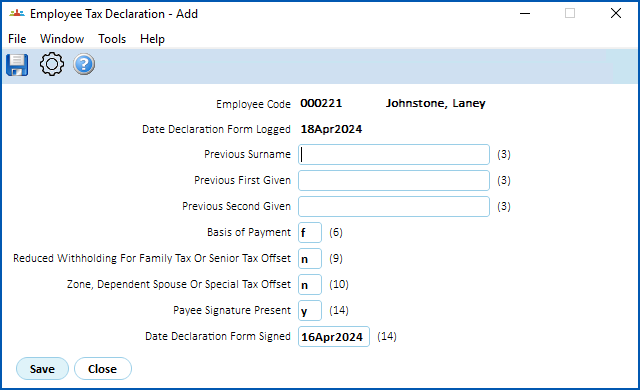
- The record is added to the Employee Tax Declaration summary screen. Click Close.
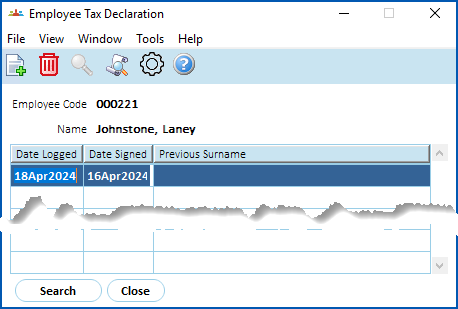
The **Date Dec Form Signed** displays on the **Tax** tab. |
| Next topic
[Other tax detail fields](/articles/ehr-user-guide/other-tax-detail-fields) |
| --- |
© 2023 Fusion5. All rights reserved.