To switch on the registration expiry update job menu item:
- Go to Administration > System Security > Account Templates.
- At the Account Templates summary screen, find the relevant template, select it, and then click
 Next Level.
- At Account Templates – Add, click Close (to enter new permissions).
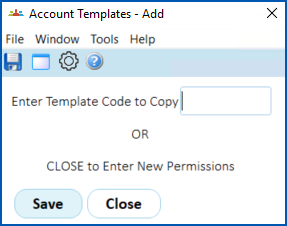
- At Account Templates (available modules), select Background Jobs, and then click Next Level.
- At Account Templates (menu items), select Daily Processing, and then click Next Level.
- At Account Templates (report), find Registration expiry update and, in the Run column, change n (no) to y (yes).
- Click Save.
- Close the:
- Account Templates (menu items) screen
- Account Templates (available modules) screen
- At Account Templates – Operators, click Process to copy the changes to operators whose access is based on the template. The system displays Copying Operator Permissions.
- At the Copying Operator Permissions message, click OK.
- When the process is complete, at the Operator Permissions Copied message, click OK.
- Click Close.
- Log out of EmpowerHR and then log back in to see the new menu item:
Background Jobs > Daily Processing > Registration expiry date
© 2023 Fusion5. All rights reserved.