---
title: "Submit a registration request"
id: "submit-a-registration-request"
project: "EHR User Guide"
url: "https://help.cloud5.com.au/articles/ehr-user-guide/submit-a-registration-request"
updated: 2026-10-19T00:54:07Z
---
# Submit a registration request
To submit a registration request to the workflow for processing:
1. Click **Compliance Registration**.
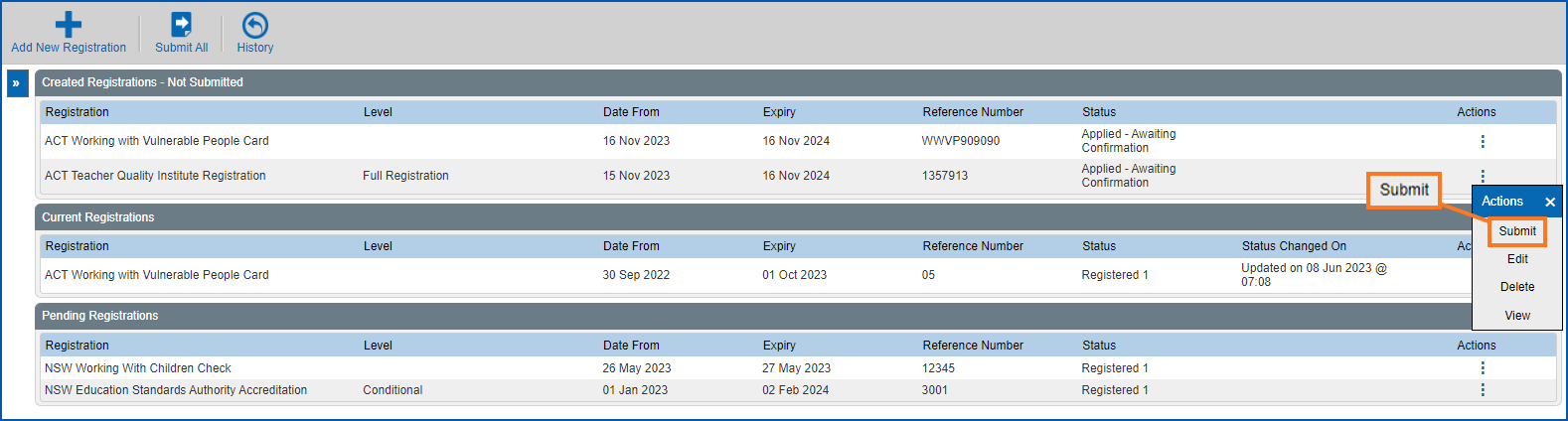
2. At the **Compliance Registration**summary screen, go to the **Created Registrations - Not Submitted**list.
3. On the row showing the request you want to submit, click **Actions** and then select **Submit** from the menu..
1. At the **Workflow Addressee** dialogue box, select an approver from the **Send To** dropdown list. The approver options depend on how the workflow has been set up in your organisation.
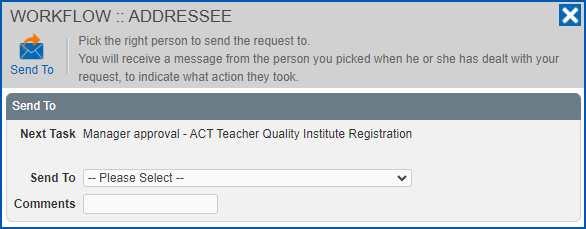
1. Click **Send To** to submit your request for processing. Workflow directs your request to the first approver in the sequence of tasks.
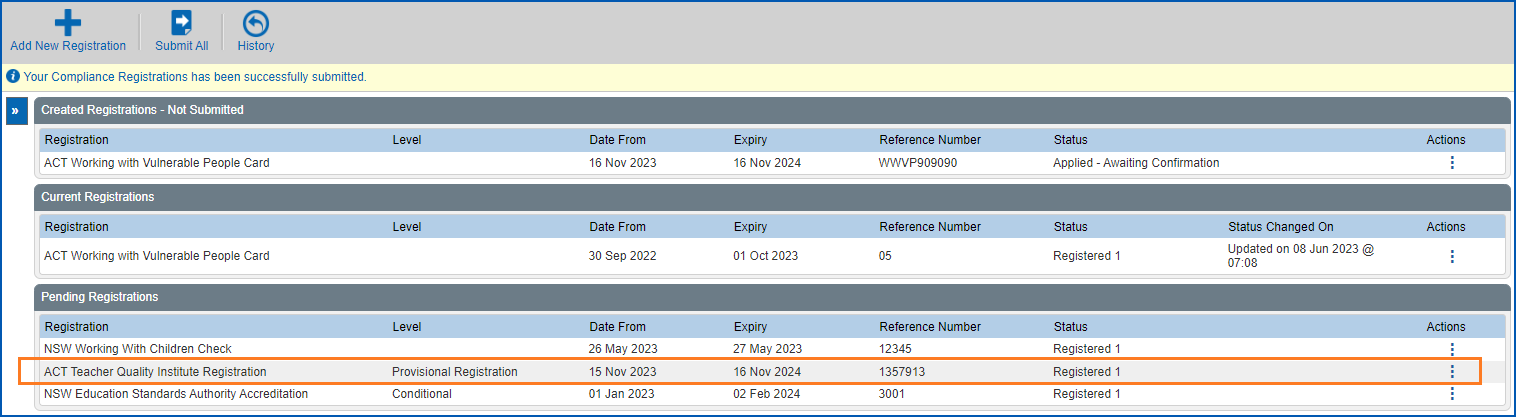
2. At the **Compliance Registration** summary screen, your submitted request now appears in the **Pending Registrations** list.
| Next topic
[View a registration request](/articles/ehr-user-guide/view-a-registration-request) |
| --- |
© 2023 Fusion5. All rights reserved.