When you accept a casual relief assignment in ESS, EmpowerHR automatically creates a Claim for Casual Relief Work and an alert appears in your Actions To Do box.
To submit a claim for payment:
- At the Actions To Do box, click Claim for Casual Relief Work.
- EmpowerHR displays the Casual Relief Claims Actions To Do list.
- To view and check a claim's details, on the claim row, click Actions and then select Edit from the menu.
- If the details are:
- incorrect, make the necessary changes (alternatively, contact your manager/payroll office to arrange a correction).
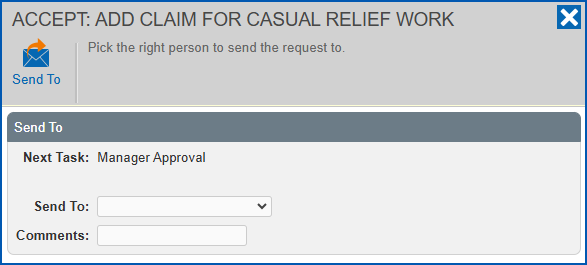
- correct, click Accept. EmpowerHR displays the Accept: Add Claim for Casual Relief Work screen. Select the approval manager from the Send To dropdown list, add Comments if you wish, and then click Send To to submit the claim for approval.

|
If you want to reject the claim, click Reject and, when EmpowerHR prompts you, click Confirm. |
© 2023 Fusion5. All rights reserved.