---
title: "Submit a claim for payment (casual relief work)"
id: "submit-a-claim-for-payment-casual-relief-work"
project: "EHR User Guide"
url: "https://help.cloud5.com.au/articles/ehr-user-guide/submit-a-claim-for-payment-casual-relief-work"
updated: 2026-10-19T00:53:01Z
---
# Submit a claim for payment \(casual relief work\)
When you accept a casual relief assignment in ESS, EmpowerHR automatically creates a Claim for Casual Relief Work and an alert appears in your Actions To Do box.
To submit a claim for payment:
1. At the **Actions To Do** box, click **Claim for Casual Relief Work**.
2. EmpowerHR displays the **Casual Relief Claims Actions To Do** list.
3. To view and check a claim's details, on the claim row, click **Actions** and then select **Edit** from the menu. ****
4. If the details are:
1. incorrect, make the necessary changes (alternatively, contact your manager/payroll office to arrange a correction).
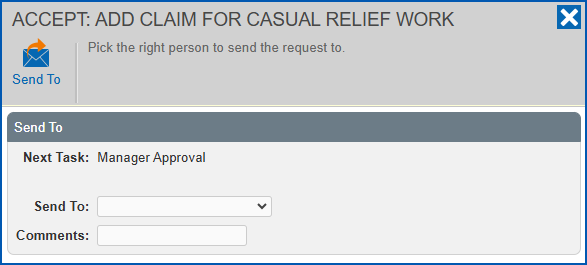
2. correct, click **Accept**. EmpowerHR displays the **Accept: Add Claim for Casual Relief Work** screen. Select the approval manager from the **Send To** dropdown list, add **Comments** if you wish, and then click **Send To** to submit the claim for approval.
|  | If you want to reject the claim, click **Reject** and, when EmpowerHR prompts you, click **Confirm**. |
| --- | --- |
| Next topic
[Casual relief managers](/articles/ehr-user-guide/casual-relief-managers) |
| --- |
© 2023 Fusion5. All rights reserved.