---
title: "Staff lookup configuration"
id: "staff-lookup-configuration"
project: "EHR User Guide"
url: "https://help.cloud5.com.au/articles/ehr-user-guide/staff-lookup-configuration"
updated: 2026-10-19T00:52:41Z
---
# Staff lookup configuration
There are installation settings that control the type of information EmpowerHR displays on the Staff Management screen in MSS. Here's how to manage them.
## Display information from employee's acting or substantive position
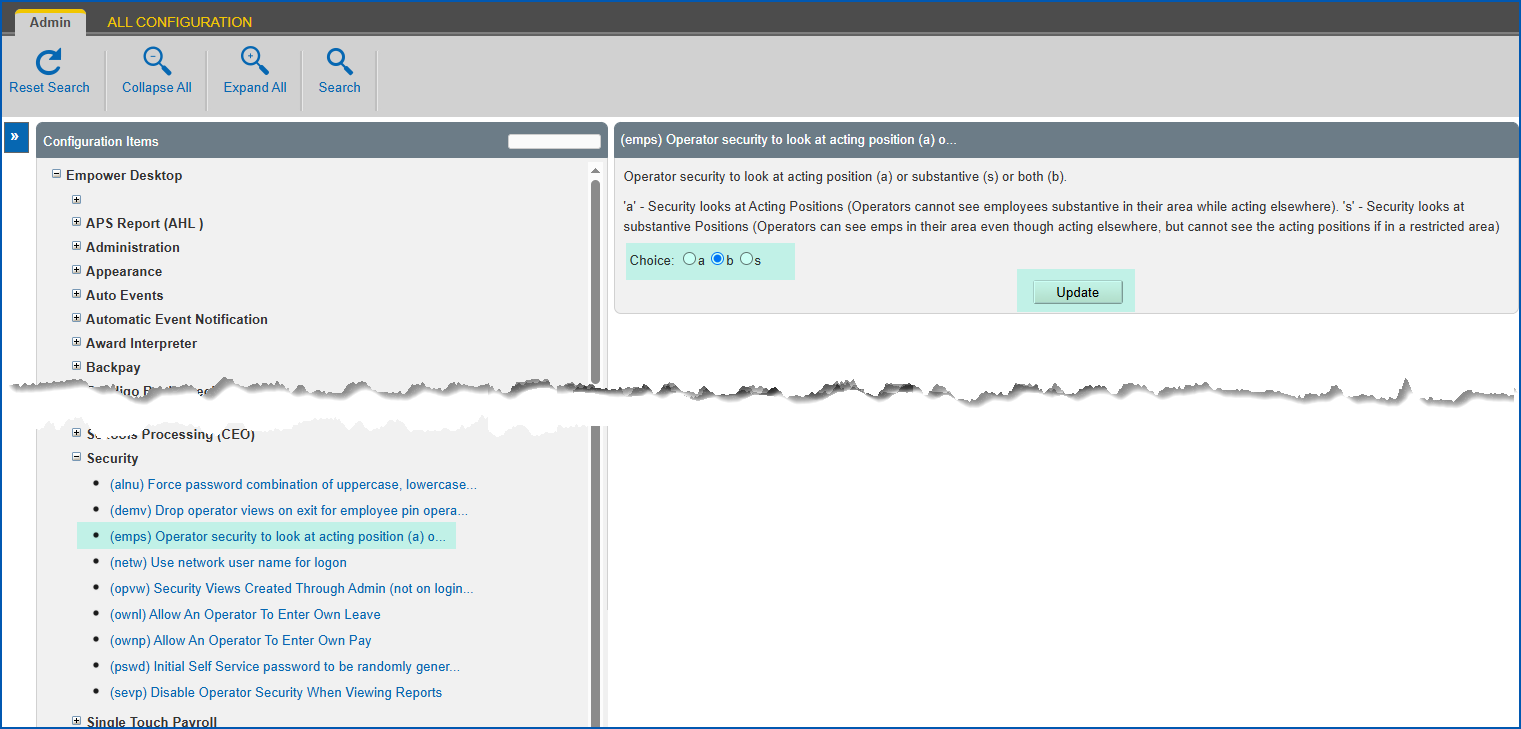
The installation setting called **(emps) operator security to look at acting position (a) or substantive (s)** determines whether the employment information EmpowerHR shows in the Staff Lookup table comes from the employee's acting or substantive position.
To display employment information from the employee's acting or substantive position:
1. Go to **Administration**> **Configuration**> **All Configuration**.
2. At **Configuration Items**, expand **Empower Desktop**, and then****expand **Security**.
3. Click **(emps) operator security to look at acting position (a) or substantive (s)**.
4. At the **Choice** field, click one of the following options:
* **a** (acting position), *or*
* **s** (substantive position), *or*
* **b** (both)
1. Click **Update**.
## Exclude relief employees from the display
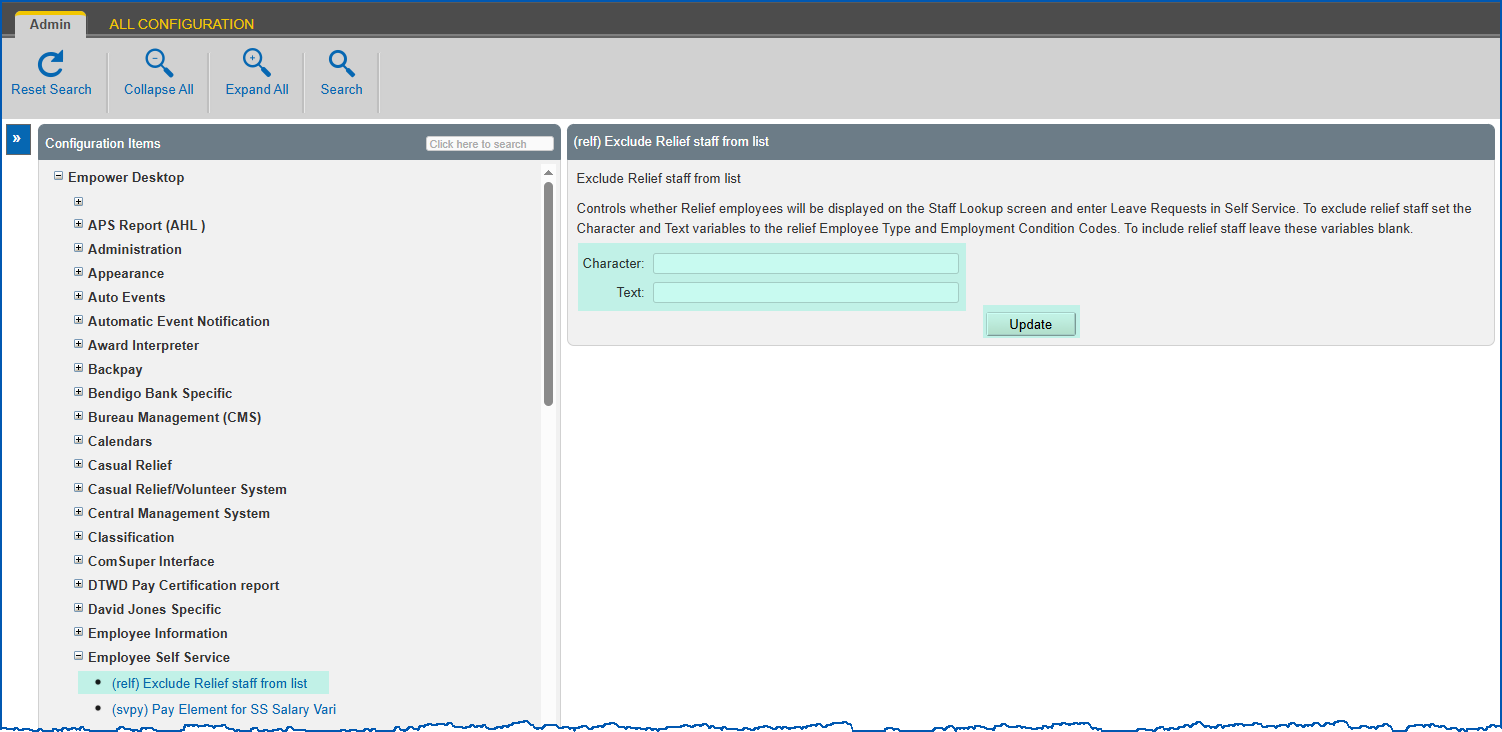
The installation setting called **(relf) exclude relief staff from list** lets you control whether EmpowerHR displays relief staff or not in the Staff Lookup table.
To exclude relief employees from displaying:
1. Go to **Administration**> **Configuration**> **All Configuration**.
2. At **Configuration Items**, expand **Empower Desktop**, and then****expand **Empower Self Service**.
3. Click **(relf) exclude relief staff from list**.
4. At the:
1. **Character**field, enter the employee type to exclude
2. **Text** field, enter the employment condition to exclude
5. EmpowerHR excludes the employee's position that matches the two values you entered.
1. Click **Update**.
## Set how long terminated employees are displayed
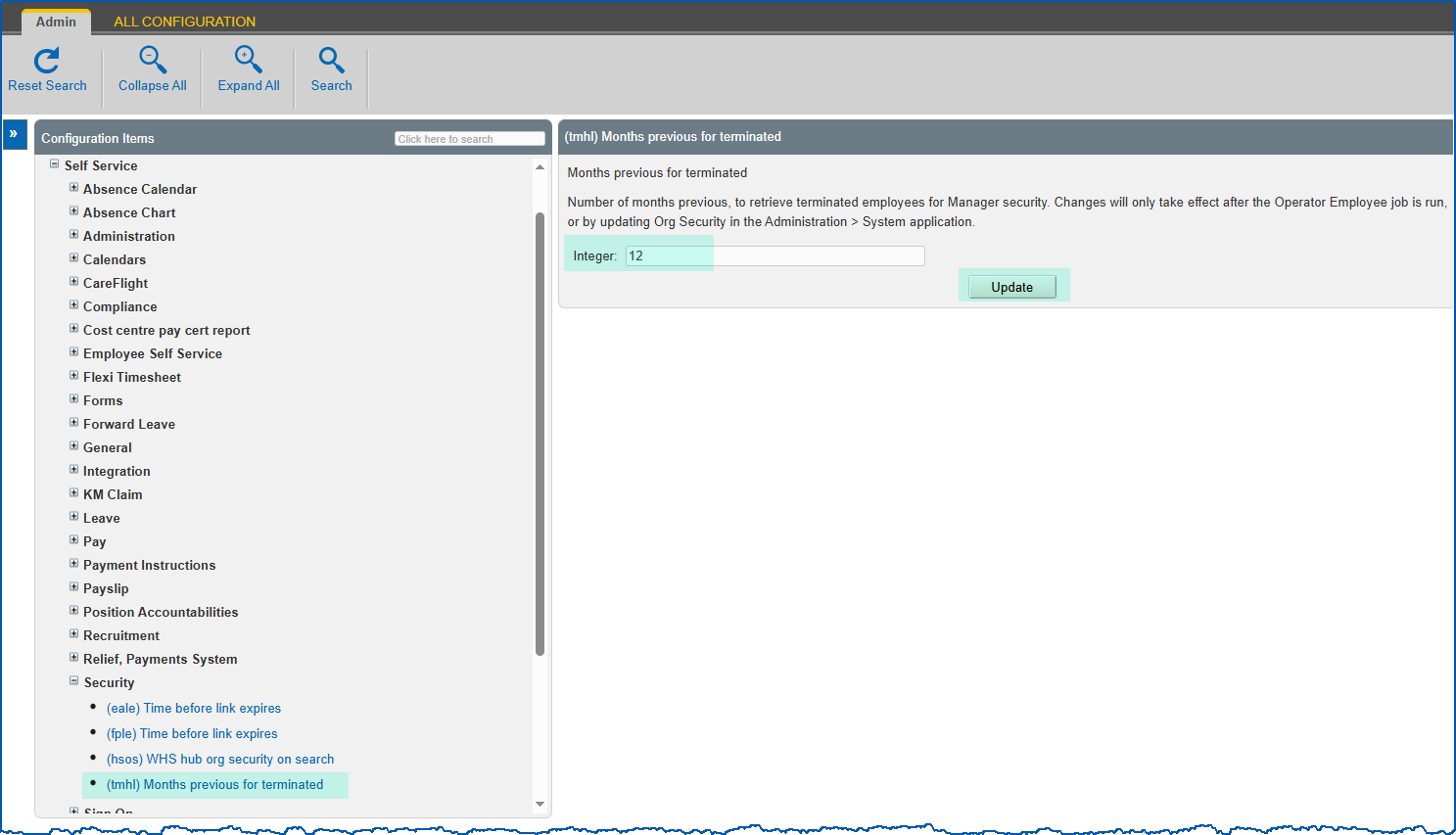
The installation setting called **(tmhl) months previous for terminated** controls how long terminated employees may appear in the Terminated Staff lookup table.
To set how long terminated employees display:
1. Go to **Administration**> **Configuration**> **All Configuration**.
2. At **Configuration Items**, expand **Self Service**, and then****expand **Security**.
3. Click **(tmhl) months previous for terminated**.
4. At the **Integer** field, enter the number of months previous to the current date that EmpowerHR can list terminated employees.
1. Click **Update**.
| Next topic
[Remuneration enquiry configuration](/articles/ehr-user-guide/remuneration-enquiry-configuration) |
| --- |
© 2023 Fusion5. All rights reserved.