---
title: "Set up timesheet / payment fields"
id: "set-up-timesheet-payment-fields"
project: "EHR User Guide"
url: "https://help.cloud5.com.au/articles/ehr-user-guide/set-up-timesheet-payment-fields"
updated: 2026-10-19T00:53:40Z
---
# Set up timesheet / payment fields
Fine tune EmpowerHR to suit how you want to use the timesheet and payment feature.
|  | For more information about configuration files, see the *EHR Self Service Administration Manual* available by logging an [iHelp request](https://infusion.fusion5.com/).
If you'd like assistance with setting up timesheet and payments fields, contact us by logging an [iHelp request](https://infusion.fusion5.com/). |
| --- | --- |
## Set up cost centre selection
If you want to restrict the list of cost centres available for users to select from in timesheet and payment screens, enter SQL into the self service cost restriction configuration file attribute.
SQL = Structured Query Language used to manage data, especially in a relational database management system
## Set up job selection
If you want to restrict the list of jobs available for users to select from in timesheet and payment screens, enter SQL into the self service job restriction configuration file attribute.
## Set up reference3-7 fields
You can set the Reference3 to Reference7 fields to each display a default value in timesheet and payment screens, enter SQL into the self service configuration file attributes. These fields may have dependencies where, when a user changes a parent field, the values change in the dependent fields.
### Set up reference3 and reference4 fields
If you want to:
* restrict the list of reference3 and/or reference4 options available for users to select from in timesheet and payments screens, enter SQL  into the relevant self service restriction configuration file attributesSQL = Structured Query Language used to manage data, especially in a relational database management systemSQL = Structured Query Language used to manage data, especially in a relational database management system
* set a default reference3 and/or reference4 option to display in timesheet and payments screens, enter SQL into the relevant self service default configuration file attributes
Check to make sure users can see, and make selections from, the reference3 and reference4 fields.
To make sure the reference3 field is visible and can be edited: 
1. Go to **Administration**> **Screen Management**>**Screen Painting**.
2. At **Screen Painting**, expand the **Self Service** list of screens,
3. Expand **Requests**, and then expand **Timesheet / Payment**.
4. At **Add Timesheet / Payment**,****click **Change**.
5. At **Screen Painting - Timesheet Request**, scroll down and locate the **Reference3**field.
6. In the:
1. **Visibility** column, select **Display** from the dropdown list
2. **Mode**column, select **Enterable** ****from the dropdown list
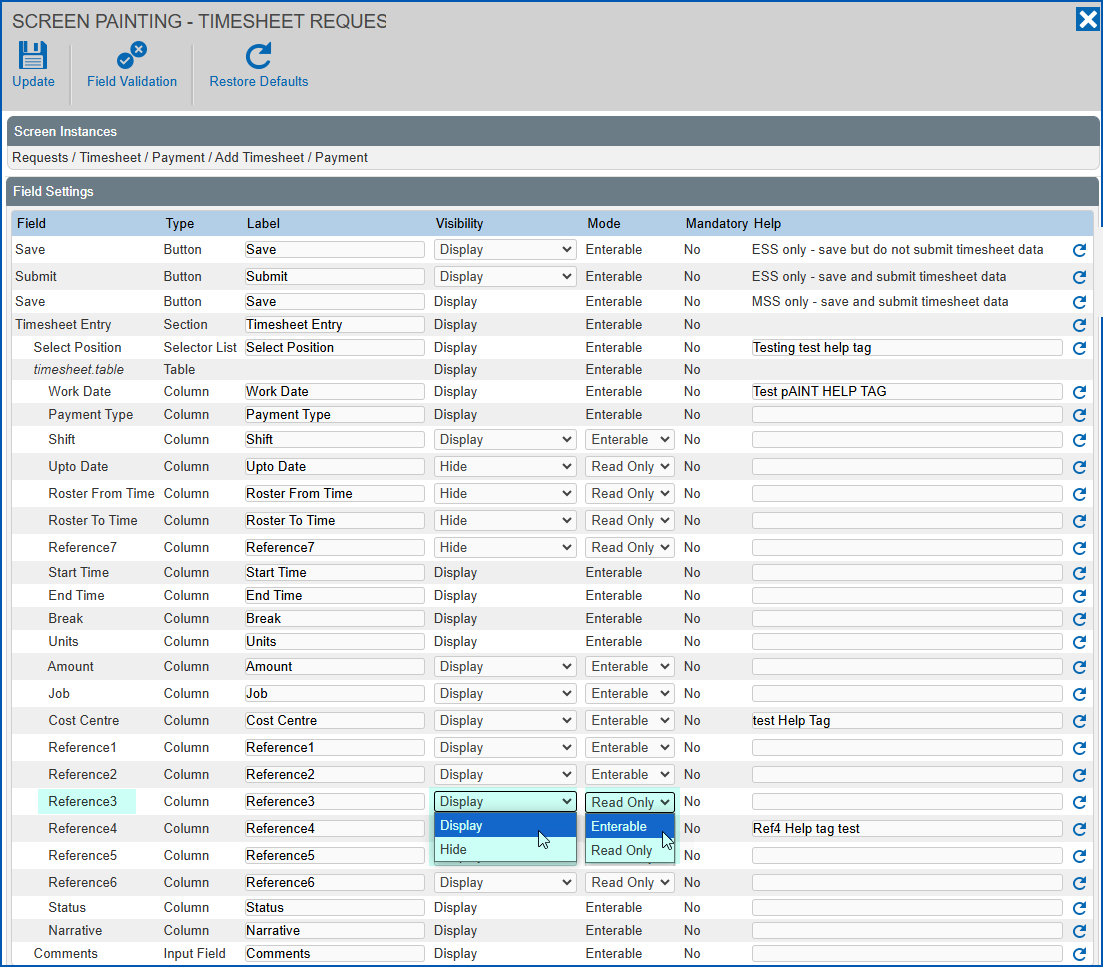
1. To make sure the reference4 field is visible and can be edited, at the **Reference4** field repeat this procedure starting at step 6.
2. Click **Update**.
## Set up amount field
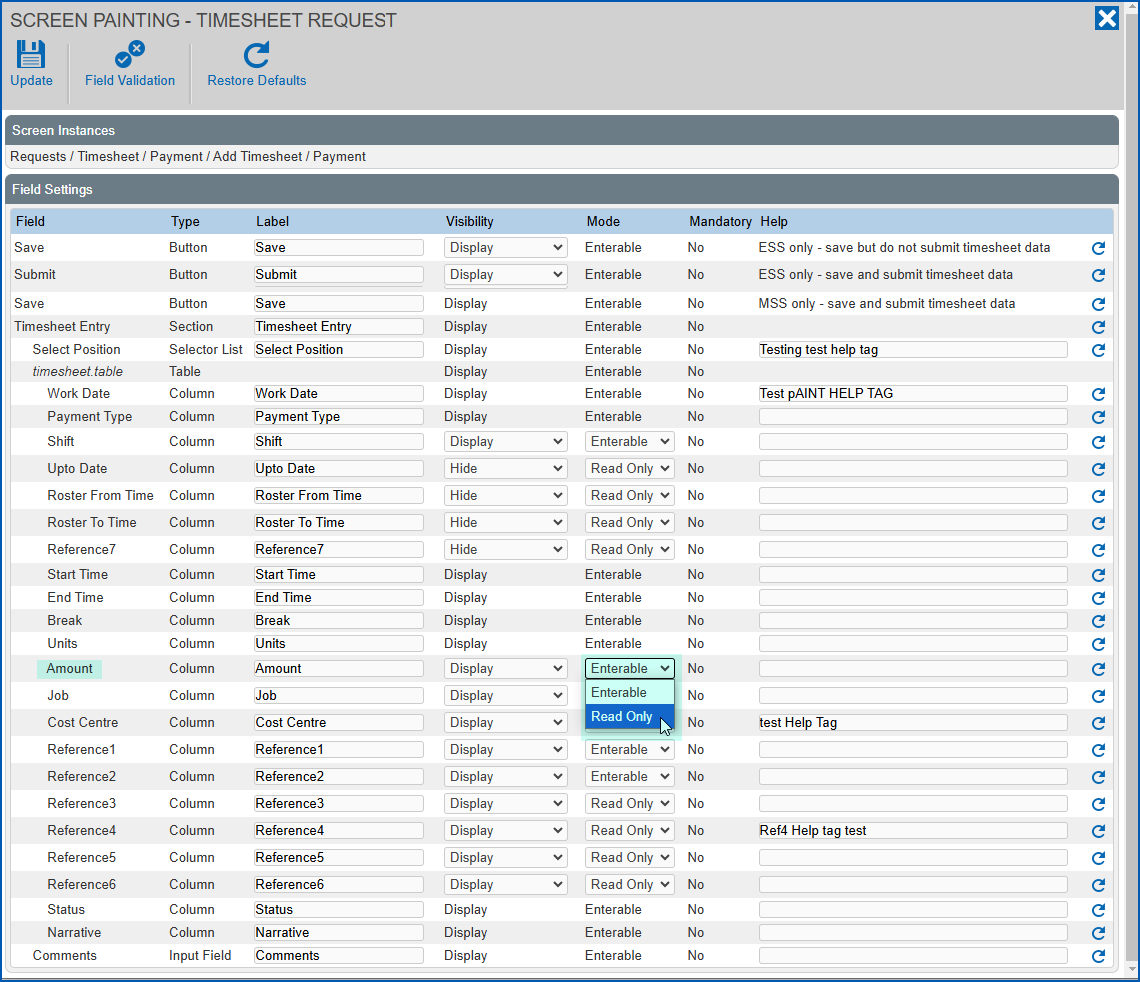
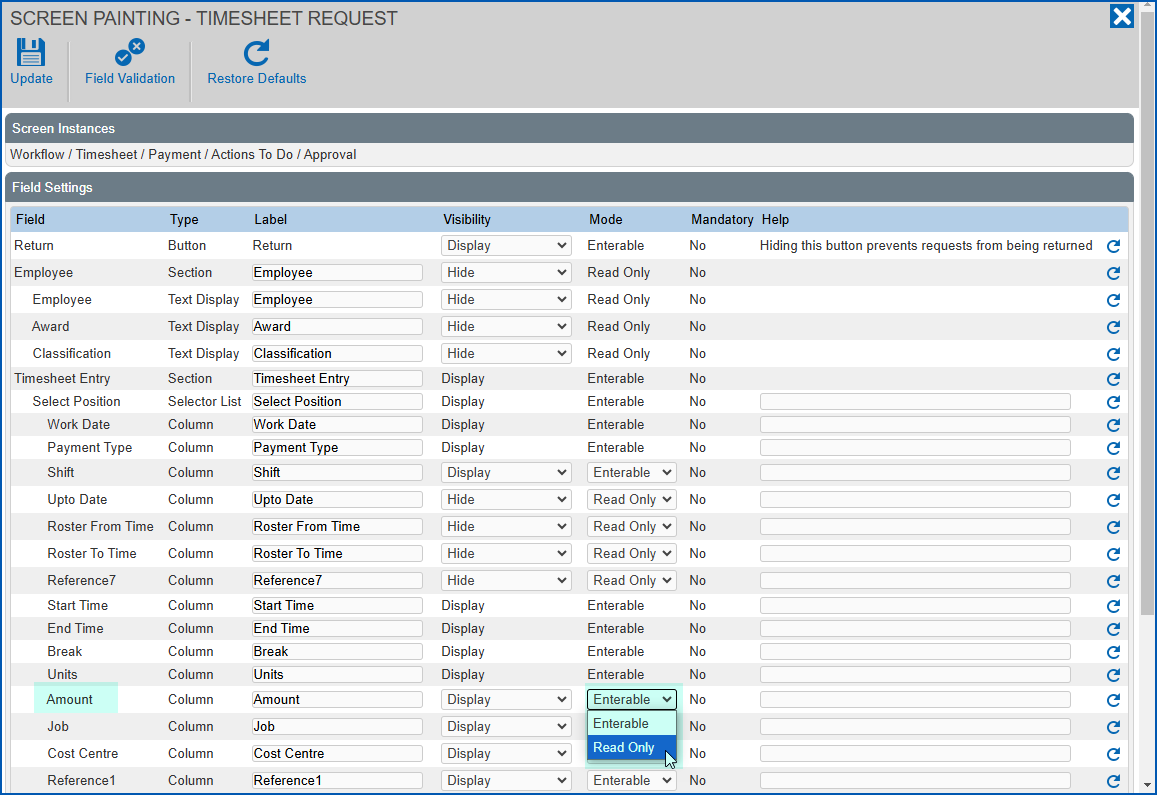
Set the amount field to read only for timesheet and payments entry screens and workflow approval screen.
To set the amount field in timesheet and payments entry screens to read only:
1. Go to **Administration**> **Screen Management**>**Screen Painting**.
2. At **Screen Painting**, expand the **Self Service** list of screens,
3. Expand **Requests**, and then expand **Timesheet / Payment**.
4. At **Add Timesheet / Payment**,****click **Change**.
5. At **Screen Painting - Timesheet Request**, scroll down and locate the **Amount** field.
6. In the **Mode**column, select **Read Only** from the dropdown list.
1. Click **Update**.
To set the amount field in timesheet and payments workflow approval screen to read only:
1. Go to **Administration**> **Screen Management**>**Screen Painting**.
2. At **Screen Painting**, expand the **Self Service** list of screens,
3. Expand **Workflow**, then expand **Time and Claims**, and then expand **Actions To Do**.
4. At **Approval**,****click **Change**.
5. At **Screen Painting - Timesheet Request**, **** scroll down and locate the **Amount** field.
6. In the **Mode**column, select **Read Only** from the dropdown list.
1. Click **Update**.
| Next topic
[Check timesheet / payment approval workflow](/articles/ehr-user-guide/check-timesheet-payment-approval-workflow) |
| --- |
© 2023 Fusion5. All rights reserved.