---
title: "Set up sort codes"
id: "set-up-sort-codes"
project: "EHR User Guide"
url: "https://help.cloud5.com.au/articles/ehr-user-guide/set-up-sort-codes"
updated: 2026-10-19T00:54:24Z
---
# Set up sort codes
## Set up employment type (sort code 1 on section code)
The sort code 1 on a section code defines the employment type.
### Set up sort code 1 codes
Set up the Sort Codes 1 **** control table by creating sort code 1 codes, for example:
* **s** - School
* **c** - College
* **t** - TasTAFE
* **l** - LINC
* **cp** - Corporate
When creating each code, set the:
* **Flag** field to **y** (yes) for EmpowerHR to identify the cost code from the official relief reason.
* **Sort Code 1** field to **y** (yes) for EmpowerHR to perform an employee consecutive day check for relief. This check looks at the maximum number of days a relief employee can work in the same school before being placed on a fixed term contract.
See [sort code 1](/articles/ehr-user-guide/sort-code-1) to learn how to set them up.
### Add sort code 1 value to each section code
Once you've set up the Sort Codes 1 control table, you need to add a sort code 1 value to each section code.
Adding a value is easy. You just enter the relevant sort code 1, for example, **s**(school), in the **Sort Code 1** field. See [section codes](/articles/ehr-user-guide/section-codes) to learn how to do this.
## Set up employment group and employee category (sort codes 2 and 3)
Sort code 2 on the classification determines the employment group type, while sort code 3 determines the employee category.
### Set up classification sort code 2 codes
Set up the Classification Sort Codes 2****control table by creating codes for the employment group types, for example:
* **efa** - Education Facility Attendant
* **ntea**- Non-teaching
* **tea** - Teaching
* **ah** - Allied Health
When creating the codes, set the:
* **Flag** - enter **e** for the code, **efa**. This is used to determine if split shift is available.
* **Flag** - enter**** **t** for the code for teachers requiring a TRB  check.TRB = Teachers Registration Board
* **Sort Code 1** - enter **t** to indicate the teacher employment group type (used for reporting purposes).
To learn how to set them up, see [classification sort code 2](/articles/ehr-user-guide/classification-sort-code-2).
### Set up classification sort code 3 codes
Set up the Classification Sort Codes 3****control table by creating codes for employee categories.
The [employee category rules](/articles/ehr-user-guide/employee-category-rules) rely on employee categories, so use the following list to know which categories are required. You only need to complete the **Code**and **Description**fields - for instructions, see [classification sort code 3](/articles/ehr-user-guide/classification-sort-code-3).
| **Code** | **Description** |
| --- | --- |
| efa | Education Facility Attendant |
| busa | Bus Attendant |
| busd | Bus Driver |
| cana | Canteen Assistant |
| cans | Canteen Supervisor |
| labt | Lab Tech |
| libr | Librarian |
| libt | Library Technician |
| soct | Social Trainer |
| tcha | Teacher Assistant |
| tuto | Adult Tutor |
| inmu | Instrument Musician |
| sco | School Psychologist |
| teac | Teacher |
| nurs | Nurse |
| socw | Social Worker |
| sppa | Speech Pathologist |
| tssa | TSSA Employees |
| tasc | TASC Employees |
### Add classification sort code 2 and 3 values to classifications
Once you've set up the Classification Sort Code 2 and Sort Code 3 control tables, you need to add the values to classifications.
To add the sort code values to a classification:
1. Go to **Tasks** > **Classification** > **Class Input**.
2. The **Class Input** summary screen displays.
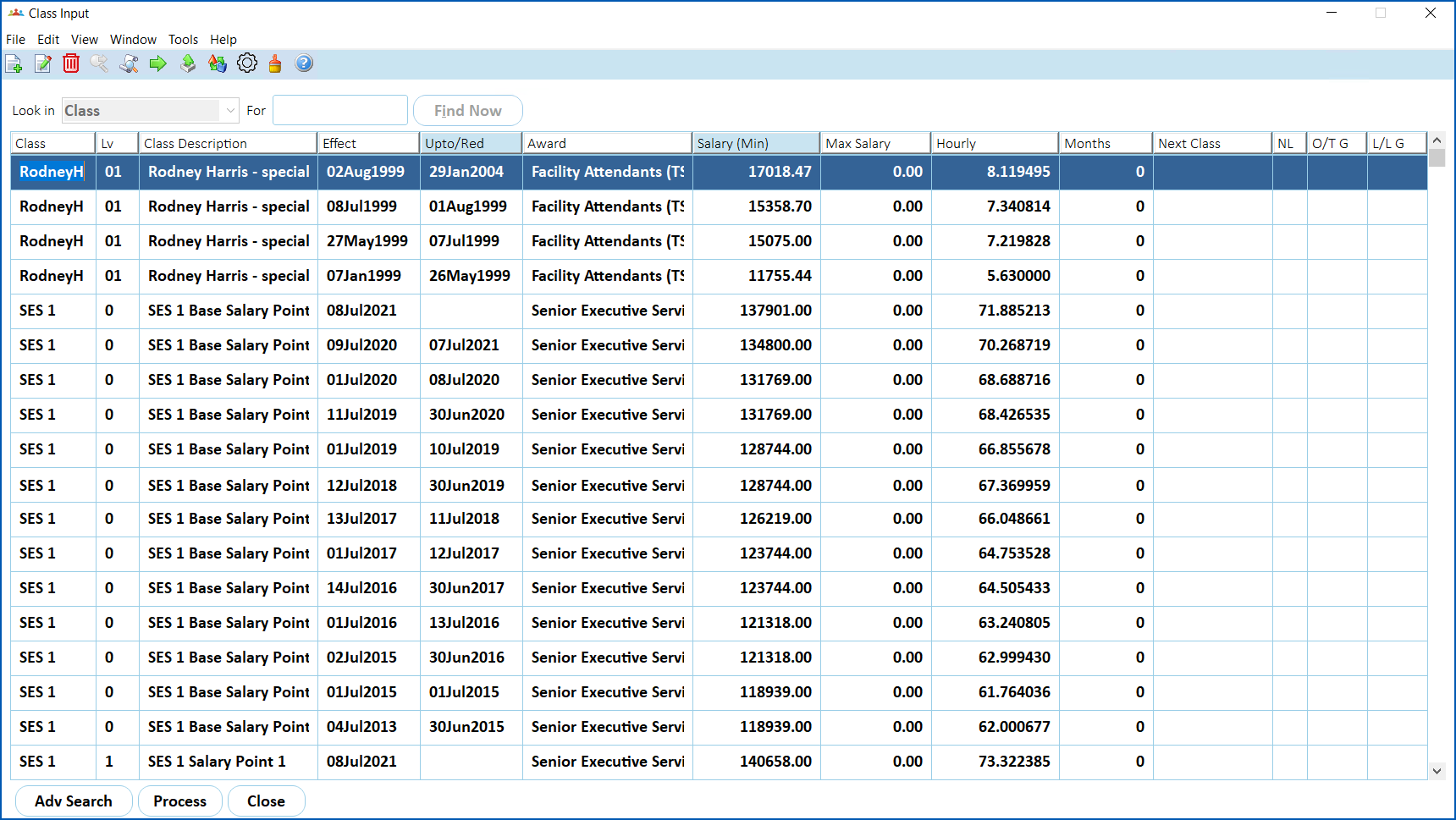
1. Select the classification you want to add the values to, and then click **O****pen**.
2. The **Class Input** **** detail screen displays.
3. In each of the following fields, click **Window**, find and double-click the code to add it to the field:
1. **Classification Sort Code2**
2. **Classification Sort Code3**
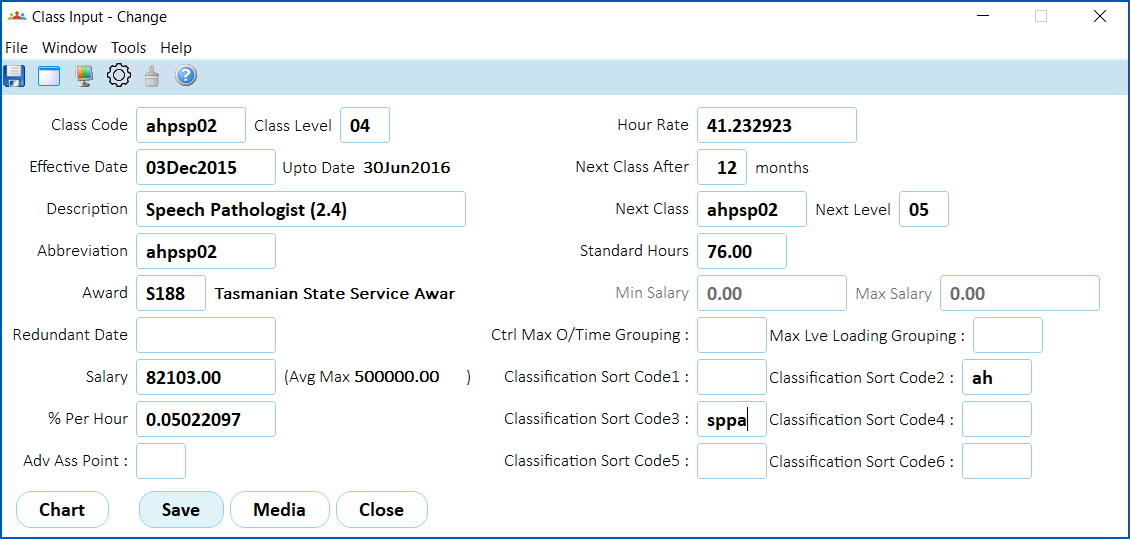
1. Click **Save**.
| Next topic
[Set up relief and payment control codes](/articles/ehr-user-guide/set-up-relief-and-payment-control-codes) |
| --- |
© 2023 Fusion5. All rights reserved.