Here we show you how to set up a form template in EmpowerHR. Form templates can be:
- employee-specific
- position-specific
- generic
Based on a form template:
- employees can create and maintain a form, while managers (who have the relevant organisational security access) can view and update the form
- managers can create employee-specific forms on behalf of their employees
- managers can create generic forms for themselves
EmpowerHR allows versioning. This means you can modify a template's form field definitions and, on saving, EmpowerHR generates a new version of the template. When a user creates a form, it's based on the template version at the time of creation.
You can attach a form template to a workflow. Alternatively, any form not attached to a workflow can:
- include a message for emailing between employee and manager
- be flagged as Finalise (or ongoing)
 |
If you set up a form template as Finalise (or ongoing), forms based on the template cannot be changed once the user finalises the form. |
To set up a form template: 
- Go to Administration > Screen Management > Self Service Forms.
- At the Self Service Forms summary screen, click Find Now to display a list of existing forms.
- Click New.
- At the Self Service Forms detail screen, complete the self service form fields.
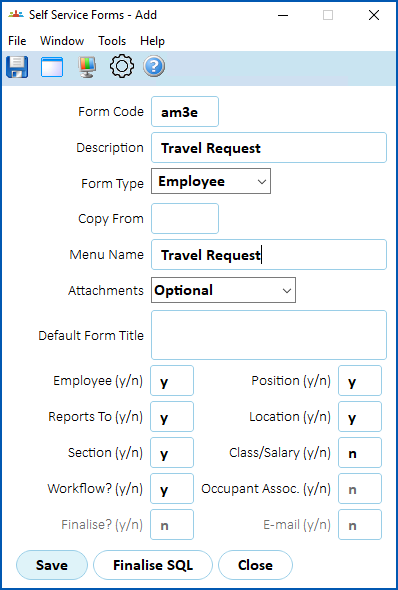
- Click Save.
- EmpowerHR displays the Self Service Forms summary screen.
- Click Next Level. The Form Fields Definition screen displays. See define form fields for what to do next.
© 2023 Fusion5. All rights reserved.