---
title: "Set up relief and payments approval workflow"
id: "set-up-relief-and-payments-approval-workflow"
project: "EHR User Guide"
url: "https://help.cloud5.com.au/articles/ehr-user-guide/set-up-relief-and-payments-approval-workflow"
updated: 2026-10-19T00:53:40Z
---
# Set up relief and payments approval workflow
## Relief and payments workflow
The **rpas** (relief, payments and absence) workflow automates the request approval process. (For more information about workflows in general, see [design workflow](/articles/ehr-user-guide/design-workflow).)
To complete the setup of the **rpas** workflow,****you need to define the:
* workflow tasks to enable different workflow streams for the payment categories. See [define workflow tasks](/articles/ehr-user-guide/define-workflow-tasks) to learn how.
* workflow elements for each payment category (Element 1, or Element 2 if the workflow uses an extra approval step for the executive classification). See the following instructions.
|  | If you want to view the executive classifications, see the [installation setting](/articles/ehr-user-guide/set-installation-settings) called **rps4.** |
| --- | --- |
## Define workflow elements
To define a workflow element:
1. Go to Administration > Workflow > Workflow Elements.
2. At the Workflow Elements summary screen, click **Find Now**to see a list of existing elements.
3. Click **New**.
4. At the Workflow Elements detail screen, in the **Workflow ID** field, enter **rpas**.
5. Press **Tab**. The **Payment Category** field displays.
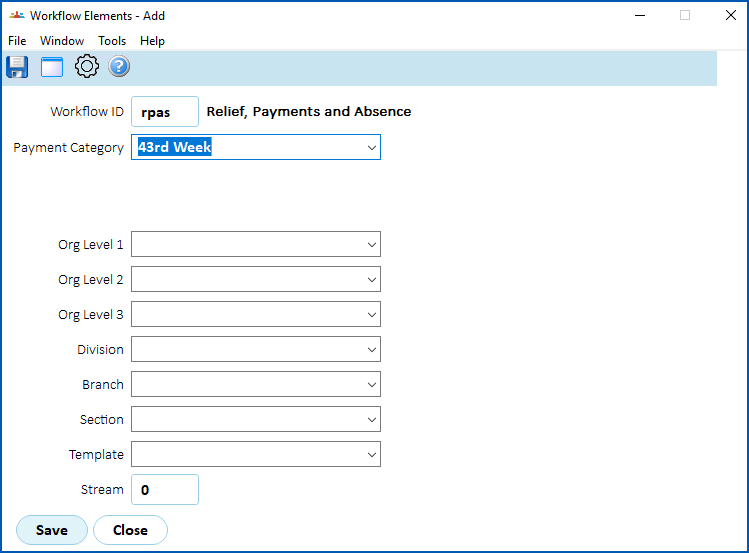
1. Select an option from the **Payment Category** dropdown list.
2. Complete the fields using the following table as a guide.
| **At this field...** | **Do this...** |
| --- | --- |
| Org Level 1
Org Level 2
Org Level 3
Division
Branch
Section | You can restrict the workflow to organisational levels of your company by making selections from the dropdown lists in any of these six organisational fields, or by making a selection from the **Template** dropdown list. |
| Template |
| Stream | If the workflow has multiple streams, enter the stream number, for example enter **1**.
Otherwise, leave the default of **0**. |
1. Click **Save**.
2. Repeat this procedure, starting with step 3, until you've created all the workflow elements you need.
| Next topic
[Units for TASC payments](/articles/ehr-user-guide/units-for-tasc-payments) |
| --- |
© 2023 Fusion5. All rights reserved.