---
title: "Set up payment codes (GESB)"
id: "set-up-payment-codes-gesb"
project: "EHR User Guide"
url: "https://help.cloud5.com.au/articles/ehr-user-guide/set-up-payment-codes-gesb"
updated: 2026-10-19T00:53:10Z
---
# Set up payment codes \(GESB\)
Make sure the appropriate Special Type code is assigned to all super-related payment codes. For example:
* Employer Super = **R**
* Salary Sacrifice/Pre-tax Super = **S**
* Employee After Tax Super = **E**
To check the payment codes: 
1. Go to **Control Tables** > **Payroll**> **Payment Codes**.
2. At the **Payment Code** **s** summary screen, click **Find Now** to list all the existing payment codes.
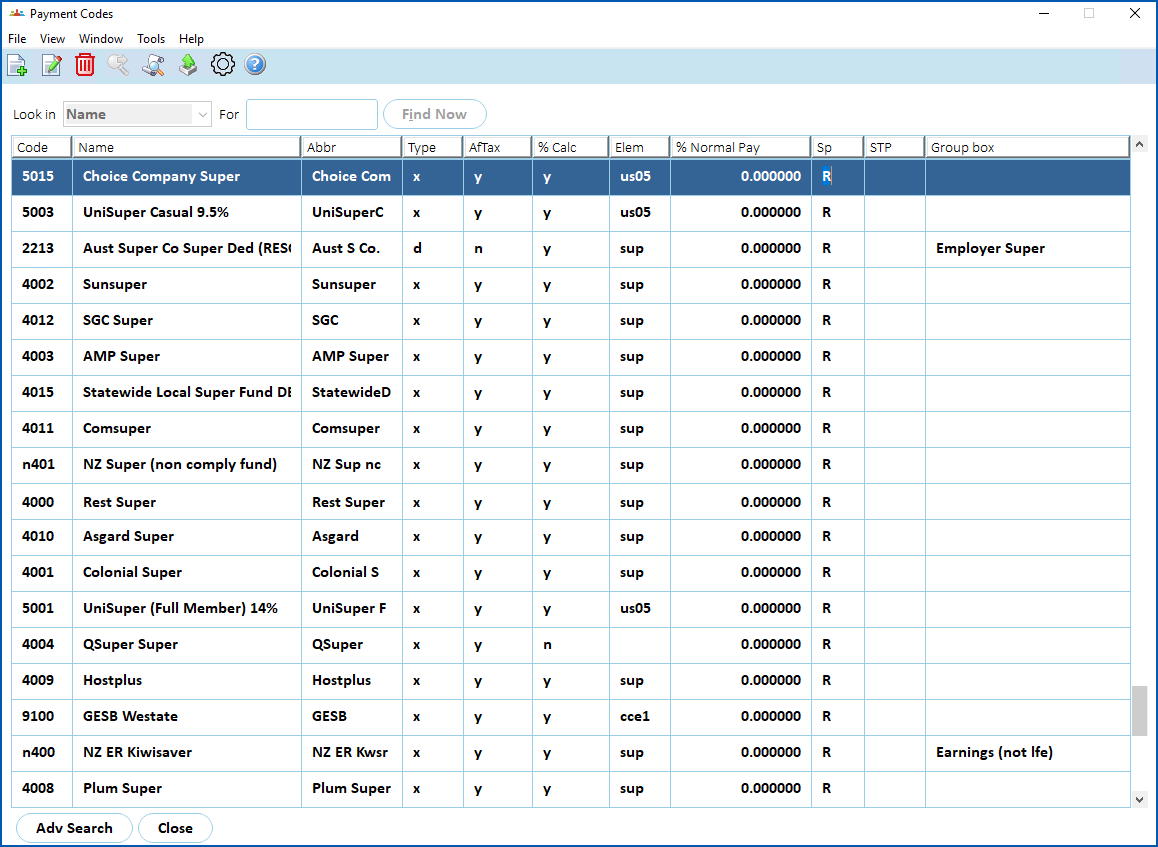
1. For each of the super-related payment codes your organisation uses:
1. Select the code, and then click **Open**.
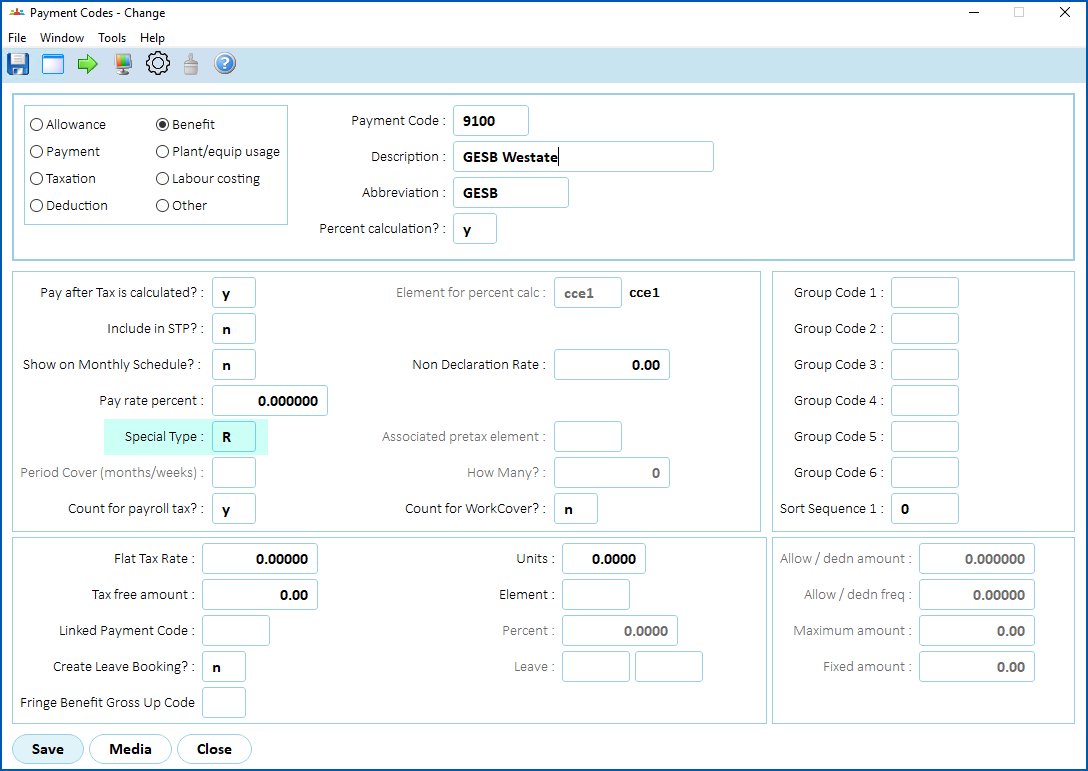
2. At the **Payment Codes** detail screen, check the **Special Type**field, edit the type if it's wrong or missing, and then click **Save**.
| Next topic
[Set up super fund codes (GESB)](/articles/ehr-user-guide/set-up-super-fund-codes-gesb) |
| --- |
© 2023 Fusion5. All rights reserved.