---
title: "Set up leave elements"
id: "set-up-leave-elements"
project: "EHR User Guide"
url: "https://help.cloud5.com.au/articles/ehr-user-guide/set-up-leave-elements"
updated: 2026-10-19T00:52:52Z
---
# Set up leave elements
## Leave elements for schools
EmpowerHR uses leave elements:
* to identify leave types associated with the Formula
* for automatically incrementing teachers to the next class/level after 204 days (or the number of Nominated Days you set in the Public Holiday Calendar for the year)
Default element codes are:
* Leave Affecting Work Days Elem (sch1) - identifies leave type/codes that affect the days worked accumulation for increments
* Maternity Leave Element (sch6) - identifies leave type/codes allocated to paid maternity leave
* Study Leave Element (sc13) - identifies leave type/codes allocated to study leave
If you use the default element codes sch1, sch6, sc13, once the element is set up, you don't need to make any further changes. However, if you decide to use a code that is different to the default, you must record the new code against the [installation setting](/articles/ehr-user-guide/installation-settings).
The following examples show the Sick Leave - Teachers required in installation setting, Teachers Sick Leave Element (sc10)
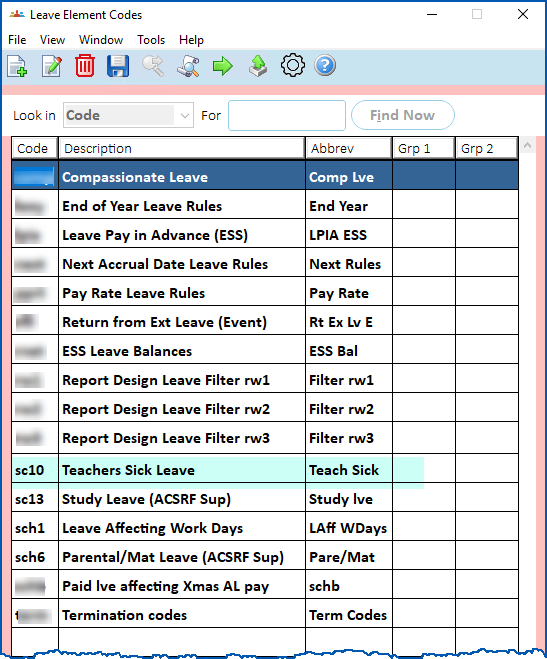
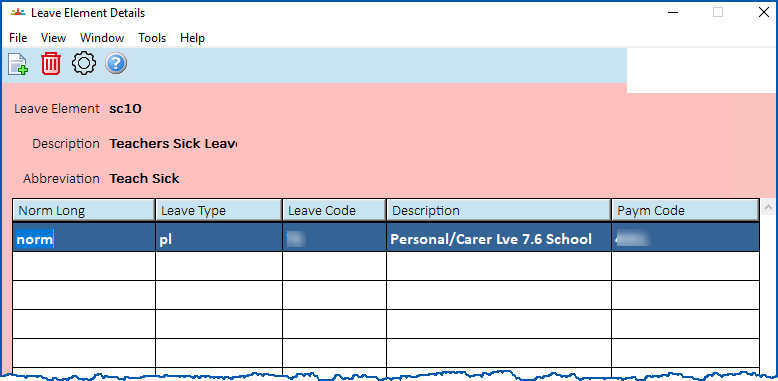
For instructions, see [leave element codes](/articles/ehr-user-guide/leave-element-codes).
| Next topic
[Set up work patterns](/articles/ehr-user-guide/set-up-work-patterns) |
| --- |
© 2023 Fusion5. All rights reserved.