---
title: "Set up employment condition codes (GESB)"
id: "set-up-employment-condition-codes-gesb"
project: "EHR User Guide"
url: "https://help.cloud5.com.au/articles/ehr-user-guide/set-up-employment-condition-codes-gesb"
updated: 2026-10-19T00:53:10Z
---
# Set up employment condition codes \(GESB\)
Make sure employment condition codes in EmpowerHR are correctly mapped to the GESB super file employee condition codes.
To check the employment condition codes: 
1. Go to **Control Tables** > **Positions** > **Employment Condition Codes**.
2. At the **Employment Condition Code** **s** summary screen, click **Find Now** to list all the existing employment condition codes.
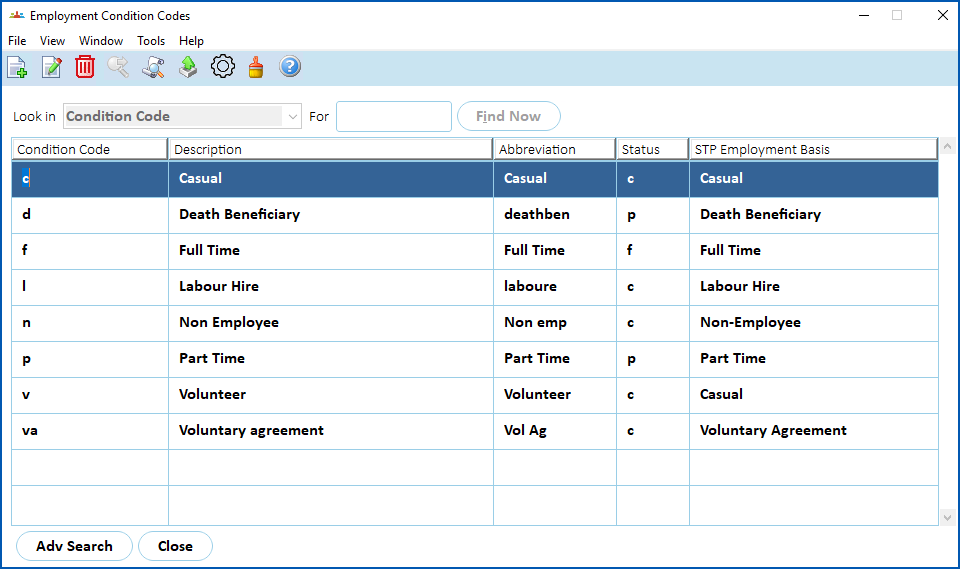
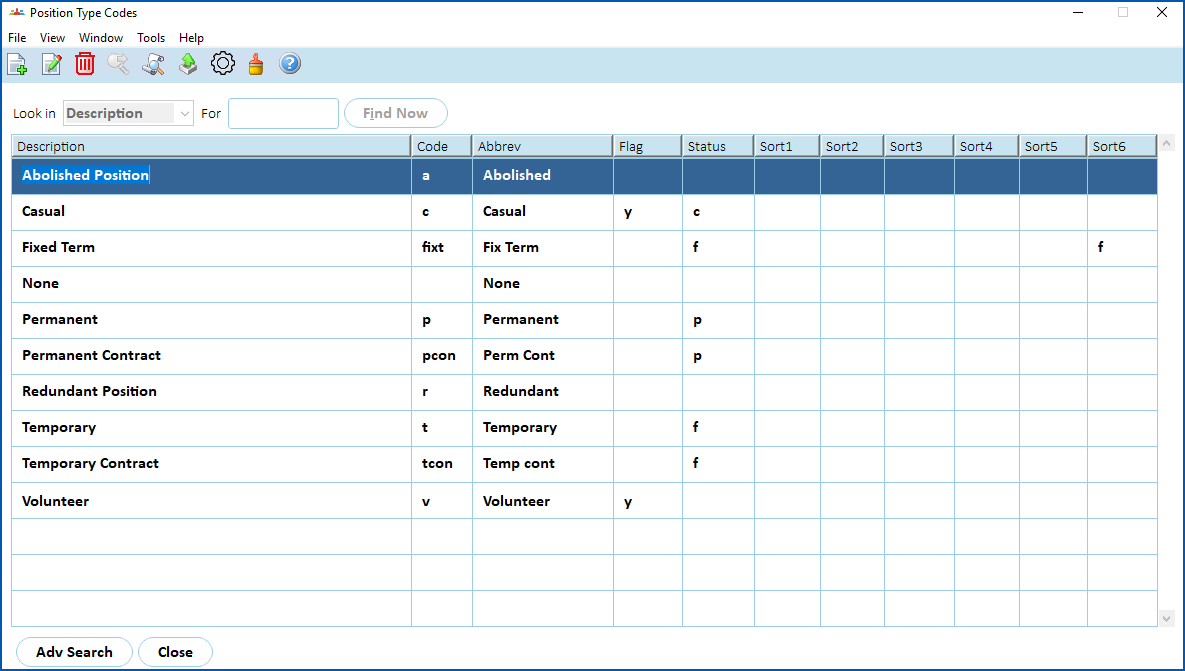
If you do not have condition codes for Contractor or Casual, the Sort Code 6 field of the Position Type Code is used to store HR MOIR categories, such as:
HR MOIR = Human Resources Minimum Obligatory Information Requirement.
Public Sector agencies are required to report workforce information. This data set is known as HR MOIR.
| T
E
S
B | sets the Employment Status code description to Contractor |
| --- | --- |
| C | sets the Employment Status code description to Casual |
To check/update position type codes, go to **Control Tables** > **Positions** > **Position Type Codes**.
| Next topic
[Set up payment codes (GESB)](/articles/ehr-user-guide/set-up-payment-codes-gesb) |
| --- |
© 2023 Fusion5. All rights reserved.