---
title: "Set up cost centre selection and display"
id: "set-up-cost-centre-selection-and-display"
project: "EHR User Guide"
url: "https://help.cloud5.com.au/articles/ehr-user-guide/set-up-cost-centre-selection-and-display"
updated: 2026-10-19T00:53:02Z
---
# Set up cost centre selection and display
## Limit cost centre selection on casual relief claims
You can limit the cost centre selection on casual relief claims to:
* Section Discretion Cost Centre for the vacancy section (school)
* General Discretion Cost Centre
* Funding Source Cost Centres where the vacancy section has a positive balance on the Claim Date
You need to set the field error validation severity to limit cost centre selection in self service.
To limit cost centre selection:
1. Go to **Administration** > **Screen Management** > **Field Error Validation**.
2. At **Field Error Validation**, expand the **Self Service** list.
3. Expand the **Workflow**list.
4. Expand the **Casual Claims**list.
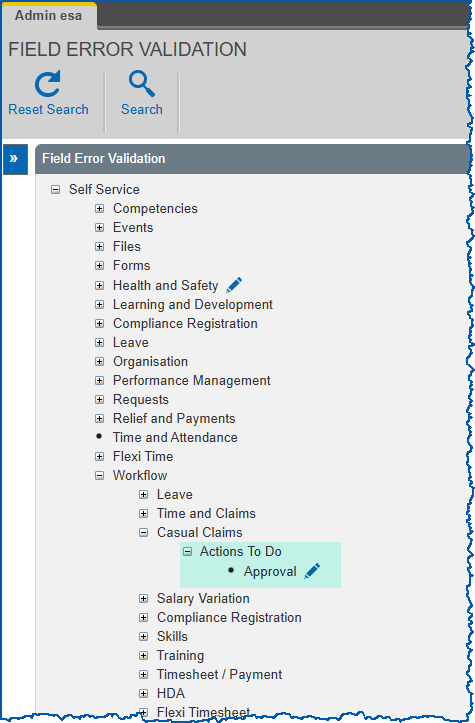
1. At **Actions To Do** > **Approval**, click**Change**. The **Casual Claims Approval**screen displays a list of fields.
2. Find the field called **Cost Centre** with validation **must be covered by a Funding Credit**.
3. Select **Error** from the **Severity** dropdown list.
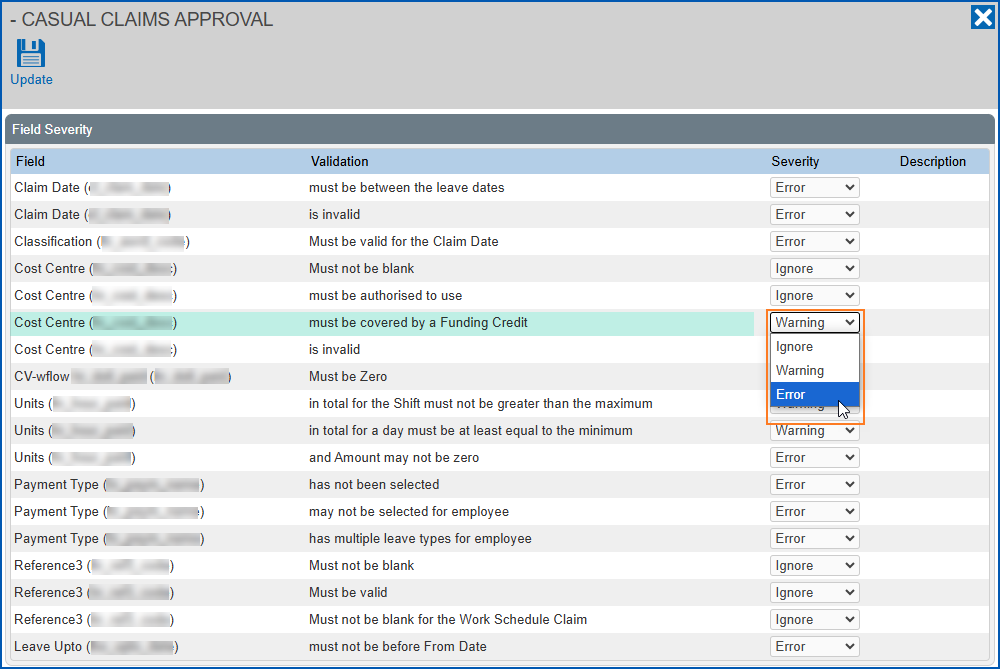
1. Click **Save**.
## Modify cost centre display
You can modify the cost centre display for a number of request forms including the casual relief claim and approval process.
You need to change the value in the property called **ess.costCentre.display.format** to modify the cost centre display in self service.
To modify the cost centre display:
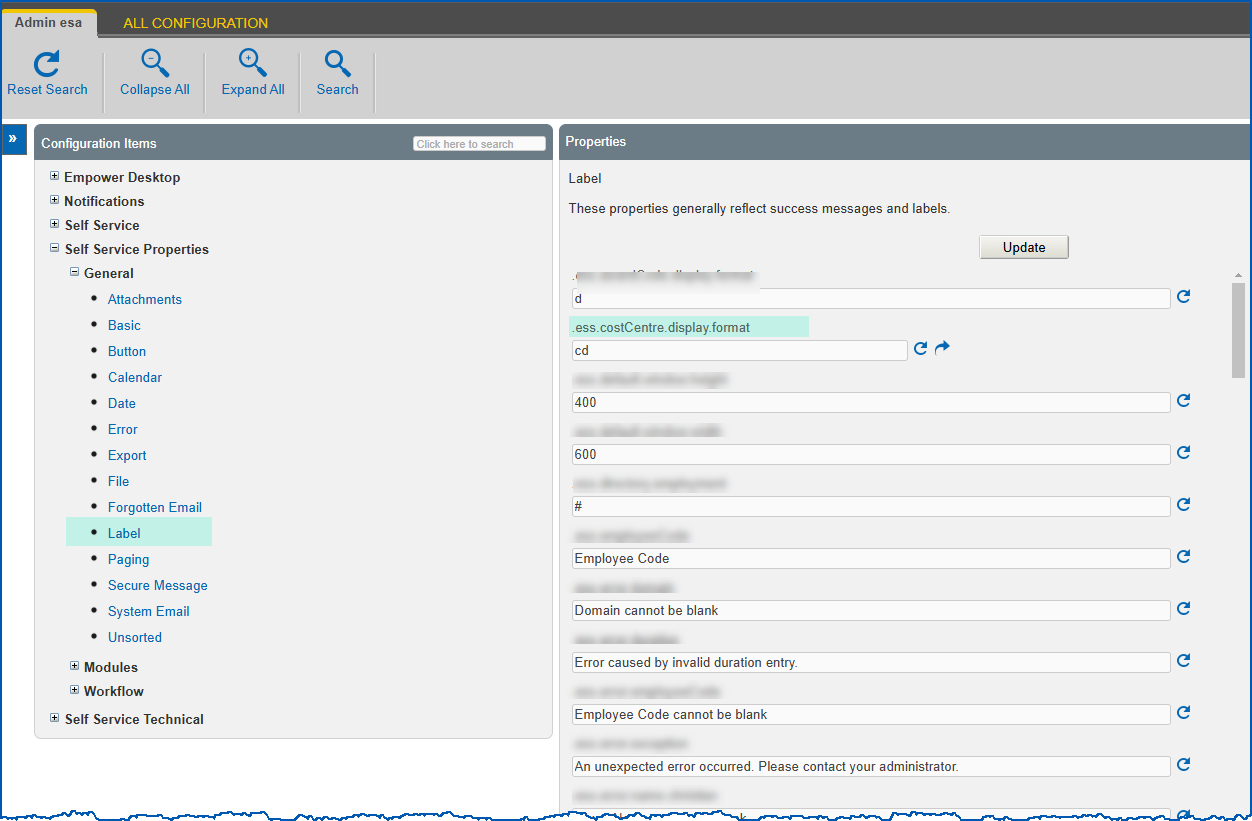
1. Go to **Administration** > **Configuration**> **All Configuration**.
2. At **Configuration Items**, expand the **Self Service Properties** list.
3. Expand the **General**list.
4. Click **Label**.
5. Make changes to the property called **ess.costCentre.display.format** using the options in the following table:
| **Use this value...** | **to display...** |
| --- | --- |
| a | only the cost centre abbreviation |
| c | only the cost centre code |
| d | only the cost centre description (default) |
| ac | the cost centre abbreviation followed by the code in parentheses |
| ca | the cost centre code followed by the abbreviation in parentheses |
| cd | the cost centre code followed by the description in parentheses |
| dc | the cost centre description followed by the code in parentheses |
1. Click **Update**.
| Next topic
[Set up claims for casual relief workflow](/articles/ehr-user-guide/set-up-approval-workflow-casual-relief) |
| --- |
© 2023 Fusion5. All rights reserved.