---
title: "Set up award-based carer's leave entitlement"
id: "set-up-award-based-carer-s-leave-entitlement"
project: "EHR User Guide"
url: "https://help.cloud5.com.au/articles/ehr-user-guide/set-up-award-based-carer-s-leave-entitlement"
updated: 2026-10-19T00:53:47Z
---
# Set up award\-based carer's leave entitlement
Carer's leave entitlement can come from an employee's award (with an optional classification-level override), or from their work pattern. This article covers how to set each of them up, and how EmpowerHR decides which one applies when an employee submits a leave request.
## Which entitlement applies
When an employee submits a carer's leave request, EmpowerHR looks for an entitlement in this order:
1. **Award and classification** – if there's an entitlement for the employee's specific award-and-classification combination, it applies.
2. **Award** – if there's no classification-specific value but the award has a default, the award-level value applies.
3. **Work pattern** – if neither the award nor classification has an entitlement, EmpowerHR falls back to the employee's work pattern.
So award-level entries are your way to say "this figure applies to anyone under this award, regardless of work pattern", and classification-level entries are a more specific override on top.
## Award and classification entitlement
You can set the carer's leave entitlement at the award level, or at the award-and-classification level for a more specific override, without needing separate work patterns.
Before you start, make sure you've set up the awards and classifications you want to configure entitlements for. See [Create an award code](/articles/ehr-user-guide/create-an-award-code "Click to open page in a new window") and [Allocate classifications to awards](/articles/ehr-user-guide/allocate-classifications-to-awards "Click to open page in a new window").
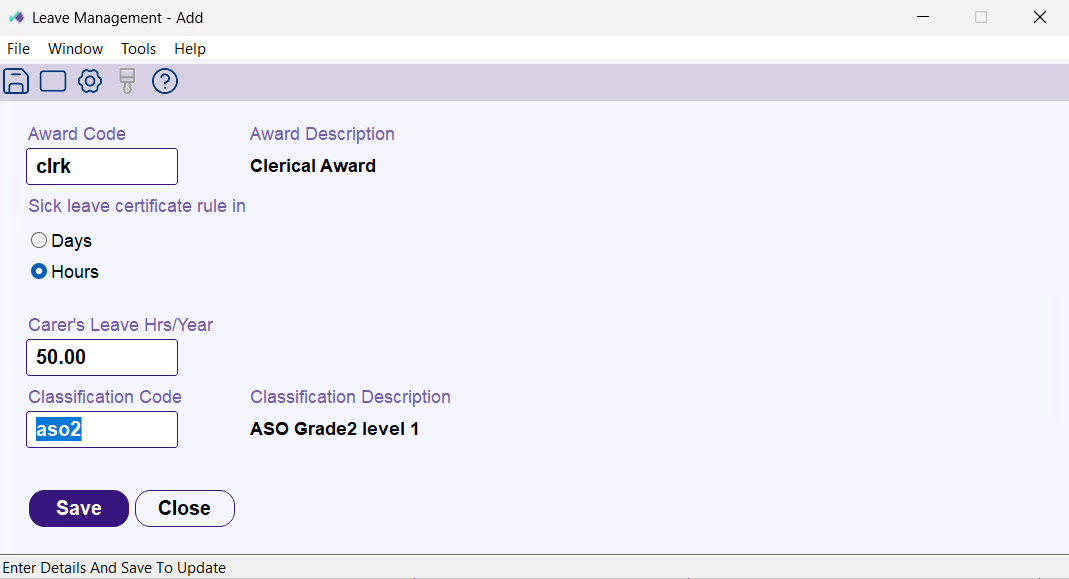
To set the entitlement at the award or classification level:
1. Go to **Tasks** > **Classifications** > **Awards Configuration** > **Leave management**.
2. At the **Leave Management** summary screen,
1. click **Add** to open the **Leave Management - Add** screen.
2. double-click an existing award (or award-and-classification combination) you want to change – this opens the **Leave Management - Change** screen.
3. At the detail screen, complete the fields:
| **At this field** | **Do this** |
| --- | --- |
| **Award Code** | Enter the award code, or click **Window**, find and double-click the award. The **Award Description** fills in automatically. |
| **Sick leave certificate rules in** | Select **Days** or **Hours** to set how the certificate rule is measured. |
| **Carer's Leave Hrs/Year** | Enter the annual carer's leave figure in hours. This is the full-time equivalent figure. |
| **Classification Code** | Optional. Enter the code, or click **Window** and double-click the classification. Only classifications linked to the award appear. Leave blank to apply the entitlement to every classification under the award. The **Classification Description** fills in automatically. |
1. Click **Save**.
At this level, you enter the **full-time equivalent (FTE) figure**. EmpowerHR reduces the value automatically by the employee's FTE when they submit a leave request.
**Example:** configure an award-level carer's leave entitlement of 80 hours. Then:
* A full-time employee (1.0 FTE) under that award gets 80 hours.
* An 0.8-FTE employee (4-day-week) gets 64 hours automatically.
* An 0.6-FTE employee (3-day-week) gets 48 hours automatically.
You don't have to configure a separate entry for each FTE level – EmpowerHR does the scaling at request time.
### Classification override
An award can contain multiple classifications. You can set a default entitlement at the award level, or a more specific value for a particular award-and-classification combination.
If a classification-specific value exists for the employee's award and classification, it applies. If not, the award-level default applies.
### What's covered where
The award and classification setup currently supports carer's leave. For paramedical or no-certificate entitlements, use the work pattern setup below.
## Work pattern entitlement
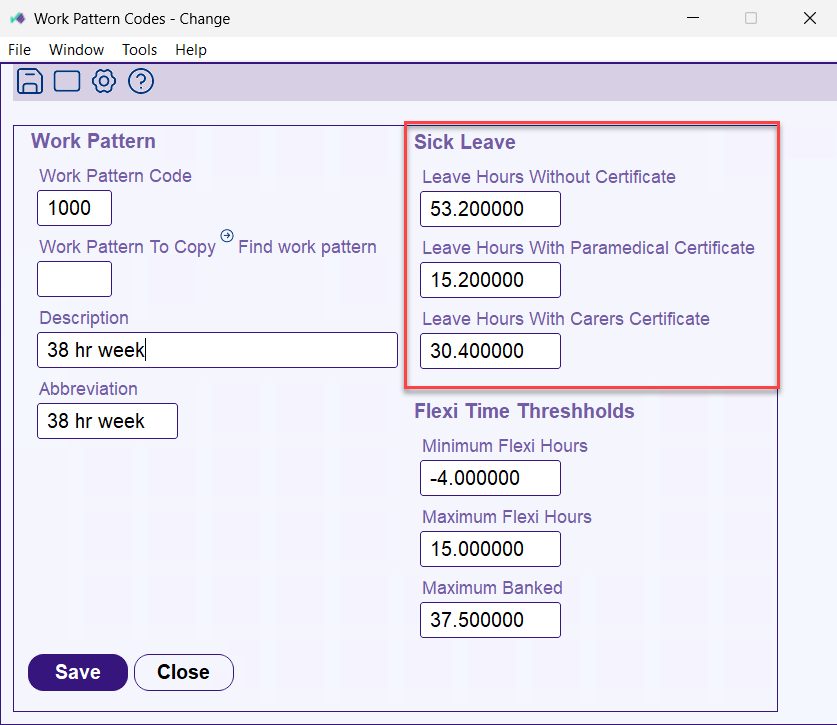
To set the entitlement on a work pattern:
1. Go to **Control Tables > Calendars > Work Pattern Codes**.
2. At the **Work Pattern Codes**summary screen:
1. Double-click the work pattern you want to configure. This opens the **Work Pattern Codes - Change** screen.
2. Click **Add** to create a new work pattern. This opens the **Work Pattern Codes - Add** screen.
3. Go to the **Sick Leave**section. There are three fields:
* Leave Hours Without Certificate
* Leave Hours With Paramedical Certificate
* Leave Hours With Carers Certificate
4. Enter the entitlement values for that work pattern and click **Save**.
Because each work pattern already represents a full-time or part-time arrangement, you enter the actual hours for that pattern. Work out the entitlement for the pattern yourself and enter that value. This is the opposite convention to the award and classification setup above, where you enter the FTE figure and EmpowerHR does the scaling.
**Example:**
* **Full-time pattern (38 hrs/week, 1.0 FTE)**
If your full-time carer's certificate entitlement is 80 hours per year, enter 80 in that work pattern's Leave Hours With Carers Certificate field. An employee on this pattern gets 80 hours of entitlement across the year.
* **4-day-week pattern (30.4 hrs/week, 0.8 FTE)**
If an employee on a 4-day-week should get 64 hours per year, enter 64 in that work pattern's field. An employee on this pattern gets 64 hours across the year.
| Next topic
[Set validation severity for sick and carer's leave](/articles/ehr-user-guide/set-validation-severity-for-sick-and-carer-s-leave) |
| --- |
© 2023 Fusion5. All rights reserved.