---
title: "Set installation preferences"
id: "set-installation-preferences"
project: "EHR User Guide"
url: "https://help.cloud5.com.au/articles/ehr-user-guide/set-installation-preferences"
updated: 2026-10-19T00:52:47Z
---
# Set installation preferences
This topic shows how to change installation preferences to suit your organisation.
## Set the installation options
Set EmpowerHR's installation options to suit your school's requirements. Use the following table as a guide.
For help on how to set an option, see [installation options](/articles/ehr-user-guide/installation-options).
| **Installation option** | **Explanation** |
| --- | --- |
| Normal Hours Pay Element Usage
**nheu** | Set this option to **p** when you want to stop pay by exception for the last pay of the year over the Christmas holiday period when a pay variation has been calculated.
Available settings are:
**n** = this pay element is not used for overriding pay by exception
**p** = this pay element will be used to override pay by exception
**b** = this pay element is used for both pay data entry validation and to override pay by exception |
| Treat employee as a whole when determining formula pay
**falp** | Is you set this option to **y** (yes), EmpowerHR looks at all employments (together) for a particular employee and treats the employee as a whole. EmpowerHR determines:
- which formula to apply
- an employee’s break in service
- a leave loading payment
- which formula to apply on termination payout of annual leave owing
Setting this option to **y** (yes) also provides information for the following processes and menu items:
- Formula Check process
- Update Formula Type
- View Formula Type
- inclusion of LSL half pay days towards accumulated unpaid term days count
|  | When you set **falp** to:
- y (yes), EmpowerHR automatically accumulates LSL half pay bookings where leave is less than 100%
- n (no), you need to set the installation option called ignore LSL at less than 100% (schv) to y (yes)
|
| --- | --- | |
| Pay all formula pay before start of term
**fall** | At the beginning of the school year, the pay period processes non-term as well as term days paid to employees. When you set the **fall** installation option to **y** (yes), EmpowerHR pays any remaining formula pay normally due for payment in that first pay period in the previous pay period instead.
To pay all the formula pay before the start of term, you also need to set the installation option called **treat employee as a whole when determining formula pay (falp)** to **y** (yes). |
| Generate normal part pay at Christmas using employee work pattern
**schw** | If you set this option to **y** (yes), where Term 4 ends or Term 1 starts part way through the following pay period, EmpowerHR uses the employee’s work pattern to determine the term workdays in the pay period. |
| Disburse formula based on Employee’s Normal Pay By Exception
**schd** | If you set this option to **y** (yes), EmpowerHR disburses any end of year formula payment across the Christmas school holiday period based on the employee's normal Pay By Exception amount per pay period. |
| Consider Posn Movements Term 1 start
**scht** | If you set this option to **y** (yes), EmpowerHR processes any position movements entered after the **Christmas Leave Pay/Loading Period** pay period, that have an effective date falling in the start of the Term 1 pay period.
|  | This setting *only* affects the pay period containing the end of the school holiday and the start of Term 1. |
| --- | --- | |
## Set the installation settings
Installation settings help control the payment codes associated with Christmas pay and termination pay formula, and other school-specific functions.
Set EmpowerHR's installation settings to suit your school's requirements. Use the following table as a guide.
For help on how to set a setting, see [installation settings](/articles/ehr-user-guide/installation-settings).
| **Installation setting** | **Variable character or integer** | **Explanation** |
| --- | --- | --- |
| Teachers Sick Leave Element
**sc10** | skte | Identifies the leave element with associated sick leave codes. |
| Teachers Sick Leave Maximum
**sc11** | 150 | Maximum number of days to be retained for the defined number of years. |
| Teachers Sick Leave Years
**sc12** | 8 | Number of years sick leave is retained before being dropped. |
| Study Leave Element
**sc13** | sc13 | Identifies the leave element with associated study leave codes.
Australian Catholic Super and Retirement Fund (ACSRF) super interface. |
| Teacher Increments Std Days
**sc14** | 203 | Use this installation setting for the Teacher Increment process if you do not want to use the value of the Nominated Days shown on the public holiday term dates screen. Enter a standard number of teacher increment days (for example, 203) which may be different to the Nominated Days on the public holiday code. |
| Leave Affecting Work Days Element
**sch1** | sch1 | Leave element that identifies leave type/codes that effect the days worked towards increments. Examples of types to be excluded are LWOP , Maternity Leave, Paternity Leave.
LWOP = leave without pay
EmpowerHR also uses this installation setting when determining term weeks worked for leave loading calculation. |
| Casual Increment Pay Element
**sch2** | sch2 | Pay element that includes payment codes to include in hours worked towards next increment and defining casual pay. |
| FT Equivalent Work Pattern
**sch3** | 1000 | Full-time work pattern for a teacher. |
| Term Pay Element
**sch4** | sch4 | Includes payment codes used during school terms – normal, HDA , Sick Leave, LSL .
HDA = higher duties allowanceLSL = long service leave
EmpowerHR also uses this pay element when determining which allowances are used in the calculation Fortnightly salary for leave loading. If the allowances on this element are current on the employee’s regular allowance screen, they are included in the leave loading rate calculation.
As well, this pay element is used when determining the earnings paid during the term for the Formula 2 (Salaried) type calculation. |
| Non-Term Pay Element
**sch5** | sch5 | Identifies pay during mid-term breaks, for example, Stand-down normal, Mat Leave , Stand-down LSL, S/L , and HDA.
Mat leave = maternity leaveS/L = sick leave
|  | Must include paid maternity leave. |
| --- | --- |
EmpowerHR uses this pay element when determining the earnings paid during the non-term period for the Formula 2 (Salaried) type calculation. |
| Maternity Leave Element
**sch6** | sch6 | Paid Maternity Leave Type/Code for ACSRF .
ACSRF = Australian Catholic Super and Retirement Fund |
| No. of Weeks Xmas Holiday
**sch7** | 4 | Used in Christmas pay calculation – 4 weeks annual leave and 2 weeks stand-down. |
| Stipend Payment Code
**sch8** | 115 | Payment code for Stipend payments |
| Leave Loading Pay Code
**sch9** | 125 | Payment code for Averaged Employees Leave Loading payments. |
| Weeks Worked Annual Leave Calc?
**scha** | scha | If you set this installation setting to:
- y (yes), EmpowerHR applies the weeks-based formula calculations for non-FTE change variations
- n (no) or an FTE change is detected, EmpowerHR applies salary-based calculations to variations
|
| Paid Leave Affecting Ann Lve Calc
**schb** | schb | Specified teachers and principals automatically receive 6 weeks’ pay during the Christmas holiday. In this leave element, record any paid normal leave that affects the annual leave pay calculation (for example, maternity leave). |
| Ignore LSL at less than 100%
**schv** | n *or* y | If the **falp** installation option = **y**, then EmpowerHR bypasses the **schv** installation setting by automatically including any unpaid portion of any LSL bookings (that are less than 100%) in the count of unpaid days.
Here's what happens with other combinations of the **falp** installation option and **schv** installation setting.
| **falp =** | **schv =** | **Then**... |
| --- | --- | --- |
| n | n | no check for > 20 days' unpaid leave applies |
| n | y | checks for > 20 days' unpaid leave applies |
| y | y | checks for > 20 days' unpaid leave applies |
| y | n | checks for > 20 days' unpaid leave still applies | |
| --- | --- | --- |
## Set the installation constants
### Create a normal hours pay element
First, create a normal hours pay element so you can then add it to installation constants. You should include normal, stand-down, and annual pay codes in the element. This element is used for overriding normal pay when doing Christmas pay variations, and terminations.
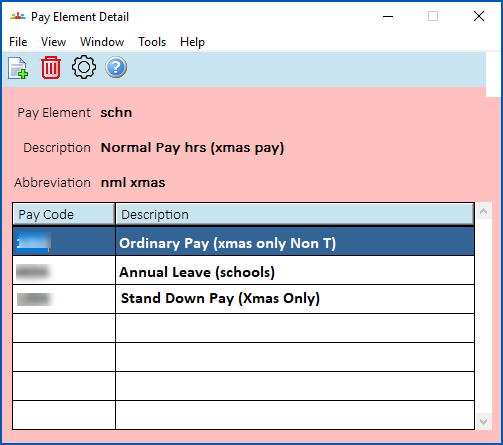
For instructions, see [pay element codes](/articles/ehr-user-guide/pay-element-codes).
### Add normal hours pay element to installation constants
To add the normal hours pay element to installation constants:
1. Go to **Administration** > **Agency Management** > **Installation Constants**.
2. Click the **Pay** tab.
3. In **Pay by exception overrides pay element**, enter the code of the pay element you created.
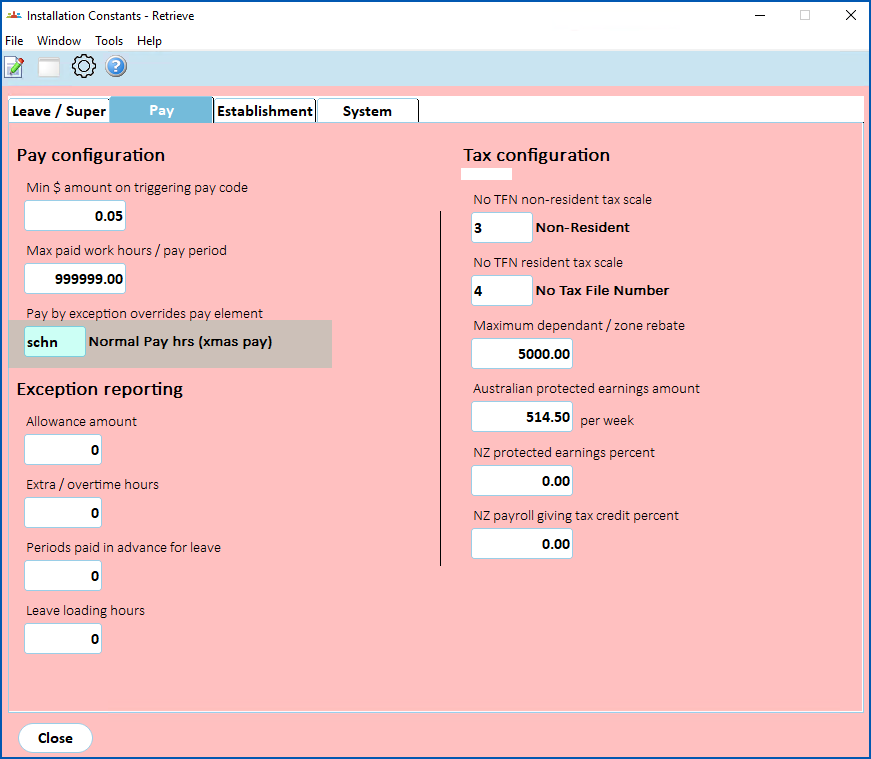
1. Click **Save**.
| Next topic
[Set up control tables](/articles/ehr-user-guide/set-up-control-tables) |
| --- |
© 2023 Fusion5. All rights reserved.