---
title: "Set installation preferences (GESB)"
id: "set-installation-preferences-gesb"
project: "EHR User Guide"
url: "https://help.cloud5.com.au/articles/ehr-user-guide/set-installation-preferences-gesb"
updated: 2026-10-19T00:53:10Z
---
# Set installation preferences \(GESB\)
## Supplier/payer ABN
Set up the GESB code for your organisation in the Supplier/Payer ABN screen.
To set up the GESB code:
1. Go to Administration > Agency Management > Supplier/Payer ABN.
2. At the Supplier/Payer ABN summary screen, click **Find Now** to see a list of existing supplier/payer ABNs.
3. Select the relevant supplier/payer ABN, and then click **Open**.
4. At the Supplier/Payer ABN detail screen, enter your **Employer ID**.
5. Make sure the **Contact Name** and **Phone** details are up to date. (The interface file uses this information).
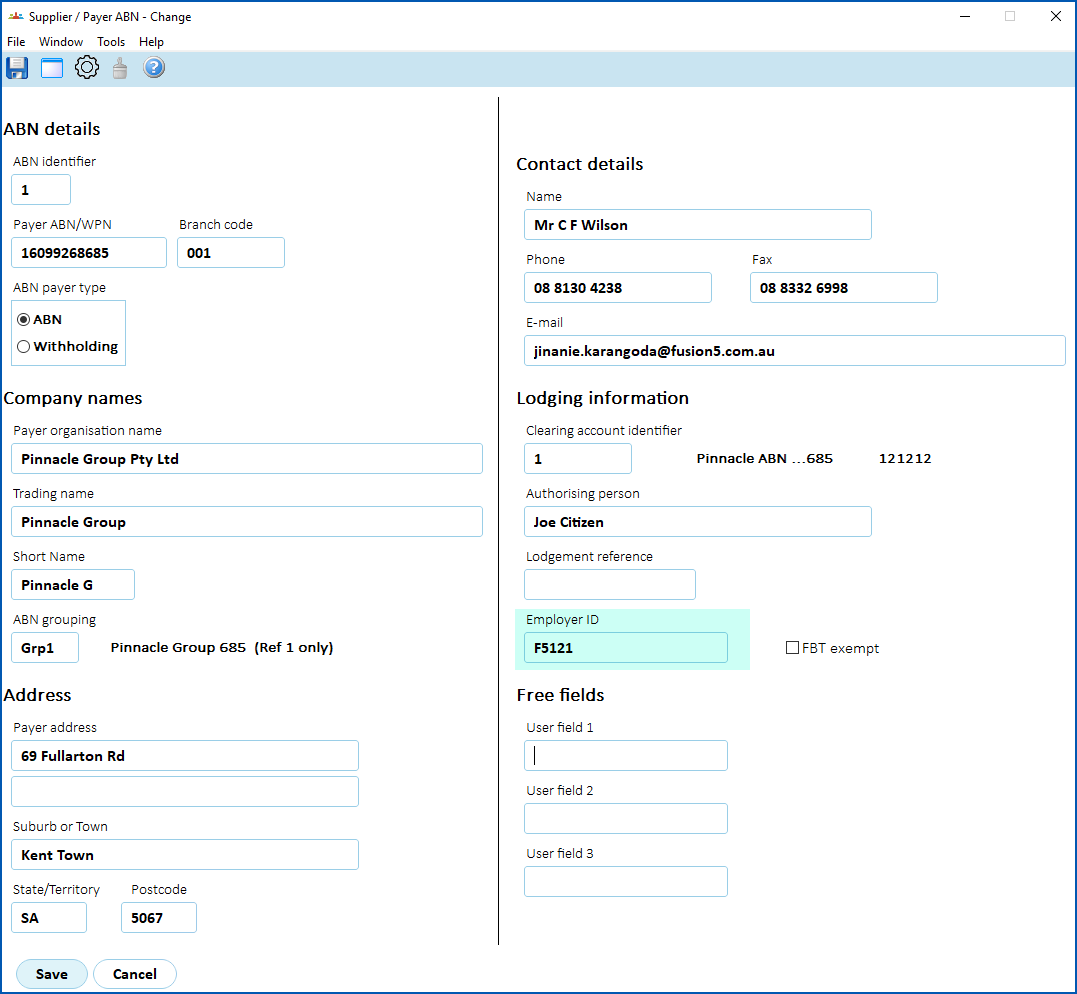
1. Click **Save**.
## Installation settings
Some types of installation settings allow you to switch a function or behaviour on/off (y/n). Other types of settings hold pay elements.
|  | Pay elements allow you to group, and make payments on, particular payment codes. |
| --- | --- |
To set up installation settings for GESB super:
1. Set the installation setting called **Acting details for GESB (gsb1)** to **y** to capture details if an employee is acting in a position.
2. For the following list of installation settings:
1. Make sure the pay elements you require are set up and contain the appropriate payment codes. See [pay element codes](/articles/ehr-user-guide/pay-element-codes)for instructions.
2. Assign the pay elements to the installation settings. See [installation settings](/articles/ehr-user-guide/installation-settings) for instructions.
| gb03 | GSS Additional Hours Element (for part time) |
| --- | --- |
| gb04 | GSS After Tax Deduction Element |
| gb05 | Contributory Element |
| gb06 | GSS External Sal Pack Element |
| gb07 | GSS Allowances Element |
| gb08 | GSS Pre Tax Deductions Element |
| gb09 | GSS LWOP element |
## Installation constants
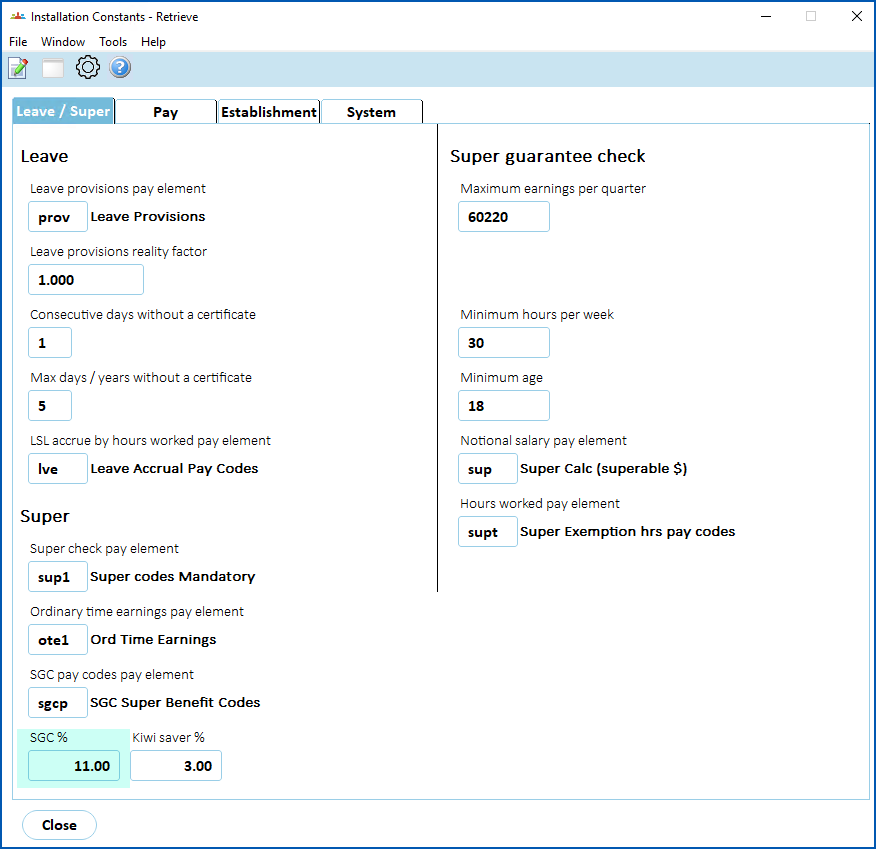
In Installation Constants, make sure the SGC% is set to the correct value. See [installation constants](/articles/ehr-user-guide/installation-constants) for instructions.
SGC% = Super Guarantee Contribution % - the contribution employers are required to make into a super fund on their employees' behalf.
| Next topic
[Set up termination reason codes (GESB)](/articles/ehr-user-guide/set-up-termination-reason-codes-gesb) |
| --- |
© 2023 Fusion5. All rights reserved.