---
title: "Self service passwords"
id: "self-service-passwords"
project: "EHR User Guide"
url: "https://help.cloud5.com.au/articles/ehr-user-guide/self-service-passwords"
updated: 2026-10-19T00:52:42Z
---
# Self service passwords
In EmpowerHR desktop, the Password Configuration screen lets you work with all user password settings from a single screen.
See [password configuration](/articles/ehr-user-guide/passwords/a/h2__1189155973) for more information about how to use the screen.
## Suspend user's (self service user)
You can suspend a self service user, preventing them from accessing EmpowerHR self service. While their access is revoked, their details are retained. Even though suspended, the user still appears in the **User Profiles** catalogue so you can reactivate (unsuspend) them, if required.
|  | See also: [suspend operator access (desktop user)](/articles/ehr-user-guide/passwords/a/h2_1094046930) |
| --- | --- |
To suspend a self service user's access:
1. Go to **Administration** > **Security** > **User Profiles**.
2. The **User Profiles** catalogue displays.
3. At **Search Filter**, complete the fields according to the type of search criteria you want to apply, and then click **Search** to see the results.
4. At the row containing the user, click **Actions** and then select **Edit** from the menu.
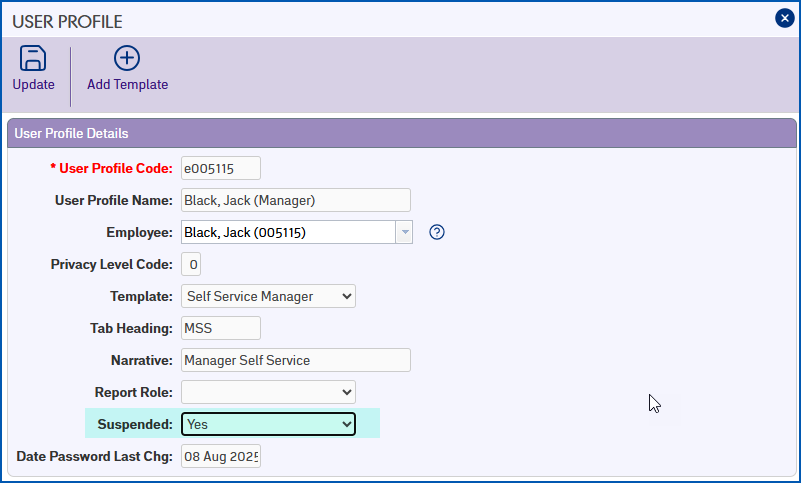
5. At the **User Profile** details screen, in the **Suspended** field, select **Yes** from the dropdown menu.
1. Click **Update**. EmpowerHR sends the user a suspension notification email.
## Unsuspend user access (self service user)
When a self service user's access is suspended, you can easily reactivate it by changing the **Suspended**flag to **No**.
|  | See also: [unsuspend operator access (desktop user)](/articles/ehr-user-guide/passwords/a/h2_499097395) |
| --- | --- |
To unsuspend (reactivate) a self service user's access:
1. Go to **Administration** > **Security** > **User Profiles**.
2. The **User Profiles** catalogue displays.
3. At **Search Filter**, complete the fields according to the type of search criteria you want to apply, and then click **Search** to see the results.
4. At the row containing the user, click **Actions** and then select **Edit** from the menu.
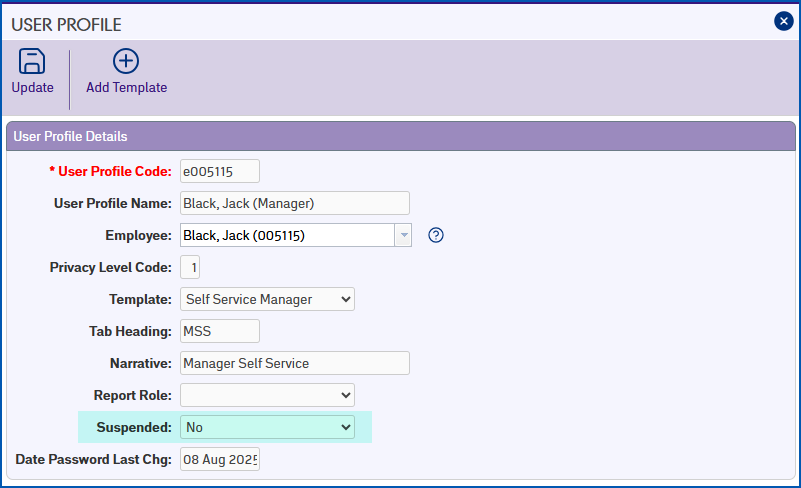
5. At the **User Profile** details screen, in the **Suspended** field, select **No**from the dropdown menu.
1. Click **Update**. EmpowerHR sends the user a password reset email.
| Next topic
[Web services](/articles/ehr-user-guide/web-services) |
| --- |
© 2023 Fusion5. All rights reserved.